
The Claim Detail Screen
The claim detail screen is the heart of Claimory. It is the full workspace for a single car, with the customer, the money, the timeline, the files, the messages, and the AI audit all in one place.
- Step 11
Read the header at a glance
The top of the screen shows the claim number (click to copy it for adjuster emails), the vehicle location selector, flag chips, and the customer and vehicle and insurance cards. A financial summary strip shows Parts, Labor, Total Cost, and Total Profit.
app.claimory.io/claims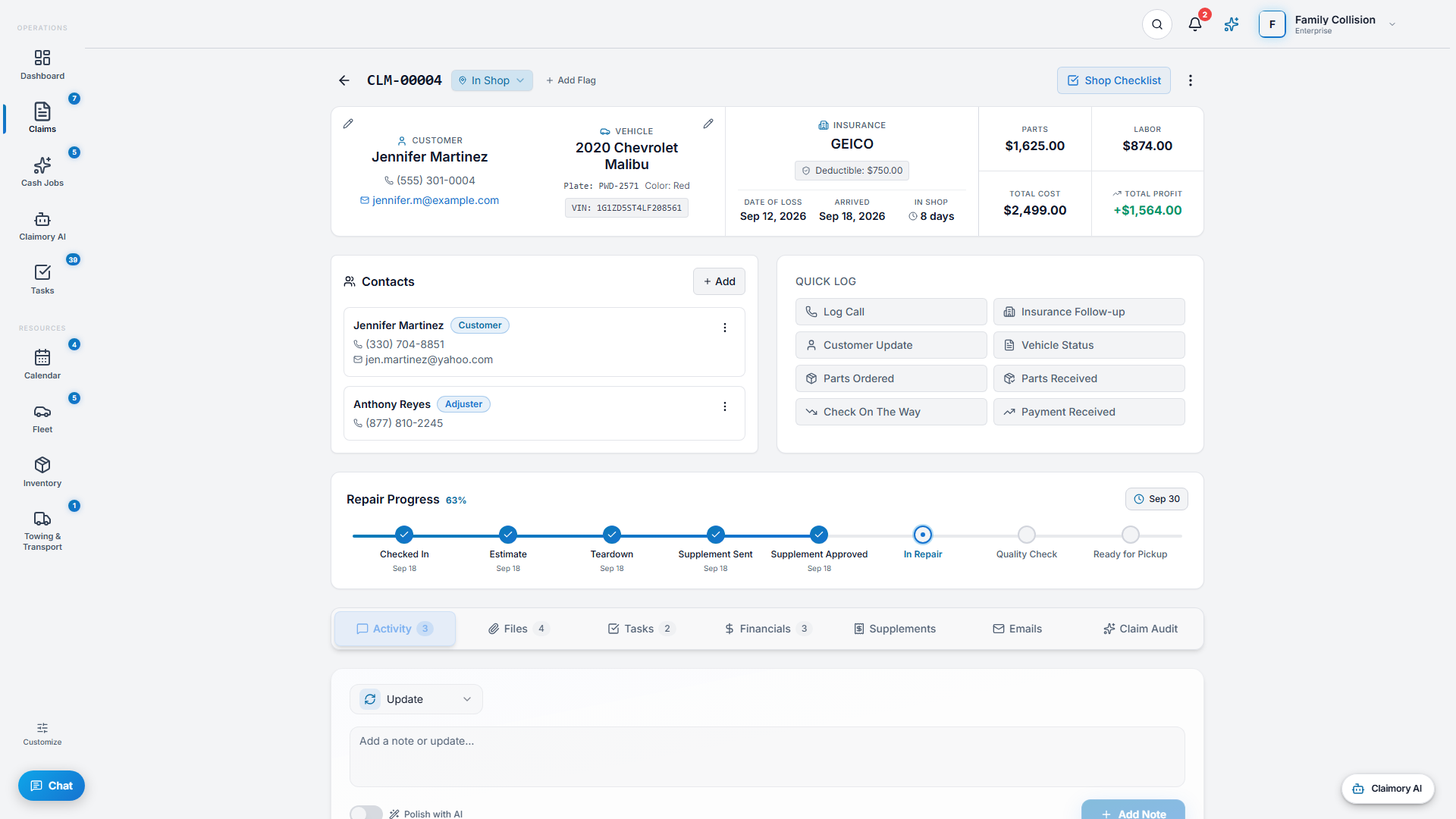
- Step 22
Activity: the timeline
The Activity tab is the running history of the claim: notes, phone calls, emails, issues, and customer and insurance updates. Status changes and payments appear here automatically. You can pin important notes and filter the timeline.
app.claimory.io/claims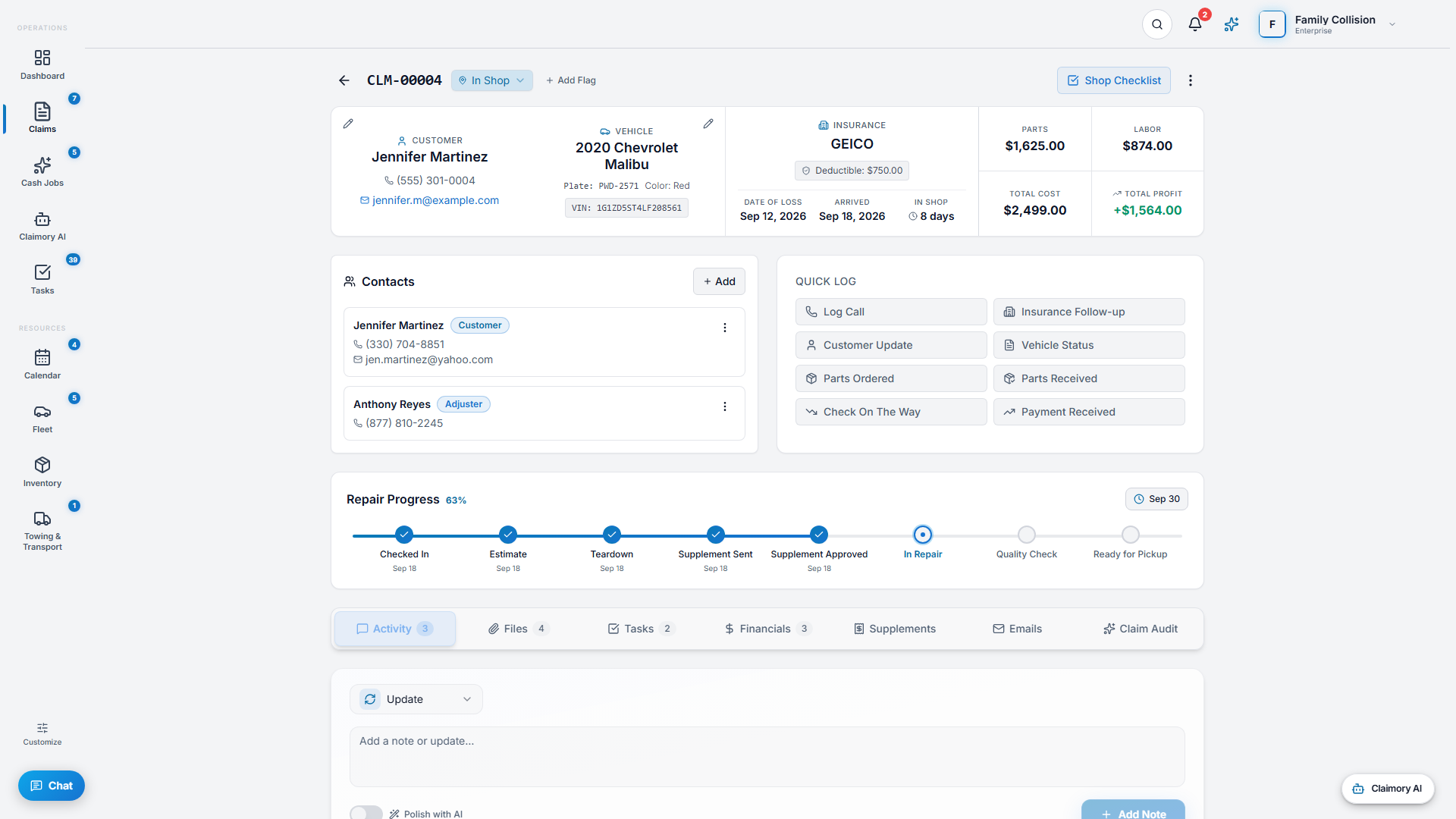
- Step 33
Files: photos and documents
The Files tab is where teardown photos and documents live. Images are compressed automatically when a claim closes so storage stays lean.
app.claimory.io/claims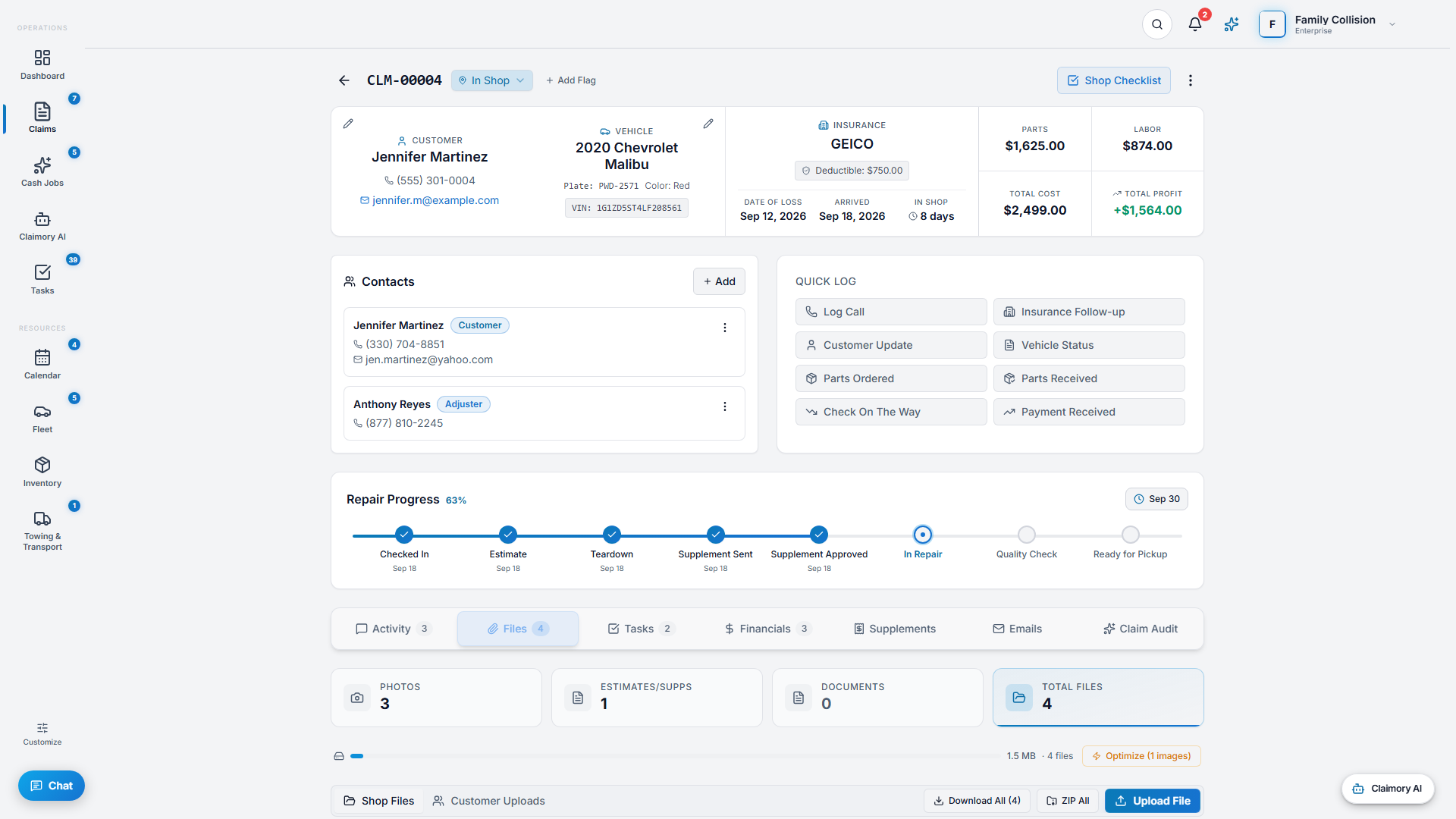
- Step 44
Financials: the money tab
The Financials tab holds the supplement tracker and the Add Entry menu: Add Cost, Log Labor, and Log Payment. Toggle Show Financial Intelligence to reveal the estimate breakdown and estimate-versus-actuals.
app.claimory.io/claims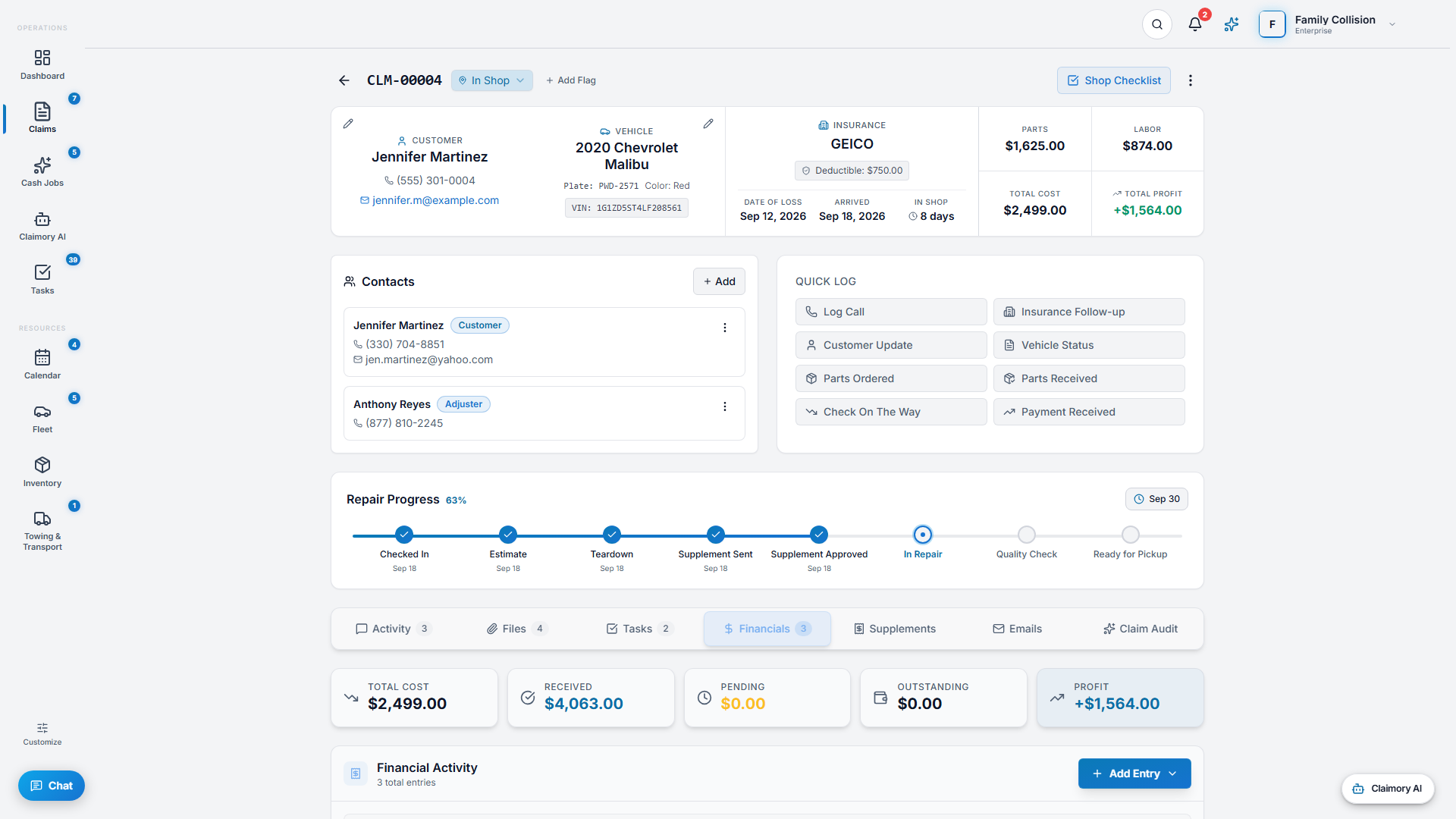
- Step 55
Emails and Tasks: in context
The Emails tab shows the email thread tied to this claim (the badge counts messages), and the Tasks tab shows to-dos scoped to this car, so nothing about the job lives outside the claim.
- Step 66
Claim Audit: your second set of eyes
On Professional and up, the Claim Audit tab runs an AI audit of the full claim and flags missed labor, blend time, R&I, OEM procedures, and supplement opportunities. The tab pulses when a new audit completes.
app.claimory.io/claims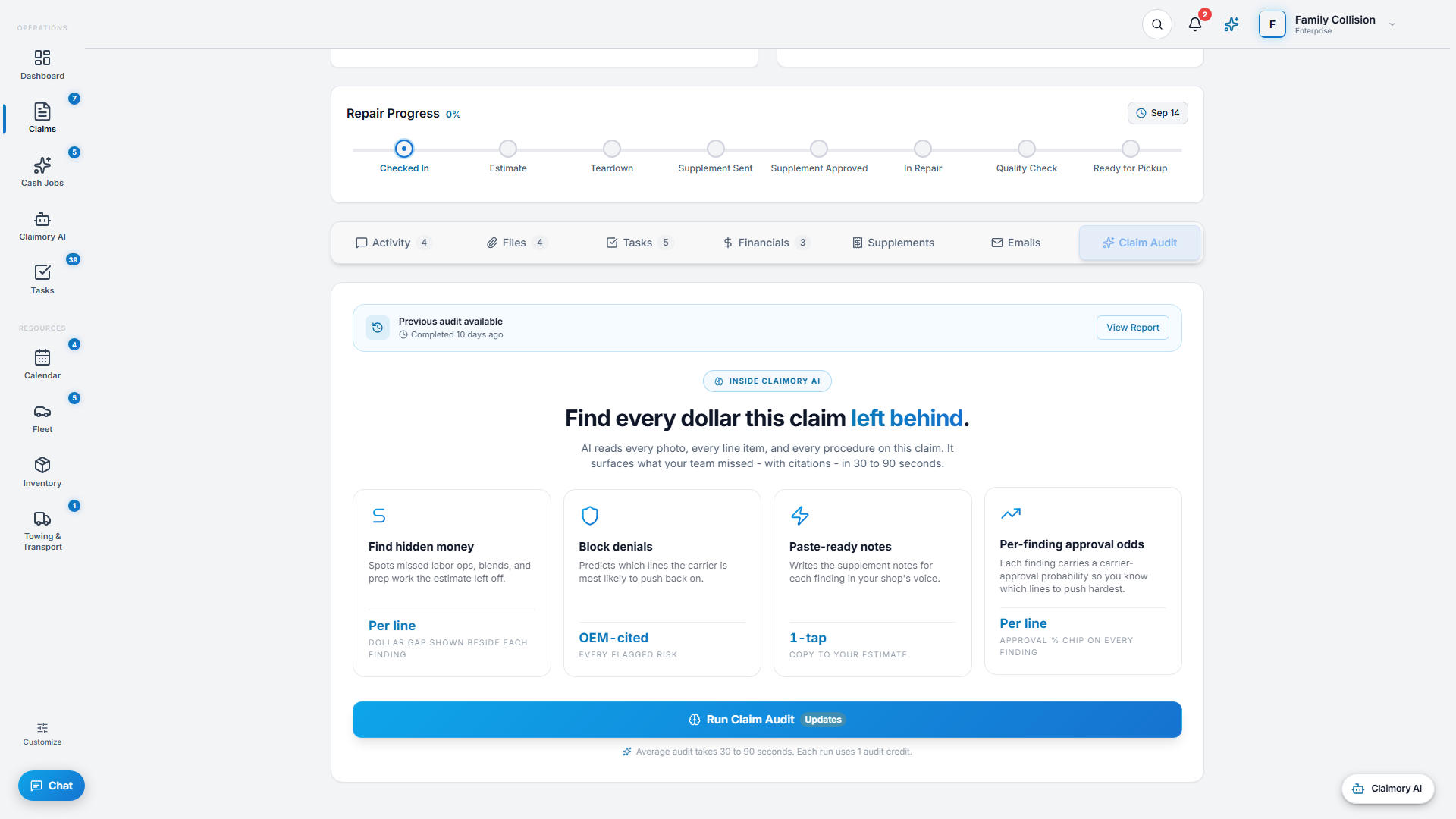
- Step 77
Use the actions menu
The kebab menu gathers the big actions on a claim.
- Edit Claim, Mark Complete (or Reopen), and Archive.
- Invite Customer (send a portal invite or QR code, or manage portal links), Contact Customer (email, or text once texting launches), and Send Payment Link.
- Export PDF, Mark as Total Loss, and Signatures (in person, send for signature, or edit signature templates).
- Request Assist to open a support ticket with the Claimory team.
app.claimory.io/claims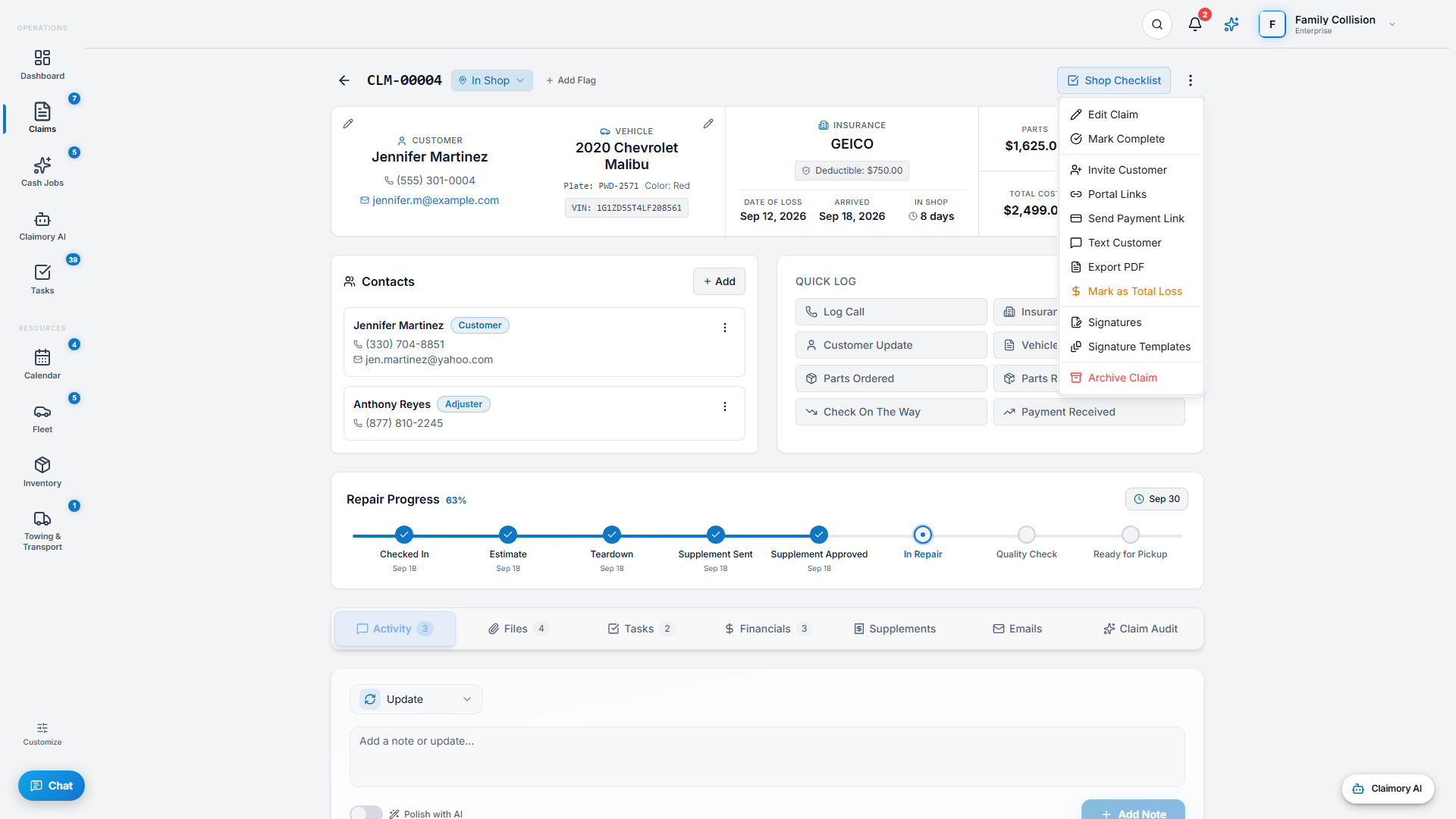


Common questions
Related tutorials
Ready to run your shop on Claimory?
Start a free 14-day trial. No credit card. The full Professional feature set, and an office manager onboarded in about 30 minutes.
No credit card. Works with CCC ONE and Mitchell.