
Notifications, sounds and quiet hours
The bell shows what needs you. Account, Notifications decides what reaches you, where, and when it stays quiet. Each person sets their own.
- 3 min read
- All plans
- Owner, Manager, Front desk, Estimator, Technician
What you get
- One list of what needs you today
- Alerts for the events you care about
- Quiet nights
Before you start
- Every plan and every role. You set your own alerts.
Step by step
0 done of 8 steps
Read your alerts
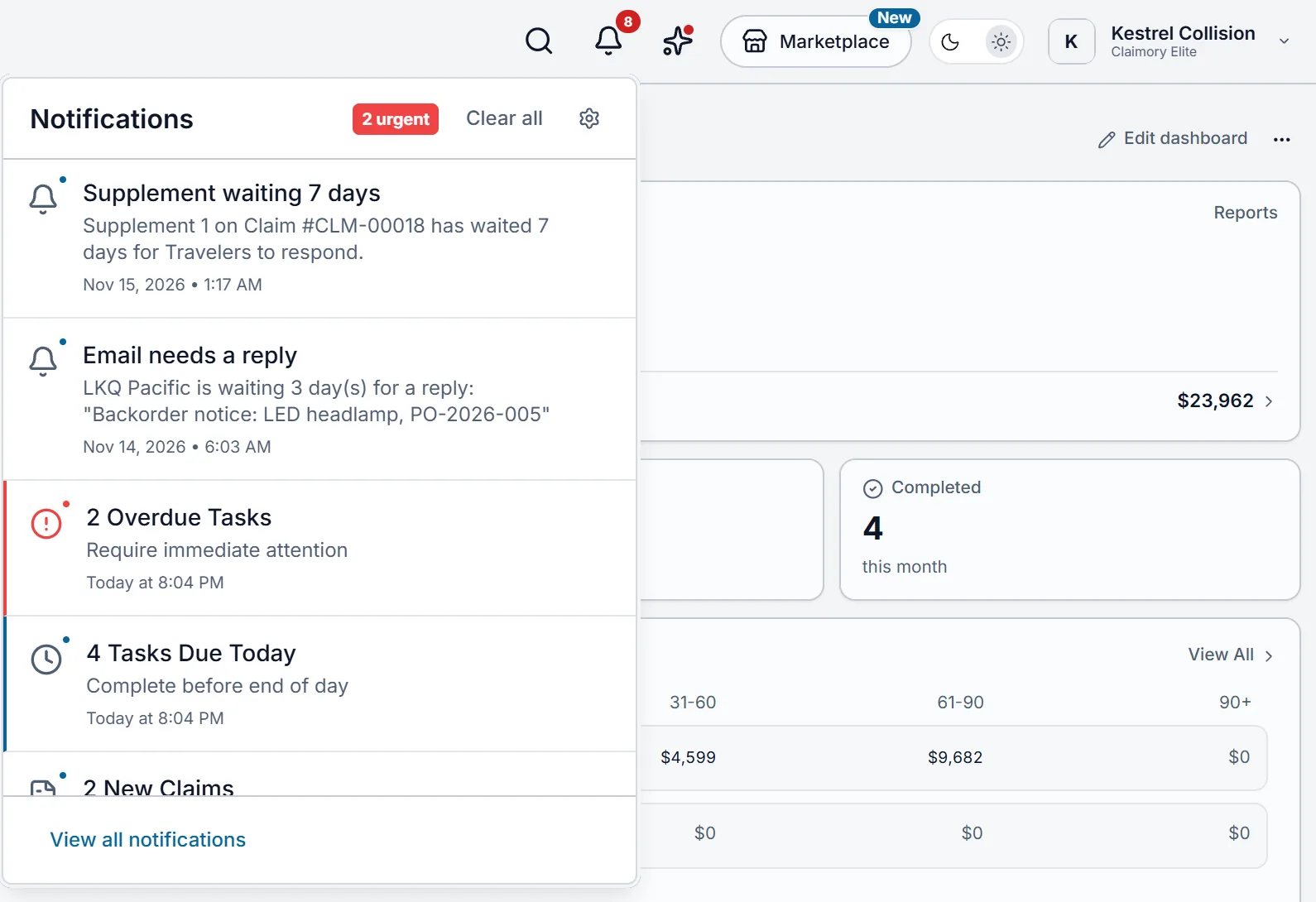
Press the bell
Press Notifications in the top bar, then View all notifications. On a phone, the bell in the header opens the page.
Read the Summary first
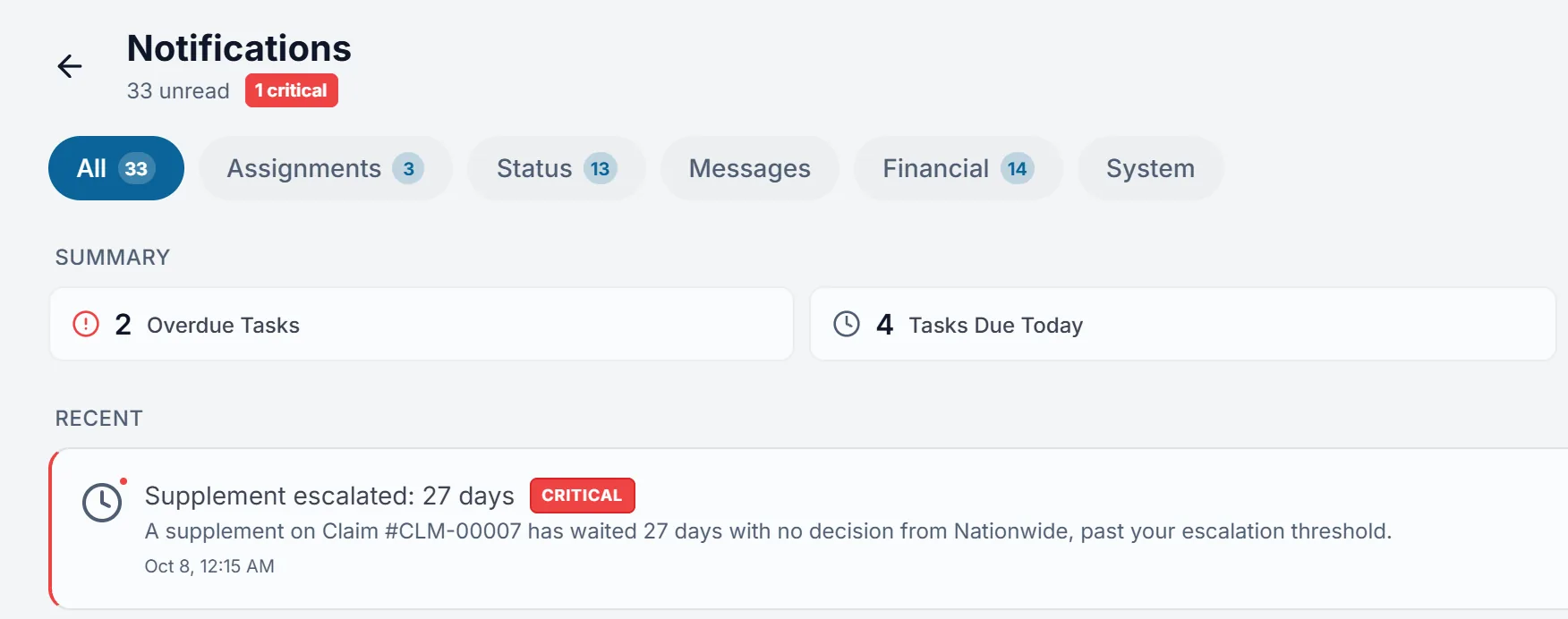
The Summary counts what you have: Overdue Tasks, Tasks Due Today, New Claims and Waiting on Insurance. Recent lists each alert, with tabs for Assignments, Status, Messages, Financial and System.
Press Mark all read
Mark all read clears the dots. Press an alert to open the thing it is about.

Choose your alerts
Open Notification settings
On the Notifications page press Notification settings, or open Account and then Notifications.

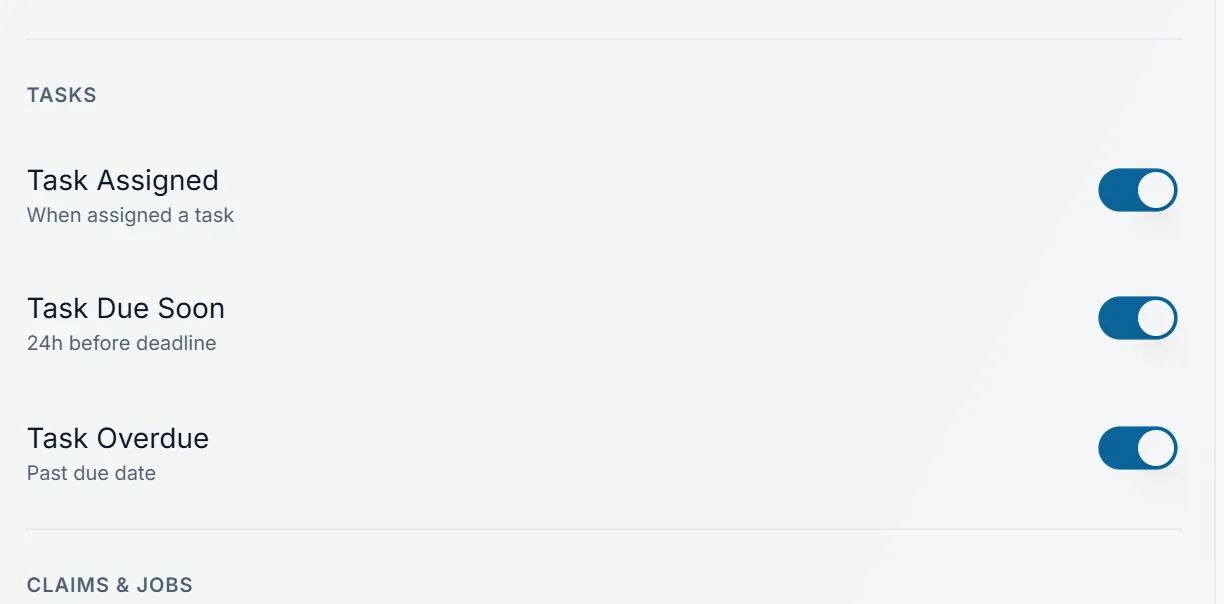
Switch each event on or off
Every switch is yours alone.
- Tasks: Task Assigned.
- Claims & Jobs: Claim Status Changed, Payment Received, Supplement Created, Supplement Approved, Supplement Aging, Parts Arrived.
- Communication: Document Uploaded, Team Mentions.
Know where an alert shows
A new alert pops up in the corner of Claimory with its sound, and stays in the bell until you read it.
Set the sound
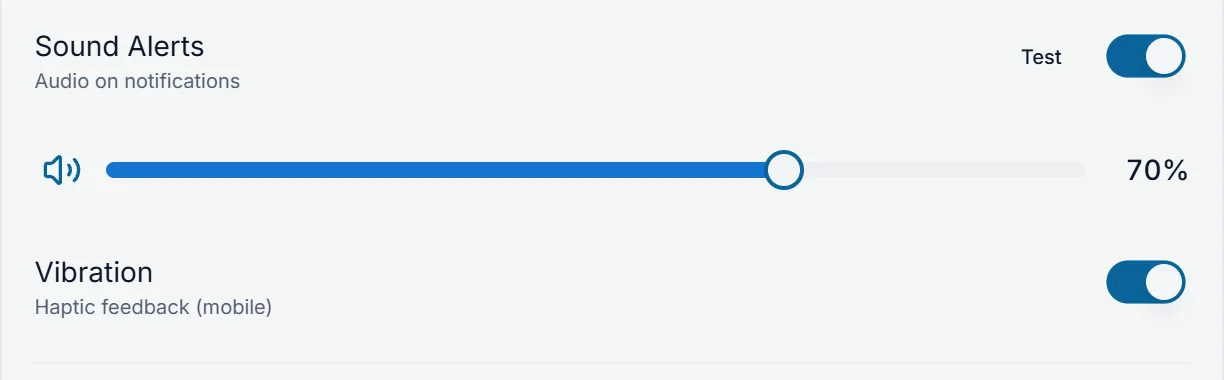
Under Delivery, switch Sound Alerts and Vibration on or off. Press Test to hear the sound and set Sound volume.
Set quiet hours
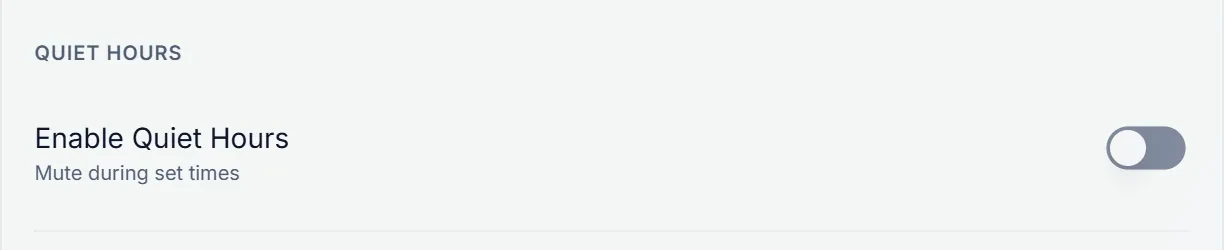
Turn on Enable Quiet Hours and set From and To. Alert sounds stay quiet between those hours. It starts at 10:00 PM to 8:00 AM.


Questions and fixes
Can I stop alerts at night?
Yes. Turn on Enable Quiet Hours in Claimory, Account, Notifications, and set From and To for the hours you want muted.
How do I set up automated notifications?
In Claimory, your own alerts are in Account, Notifications. What your customers receive is in Settings, Customer Notifications, and rules that act on their own are in workflow automation.
Do my settings change what my team sees?
Claimory alert settings belong to each person. Your team sets their own.
How do I get Claimory alerts on my phone?
Open Claimory on your phone and sign in. While it is open, a new alert pops up with its sound and vibration. The rest wait in the bell, with the unread count on it.
How do I see a daily summary of my shop?
Open the Claimory Dashboard each morning. Needs you today lists what is late or waiting on you, and This month money shows what came in and the checks on the way.
Emails from Claimory are not arriving
In Claimory, open Account, Security and check that your email is right and Verified. Then look in spam and junk, and add claimory.io to your safe senders.
The page says You're all caught up!
Nothing is unread in Claimory. Each tab, such as Financial or Messages, says the same when it is empty.
I hear nothing when an alert comes in
In Claimory, open Account, Notifications, switch on Sound Alerts, raise Sound volume and press Test. Check that Quiet Hours is off.
What to do next
- Your accountSet your name, password, language, date format and theme in Claimory, sign out of every device, download your data, or delete your account for good.
- Managing tasksCreate tasks in Claimory, assign them, link them to a claim, move them on the board and add the same task to every open claim at once.
- AutomationsBuild a rule in Claimory that makes a task, note, flag or alert when a claim or supplement changes, start from a template and check what each rule did.
- Still stuck?Open the Support Center to find the fix or write to a person.