
Share a claim with an adjuster or attorney
An adjuster gets a view-only link. An attorney can get the whole claim, minus what you hide, with messages back and forth. You can stop either one any time.
- 5 min read
- Professional and up
- Owner, Manager, Front desk, Estimator
What you get
- A 30-day link that opens one claim
- A shared claim the attorney reads, with messages back and forth
- The adjuster's supplement decision on the claim, with the add-on
Before you start
- Adjuster and attorney links start on Professional, and they are open during your free trial.
- Send to attorney works on every plan, on any claim that is not archived.
- Supplement decisions need the Adjuster Supplement Decisions add-on, on Professional and Elite.
- Have the claim number, the customer's last name, and the adjuster's or attorney's email.
Step by step
0 done of 9 steps
Give an adjuster a link
Open Portal Links
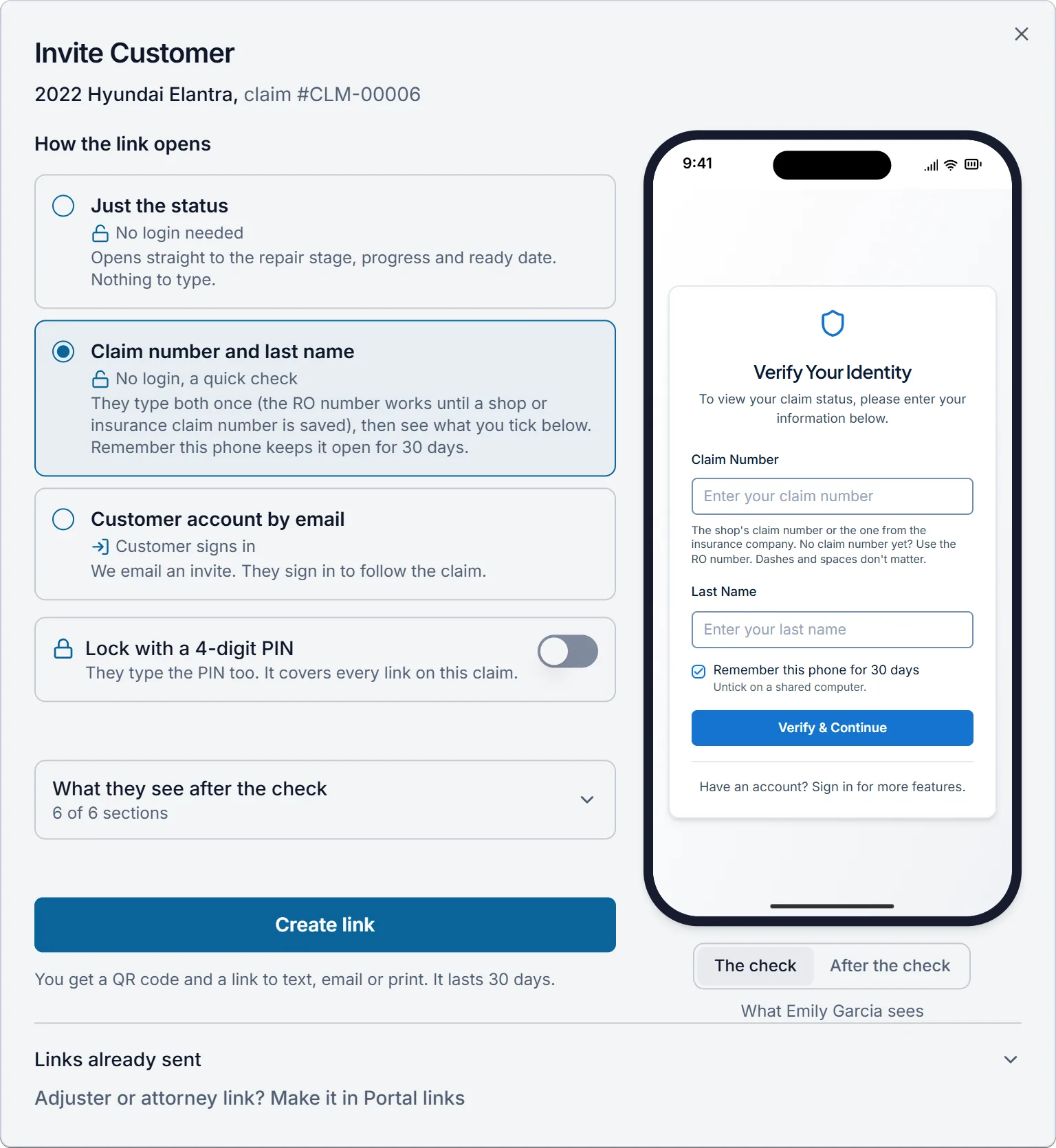
Open the claim, press the three-dot menu, then Invite Customer. At the bottom press Adjuster or attorney link? Make it in Portal links.
Make the link
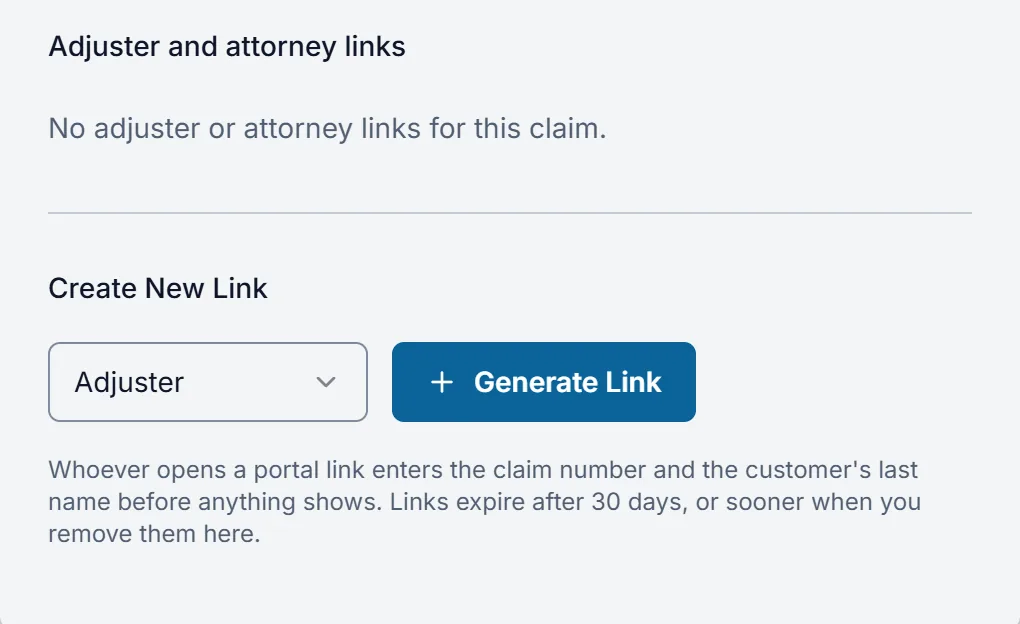
Under Create New Link pick Adjuster or Attorney, then press Generate Link. Press the copy icon and send the link yourself.
- They type the claim number and the customer's last name, and the 4-digit PIN if the claim has one.
- A link lasts 30 days.
Stop the link
Open Portal Links again and find the link under Adjuster and attorney links. Press the trash icon, then Confirm. You see Portal link revoked.
Send to an attorney
Press Send to attorney
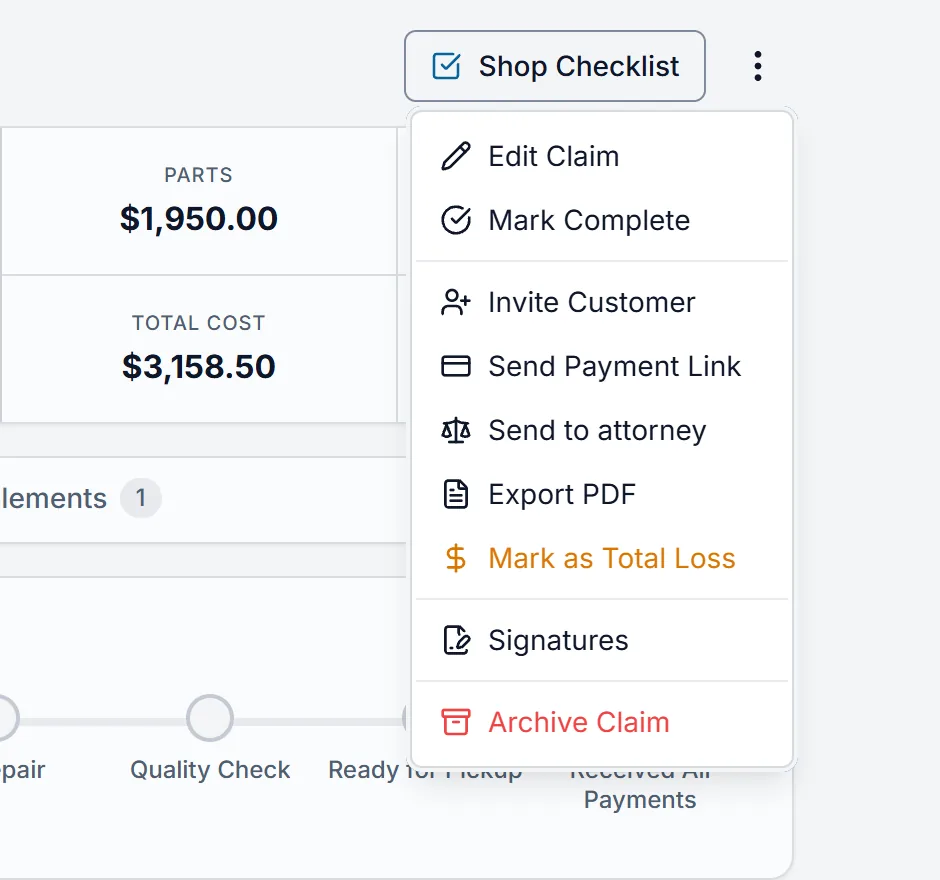
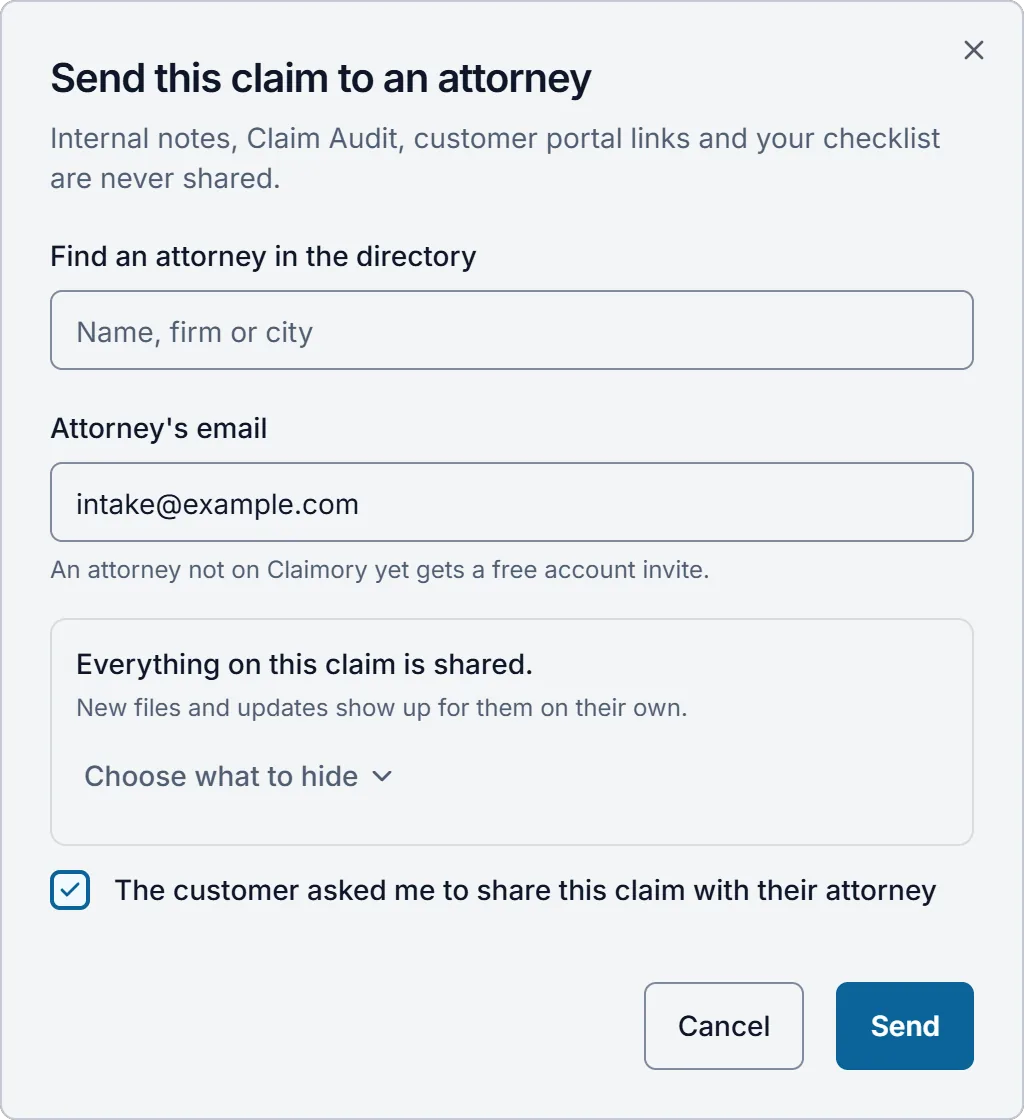
Open the claim, press the three-dot menu, then Send to attorney. Find the attorney by name, firm or city, or type the Attorney's email.
Choose what to hide
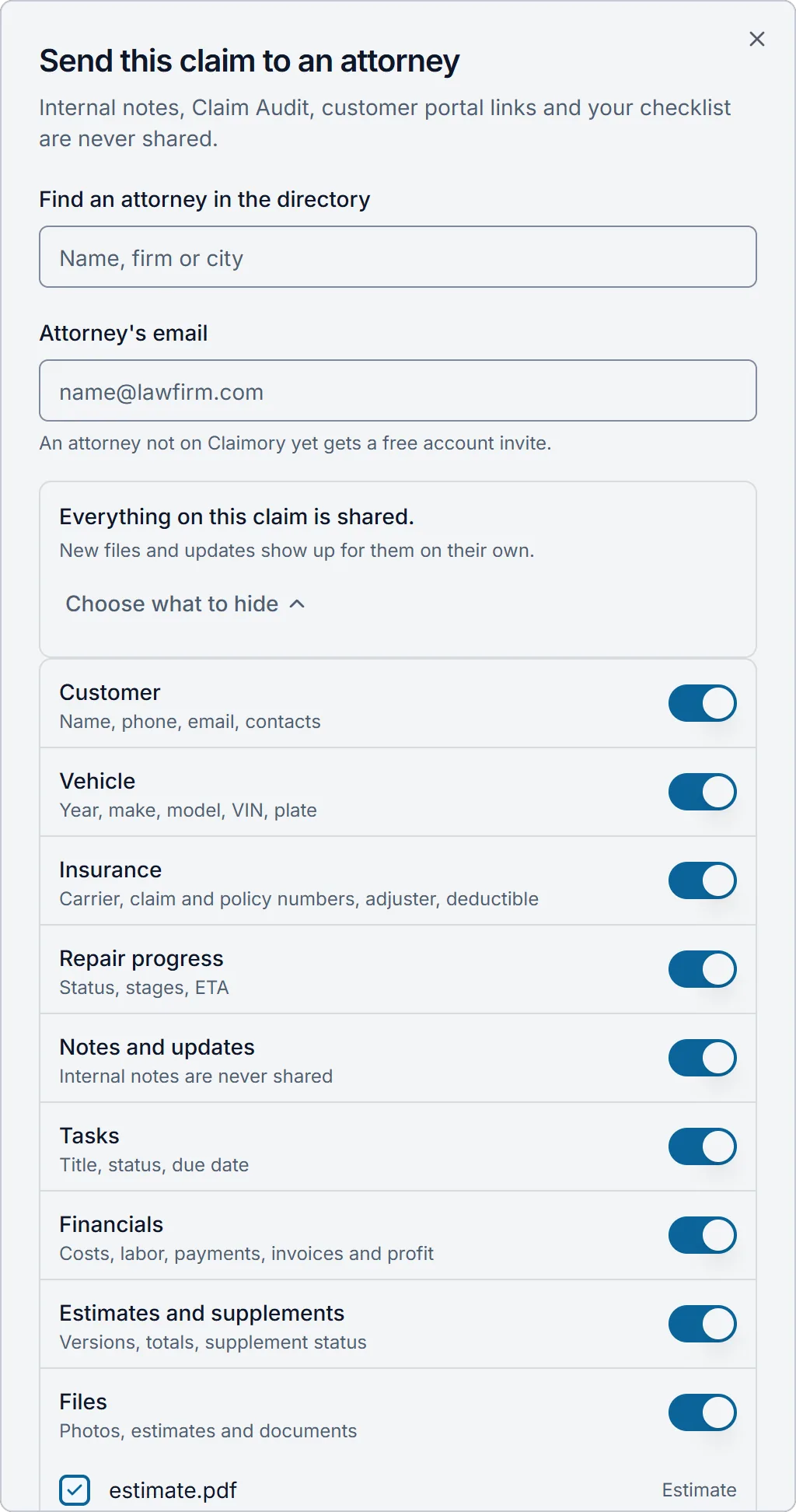
Everything on the claim is shared unless you hide it. Press Choose what to hide and switch off any section, or untick single files.
New files and updates show up for the attorney on their own. Only people who can see financials can share them.
Tick the box and press Send
Tick The customer asked me to share this claim with their attorney, then press Send. The first time, read the notice and sign your full name.
Message them, or stop sharing
The claim's menu now shows Attorney with the firm's name and a count of new messages. Press it to write, open What they can see, or open the three dots and press Stop sharing.
When the attorney asks for a document, press Upload file, then Mark done.
Supplement decisions
Mark the supplement sent and share the link
With the Adjuster Supplement Decisions add-on, open the Supplements tab and press Mark sent. In the message Marked sent. Send the adjuster their portal link? press Share link.
Read the decision and reply
The answer shows under the supplement with who made it. Type in Reply to the adjuster and press Reply to answer a question.
- Approved for, with the dollar amount.
- Approved in part for, with the dollar amount.
- Rejected, with the adjuster's reason.


Questions and fixes
What does an adjuster see on a Claimory link?
An adjuster on a Claimory link sees the claim status, the vehicle and VIN, estimate numbers with status and totals, and the status timeline. Internal notes, labor rates, costs and profit stay inside your shop.
Do adjusters need a Claimory account?
An adjuster opens a Claimory link with no account. They type the claim number, the customer's last name, and the PIN if the claim has one.
Can an adjuster approve or deny a supplement from a Claimory link?
Yes, with the Adjuster Supplement Decisions add-on and the signed notice. The adjuster presses Approve for all or part of the amount, Reject with a reason, or Ask a question, and the answer lands on the claim.
What does an attorney see when I press Send to attorney?
With Send to attorney in Claimory, the attorney sees everything on the claim except what you hide: customer, vehicle, insurance, repair progress, notes and updates, tasks, financials, estimates and supplements, and files. Internal notes, Claim Audit, customer portal links and your checklist are never shared.
What if the attorney has no Claimory account?
Claimory emails the attorney an invite to a free account. If the email stays behind, press Copy invite link and send it yourself.
How do I change what an attorney can see?
On the Claimory claim, press Attorney in the three-dot menu, then What they can see. Flip the switches and press Save. A file they already opened may stay open for up to a minute.
Where do I see every claim I shared with attorneys?
In Claimory, open your account menu and press Attorneys. You see connected firms, shared claims, open requests and unread messages.
How do I add the adjuster's name and phone to a claim?
On the Claimory claim's Overview tab, find Contacts and press Add. Type the name, pick the Adjuster role, and save. Press the star to show that contact on the claim card.
What is the Attorney directory switch in Settings?
In Claimory, open Settings, then Customer Notifications. Attorney directory lets your customers find an attorney from their repair page. Your shop recommends no one and earns nothing from it. Owners and managers on Professional or Elite can change it, and it shows once the directory has attorneys.
Adjusters can't decide in your portal until someone at your shop signs the notice.
Open the supplement on the claim's Supplements tab and press Sign on that line. Type your full name. One signature covers your whole shop.
No adjuster or attorney links for this claim.
Pick Adjuster or Attorney under Create New Link, then press Generate Link.
Could not load the adjuster's messages.
Reload the claim and open the supplement again.
Could not send your reply. Try again in a moment.
Your words stay in the box. Wait a moment and press Reply again.
The Send button stays gray, or Tick the box to confirm the customer asked for this.
Type the attorney's full email and tick The customer asked me to share this claim with their attorney. Then press Send.
Sign the sharing notice first, then send again.
Press Send again, sign your full name on the notice, and the claim goes out.
Enter the attorney's full email address.
Type the whole address, such as name@lawfirm.com, then press Send.
Write a message first (up to 4,000 characters).
Type something in the message box at the bottom of the attorney conversation, then press the send arrow.
That attorney is no longer in the directory. Type their email instead.
Press Change beside the attorney's name and type the email in Attorney's email.
The invite email did not go out
Press Copy invite link and send the link from your own email. Later, open Attorney in the claim's menu, press the three dots and press Email the invite again.
Invite not accepted yet
Ask the attorney to open the invite email and accept. To send it again, press the three dots, then Email the invite again or Copy invite link.
Failed to generate portal link
Check your internet connection and press Generate Link again.
What to do next
- For outside partnersOpen the Claimory claim a body shop shared with you as an adjuster or attorney, answer a supplement, message the shop, or sign a rental agreement.
- SupplementsCreate a supplement in Claimory at teardown, mark it sent, watch how many days the carrier takes, and record what was approved, cut or denied.
- Customer portalSend a customer a Claimory repair link or QR code, choose what they see, lock it with a PIN, stop it any time, and set the automatic update emails.
- Still stuck?Open the Support Center to find the fix or write to a person.