
Connect Gmail to Claimory
Connect your Gmail once and claim email comes into Claimory. Google gives you a 16-letter app password made just for Claimory, so your regular password stays with Google.
- 5 min read
- Professional and up
- Owner, Manager
What you get
- Your shop's Gmail inside Claimory
- Your most recent emails synced right away
- Older mail when you want it, up to 180 days back
Before you start
- Email starts on Professional.
- An owner, admin or manager connects the mailbox.
- You need to sign in to that Google account, with your phone nearby.
Step by step
0 done of 8 steps
Connect
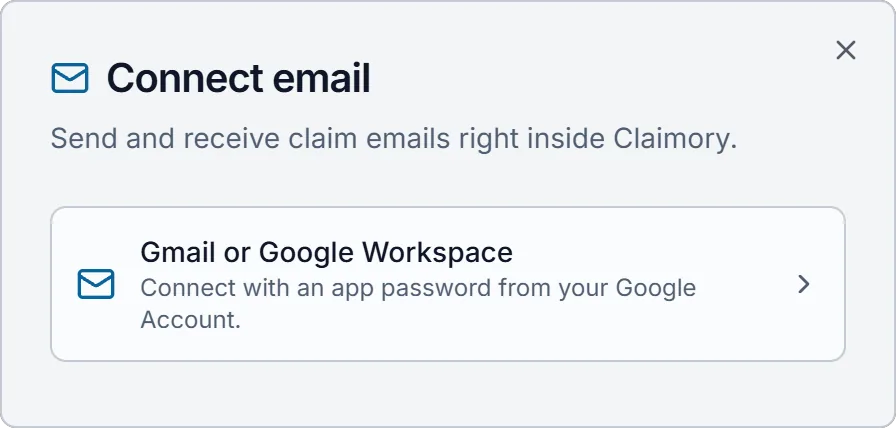
Press Connect email
Open Settings, then Integrations. In Email Integration, press Connect email, or Add another if you already have one. Press Gmail or Google Workspace.
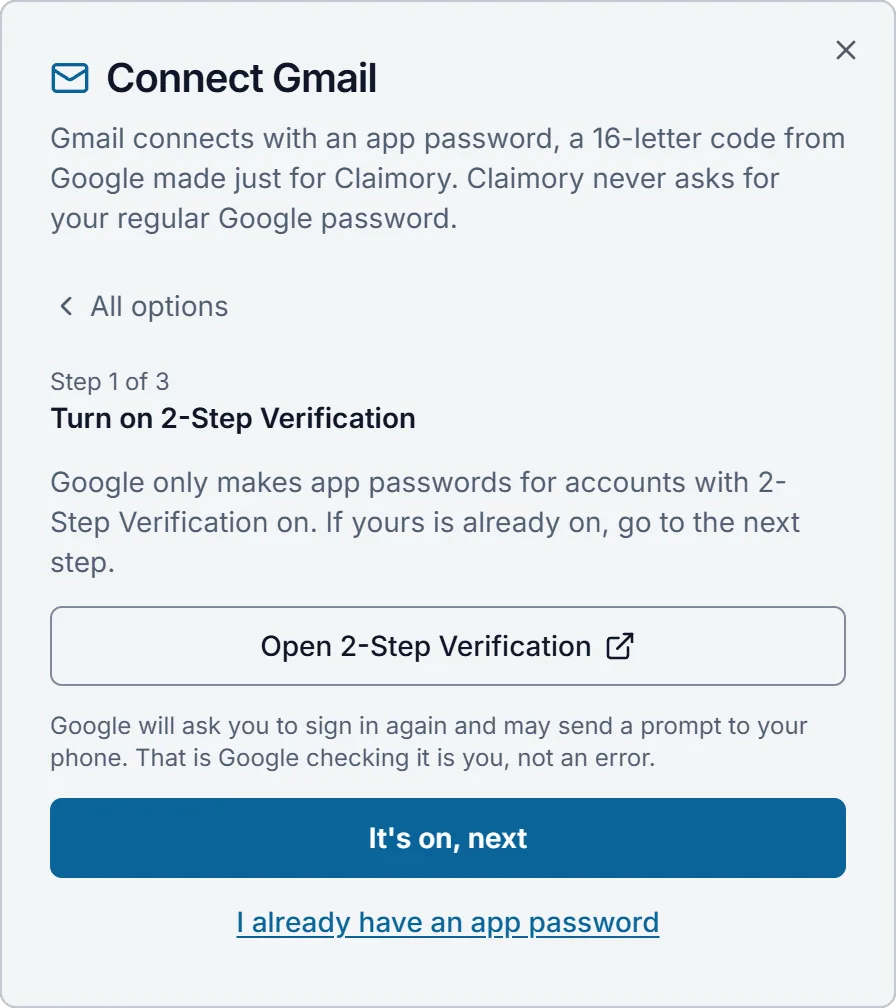
Turn on 2-Step Verification
Press Open 2-Step Verification and turn it on at Google. Come back and press It's on, next.
Google may ask you to sign in again or send a prompt to your phone. That is Google checking it is you.
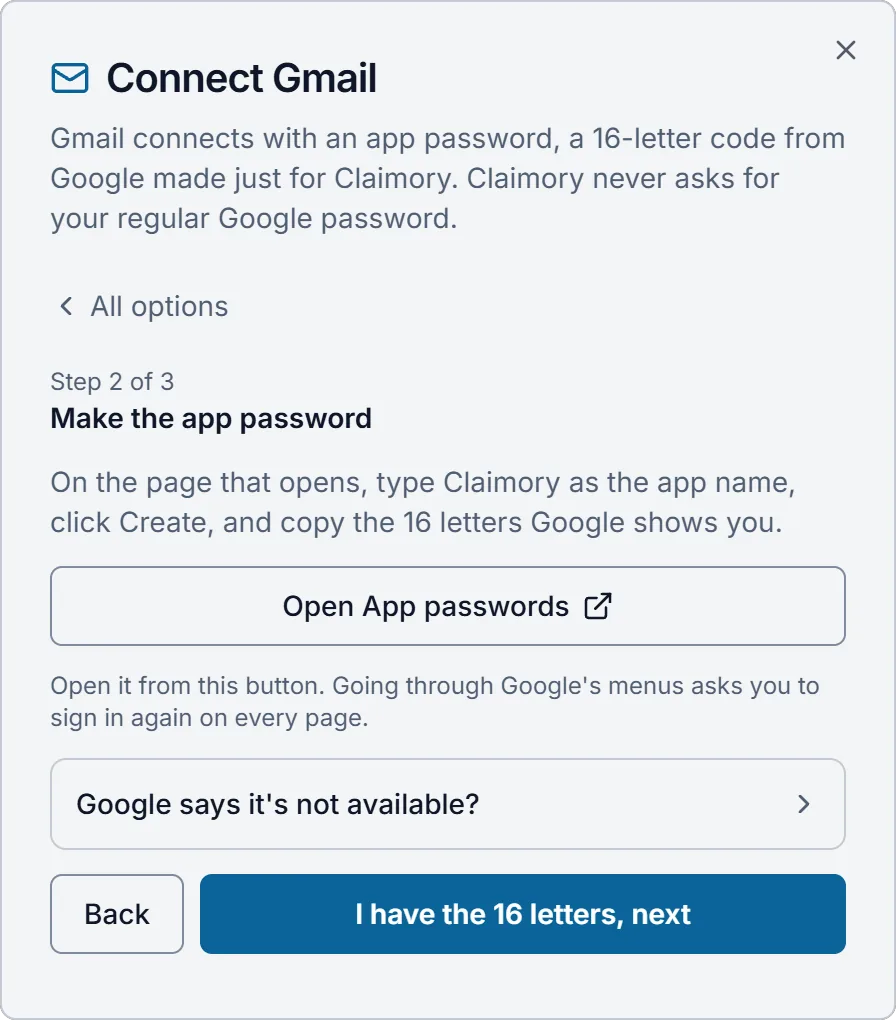
Make the app password
Press Open App passwords. Type Claimory as the app name, press Create and copy the 16 letters. Come back and press I have the 16 letters, next.
Already have one? Press I already have an app password on step 1.
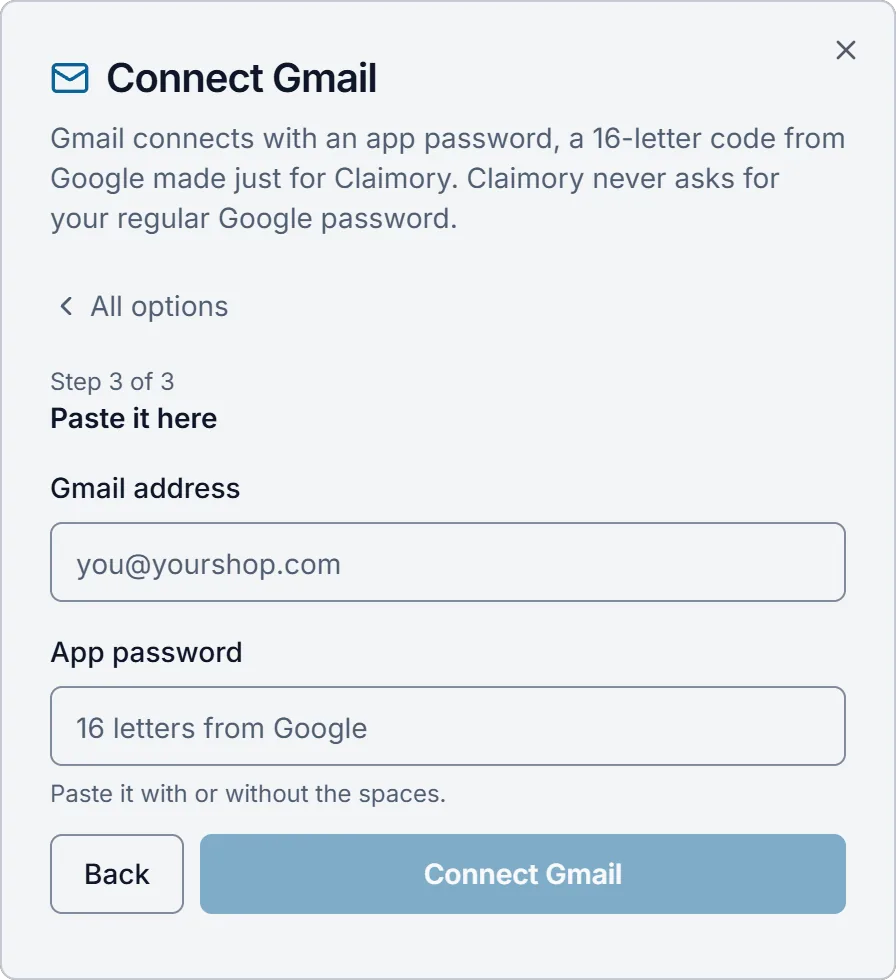
Paste it and connect
Type your Gmail address, paste the 16 letters in App password and press Connect Gmail. It says Checking with Google, then Gmail connected.
Paste it with or without the spaces.
After you connect
Pull older mail
In Settings, Integrations, find the mailbox under Mailboxes. Press Older mail and pick the last 60, 90 or 180 days. It comes in while you work.
The person who connected the mailbox sees Older mail.
Pick what syncs
Open Email, pick the mailbox and press Settings at the bottom left. Primary always syncs. Turn on Sync Promotions, Sync Social or Sync Updates if you want them too. Press Save Changes.
The person who connected the mailbox saves these.
Keep it running
Reconnect a mailbox
If the mailbox says Reconnect needed, press Reconnect with an app password. Make a fresh app password and paste it.

Disconnect a mailbox
Under Mailboxes, press Disconnect beside the address. Account Disconnected shows when it is done.
The person who connected the mailbox disconnects it, and it happens as soon as they press it.



Questions and fixes
Does Claimory ask for my Google password?
Claimory never asks for your regular Google password. Gmail connects with an app password, 16 letters from Google made just for Claimory, stored encrypted.
Can I connect a Google Workspace address to Claimory?
Yes. Claimory connects Google Workspace addresses the same way as Gmail. Your company's Google admin has to allow app passwords and IMAP.
Which Gmail folders does Claimory sync?
By default, Claimory syncs your Primary inbox. Email Settings has switches for Promotions, Social and Updates, which add more mail to your inbox.
Where do I turn off Claimory's email sounds?
In Claimory Email, press Settings at the bottom left and turn off Sound Effects, then press Save Changes.
How far back does my Claimory email go?
Claimory shows Mail goes back to a date under each mailbox in Settings, Integrations. Press Older mail to reach up to 180 days back.
What happens to my Gmail when I disconnect it from Claimory?
Your mail stays in Gmail. The mailbox leaves Claimory's account list and stops syncing until you connect it again.
Should I forward my Gmail or connect it?
Connect it. Claimory then reads and sends from your own Gmail address, so every reply stays in one thread. To send website form emails to Claimory, use Forward form emails in Appointments, Setup.
Google says it's not available?
Press that line in step 2 and follow the reason that fits you. Just turned on 2-Step Verification: wait a few minutes. Only a security key or passkey: add the Google prompt on your phone. Company account: ask its Google admin to allow app passwords. Advanced Protection on: connect another Gmail.
Paste the 16-letter app password from Google.
The App password box is empty. Copy the 16 letters from Google's App passwords page and paste them.
That app password has characters Google never uses.
Copy the app password again from Google, paste it and press Connect Gmail.
Enter the full Gmail or Google Workspace address
Type the whole address, such as you@yourshop.com, then press Connect Gmail.
Enter your Gmail address and app password, then try again.
Fill both boxes, then press Connect Gmail.
That looks like your regular Google password.
Press Back, then Open App passwords. Make one named Claimory and paste its 16 letters.
Google did not accept that app password.
Copy all 16 letters again and check they were made for the address you typed. For a company address, ask the Google admin to allow app passwords and IMAP. If unsure, make a new app password.
App passwords need 2-Step Verification
Turn on 2-Step Verification in your Google Account, make an app password, then paste it.
IMAP is turned off for this address.
Ask your Google Workspace admin to allow IMAP. Then press Connect Gmail again.
Google is temporarily refusing the sign-in.
Wait a few minutes and try again. If it keeps happening, sign in to Gmail in a browser once and confirm it was you.
Too many connection attempts.
Wait the minutes the message names, or a few minutes, then try again.
Claimory could not check recent connection attempts. Try again in a minute.
Wait a minute, then press Connect Gmail again.
Only an owner, admin or manager of this shop can connect a mailbox.
Ask an owner, admin or manager to connect the mailbox in Settings, Integrations.
Connecting a mailbox is part of Professional and Elite
Press View plans and pick Professional or Elite. Then connect Gmail.
Your subscription is not active.
Open Billing and choose a plan or update your card. Then connect Gmail.
That address is already connected by a teammate.
That mailbox is already on your shop's Claimory. Open Email and pick it in the account menu.
That address is already connected another way.
Have the person who connected it press Disconnect beside the address under Mailboxes, then connect it again.
Claimory could not reach Gmail right now.
Wait a minute and press Connect Gmail again.
Could not connect the mailbox. Try again in a minute.
Wait a minute and try again. If it keeps happening, contact Claimory support.
Claimory could not tell which shop this is for.
Reload the page, open Settings, Integrations and connect again.
Your session has expired.
Sign in to Claimory again, then connect Gmail.
Reconnect needed
Press Reconnect with an app password beside the mailbox and paste a fresh 16-letter app password. Email shows the same mailbox as Reconnect required.
Sync error
Read the red line under the address, then press Sync to try again.
Could not pull older mail
Wait a minute, then press Older mail again.
What to do next
- Email HubRead, answer and send shop email inside Claimory, link each message to its claim, save attachments, use templates and sort mail with rules.
- Shop settingsSet up your shop in Claimory: name, address, logo, labor rates, customer emails and payments, and find the screen that holds each shop setting.
- Two-step verificationTurn on two-step verification for your Claimory login, sign in with a 6-digit code, and know what to press if your phone is ever lost or replaced.
- Still stuck?Open the Support Center to find the fix or write to a person.