
Two-step verification and lost phones
Two-step verification asks for a 6-digit code from your phone after your password. Set it up once on your own login. Each person on the team sets up their own.
- 3 min read
- All plans
- Owner, Manager, Front desk, Estimator, Technician
What you get
- A login that needs your password and your phone
- A clear path back in when a phone is lost
Before you start
- Every plan and every role. You are signed in to your own Claimory account.
- An authenticator app on your phone, such as Google Authenticator, Authy or 1Password.
Step by step
0 done of 7 steps
Turn it on
Open Account, Security
Open the account menu, press Account and open Security. Find Two-Factor Authentication and press Set Up 2FA.
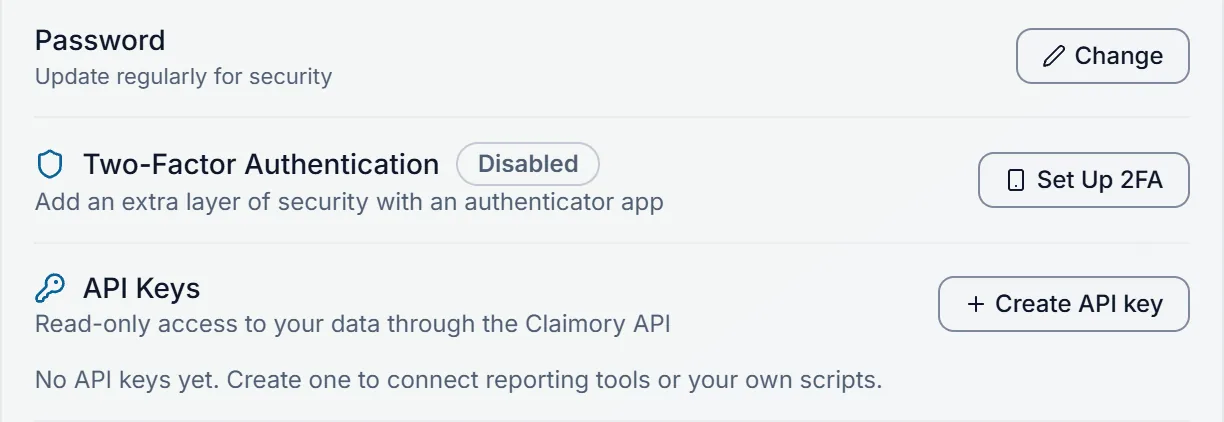
Press Continue and scan the QR code
Press Continue, then scan the QR code with your authenticator app.
Setting up on the same phone? Copy the code under Can't scan? Enter this code manually, and paste it in your authenticator app.
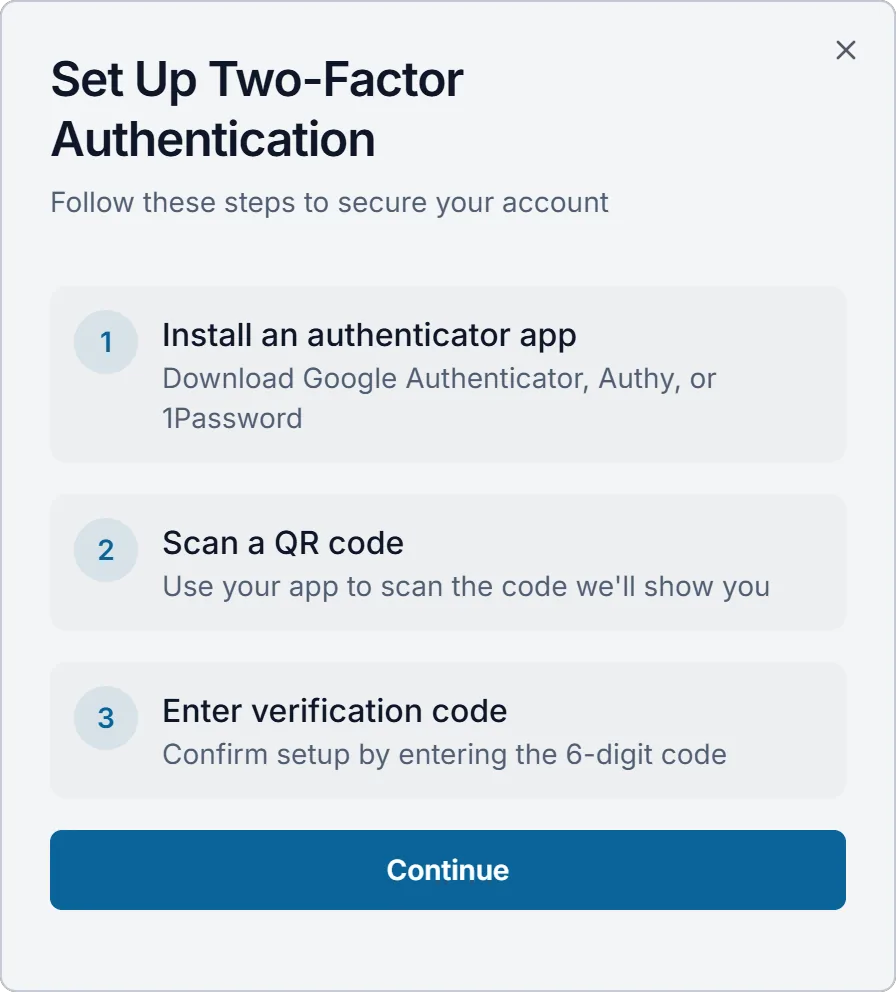
Type the 6-digit code
Press I've scanned the code. Type the 6 digits your app shows and press Verify and Enable. Press Done.
Sign in with a code from now on
Sign in with your email and password. On the Two-step verification screen, type the 6 digits from your app and press Verify.
Lost or new phone
Sign the lost phone out
On a device where you are still signed in, open Account, Security, Sessions and press Sign out all. Then sign back in and change your password.
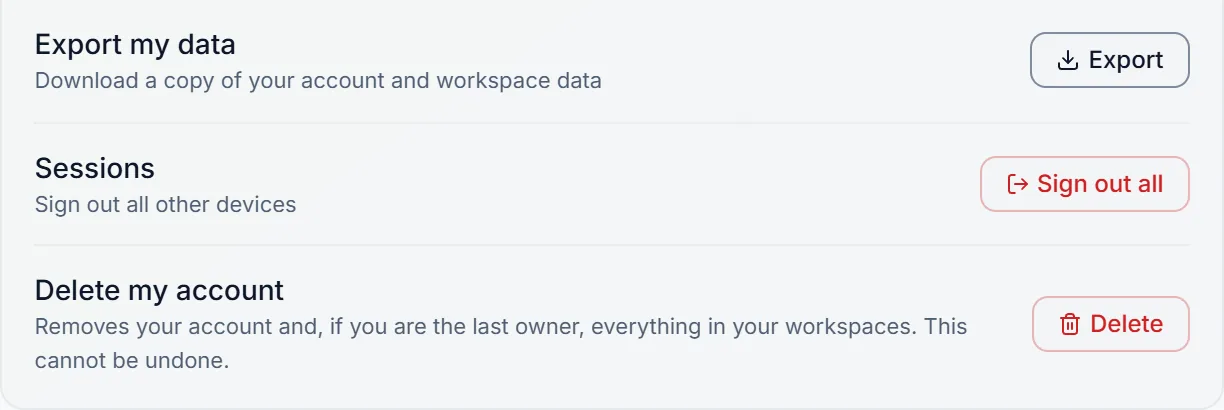
Ask Claimory to restore access
At the code screen, press Sign out. Email support@claimory.io from the address on your account, or call (810) 692-5246.
Getting a new phone? Turn two-step verification off on the old one first, then set it up again on the new one.
Turn it off
Press Disable 2FA
Open Account, Security and press Disable 2FA. Type the 6-digit code from your app and press Disable 2FA again.


Questions and fixes
Does Claimory give backup codes?
Claimory support is the way back in. Keep access to your authenticator app, and if you lose it, write support@claimory.io from the address on your account.
Which authenticator apps work?
Claimory works with any authenticator app that scans a QR code, such as Google Authenticator, Authy or 1Password.
When will Claimory ask for a code?
Claimory asks for the 6-digit code at sign-in, after your email and password.
Failed to set up 2FA
Close the window, press Set Up 2FA again and scan the new QR code. Type the fresh 6-digit code Claimory asks for.
Invalid verification code
Type the 6 digits your authenticator app shows right now for Claimory. Codes change often, so wait for the next one if it is about to change, and set your phone's clock to automatic.
The Verify button stays gray
The Claimory Verify button turns on once all 6 digits are typed.
I lost my phone or my authenticator app
Press Sign out on the Claimory code screen. Email support@claimory.io from the address on your account, or call (810) 692-5246, and support helps you restore access.
Failed to disable 2FA
Type the current 6-digit Claimory code from your authenticator app and press Disable 2FA again.
The Financial Center needs two-step login
Open Account, Security and press Set Up 2FA. Once your Claimory login has two-step verification, open the Financial Center again.
What to do next
- Sign in and passwordsSign in to Claimory with your email or Google, reset a password you forgot, and fix every message the sign-in page can show you, one step at a time.
- Your accountSet your name, password, language, date format and theme in Claimory, sign out of every device, download your data, or delete your account for good.
- Data and securitySee what Claimory keeps on a claim, who in your shop can open it, how it is protected, and how to download a copy of your data on any plan you are on.
- Still stuck?Open the Support Center to find the fix or write to a person.