
Set what each role can see and do
Every person in Claimory has a role. Change one person's role in their row, or change what a whole role can do on Elite.
- 3 min read
- Managers and admins
- Owner, Manager
What you get
- Money kept to the people who should see it
- One switch for each thing a role can do
- A view of all roles side by side
Before you start
- Any plan to change a person's role. Elite to change what a role can do.
- Owner, admin or manager to change a person's role. The owner, shown as Admin, for the permission switches.
Step by step
0 done of 5 steps
Change one person's role
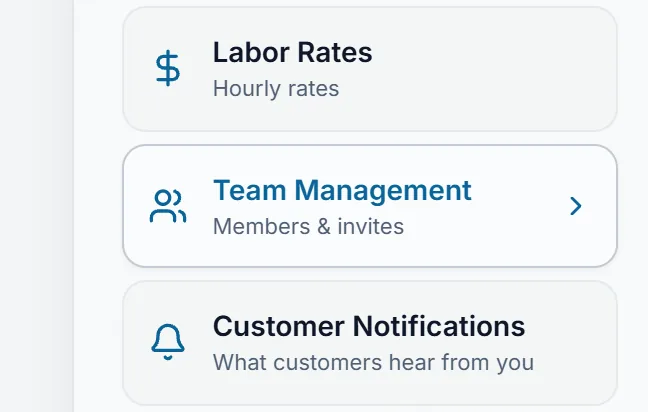
Open Team Management
Press your shop's name in the top right corner, then Workspace, then Team Management.
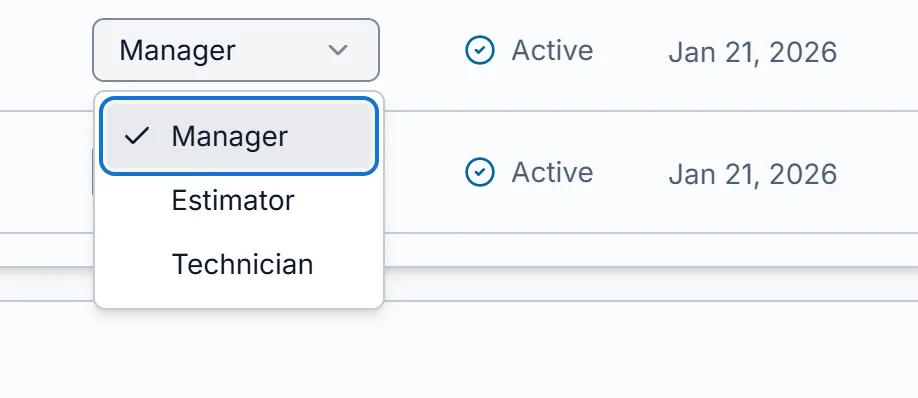
Pick the role in the person's row
Open the Role list in their row and choose Manager, Estimator or Technician. Claimory saves right away and says Role updated successfully.
Change what a role can do
Scroll to Roles & Permissions
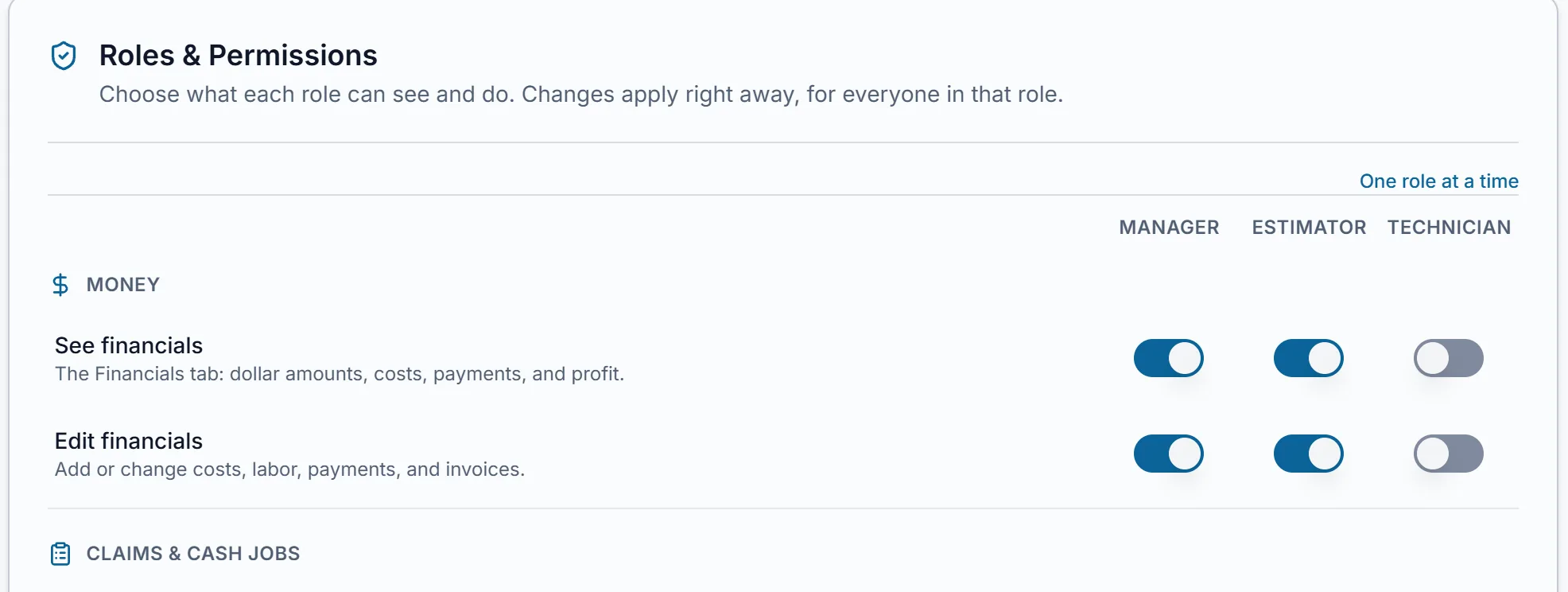
Roles & Permissions is under the team list. Press Manager, Estimator or Technician.
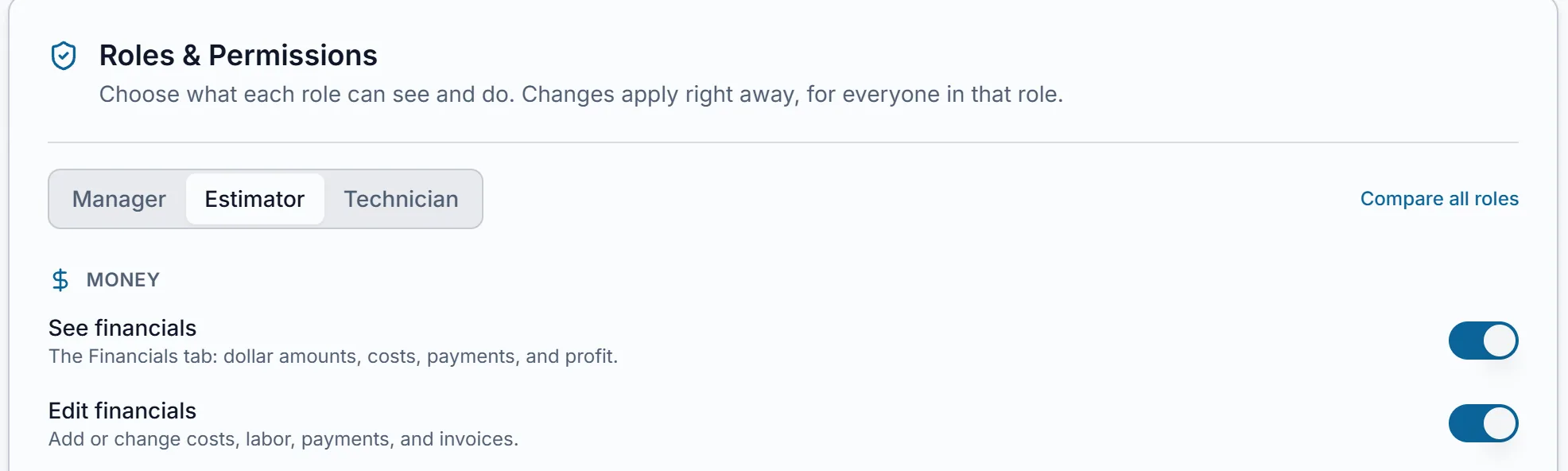
Flip a switch
Turn each permission on or off. The change applies right away to everyone in that role.
- Money: See financials, Edit financials.
- Claims & cash jobs: Create, Edit, Archive.
- Appointments: See leads.
- Workspace: See reports, Manage team, Manage time clock, Settings & billing.
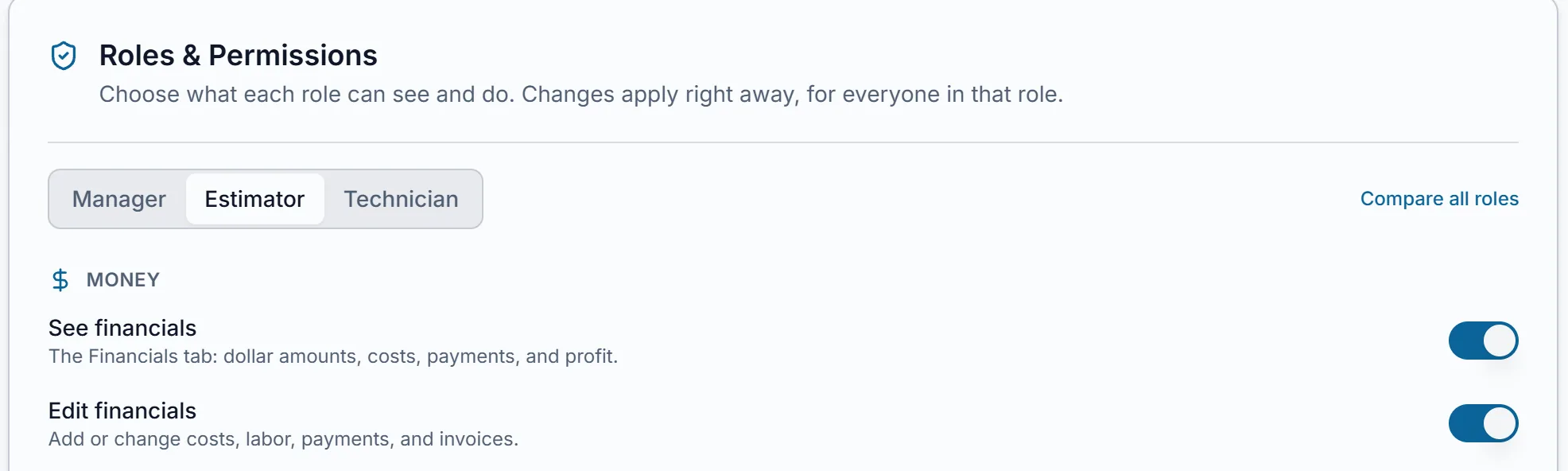
Press Compare all roles to check
Claimory shows the three roles side by side. Press One role at a time to go back.


Questions and fixes
Which roles can I give a new team member?
Manager, for the team and claims. Estimator, for claims and estimates. Technician, for repair work. To add a second Admin with full control, email support@claimory.io and Claimory support sets it up.
What can each Claimory role see by default?
Admin and Manager: everything, including money, reports, team, settings and billing. Estimator: financials, new claims, reports and leads, and edits on claims they own or are assigned to. Technician: assigned work, with money hidden.
Who can see my shop's money in Claimory?
Admins, managers and estimators see financials to start, and technicians see their work with no dollar amounts. On Elite the owner turns See financials on or off for each role. A customer sees an estimate total or a balance only when someone at your shop shares it on their link, and never sees your costs.
Can the owner be limited?
No. The owner always has full access to the shop in Claimory.
When does a role change take effect?
Right away. The new role counts as soon as Claimory says Role updated successfully, and a permission switch applies to everyone in that role at once.
Custom role permissions start on Elite
Open Billing and choose Elite to change what a role can do. On other plans each role keeps its starting permissions.
Couldn't update that permission. Please try again.
Flip the switch again. If the message comes back, refresh the page and try once more.
Role permissions aren't available yet. Please refresh in a moment.
Wait a moment and refresh Team Management.
Roles & Permissions is missing from my screen
The permission switches show for the shop owner. Ask your owner to change a role.
The Role list in a row is locked
Your own role, and roles above yours, are changed by someone else. A manager asks the owner to change another manager.
What to do next
- Invite teammatesInvite teammates to your shop in Claimory, resend or revoke an invite, join from the email, free a full seat and remove someone who has left.
- Plans and billingChoose a Claimory plan, move from your free trial to paid, change plans, fix a failed card, find invoices, cancel or restart your subscription.
- Shop settingsSet up your shop in Claimory: name, address, logo, labor rates, customer emails and payments, and find the screen that holds each shop setting.
- Still stuck?Open the Support Center to find the fix or write to a person.