
Send a document to sign
Pick the forms, check the exact document, then hand over your screen or email a signing link. The signed PDF saves to the claim.
- 5 min read
- All plans
- Owner, Manager, Front desk, Estimator
What you get
- A signed PDF on the claim's Files tab
- A live answer on each link: sent, opened, signed, declined or expired
- Your own forms saved for next time
Before you start
- Signatures work on every plan.
- Cash jobs, which can send a quote to sign, start on Professional.
- Have the customer's email for a signing link, or the customer in front of you.
- Fill in your shop's name, address and phone in Settings, so they print on the form.
Step by step
0 done of 10 steps
Get a signature
Open Signatures on the claim
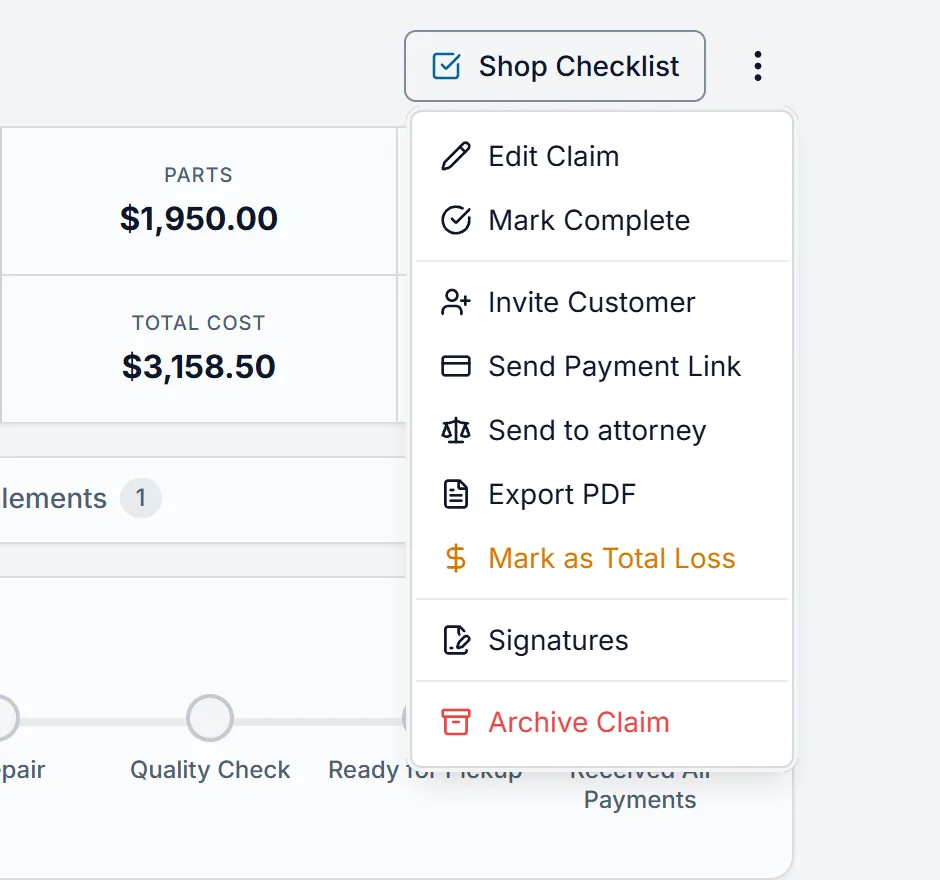
Open the claim, press the three-dot menu at the top, then press Signatures. On a cash job, press Send for Signature in the same menu.
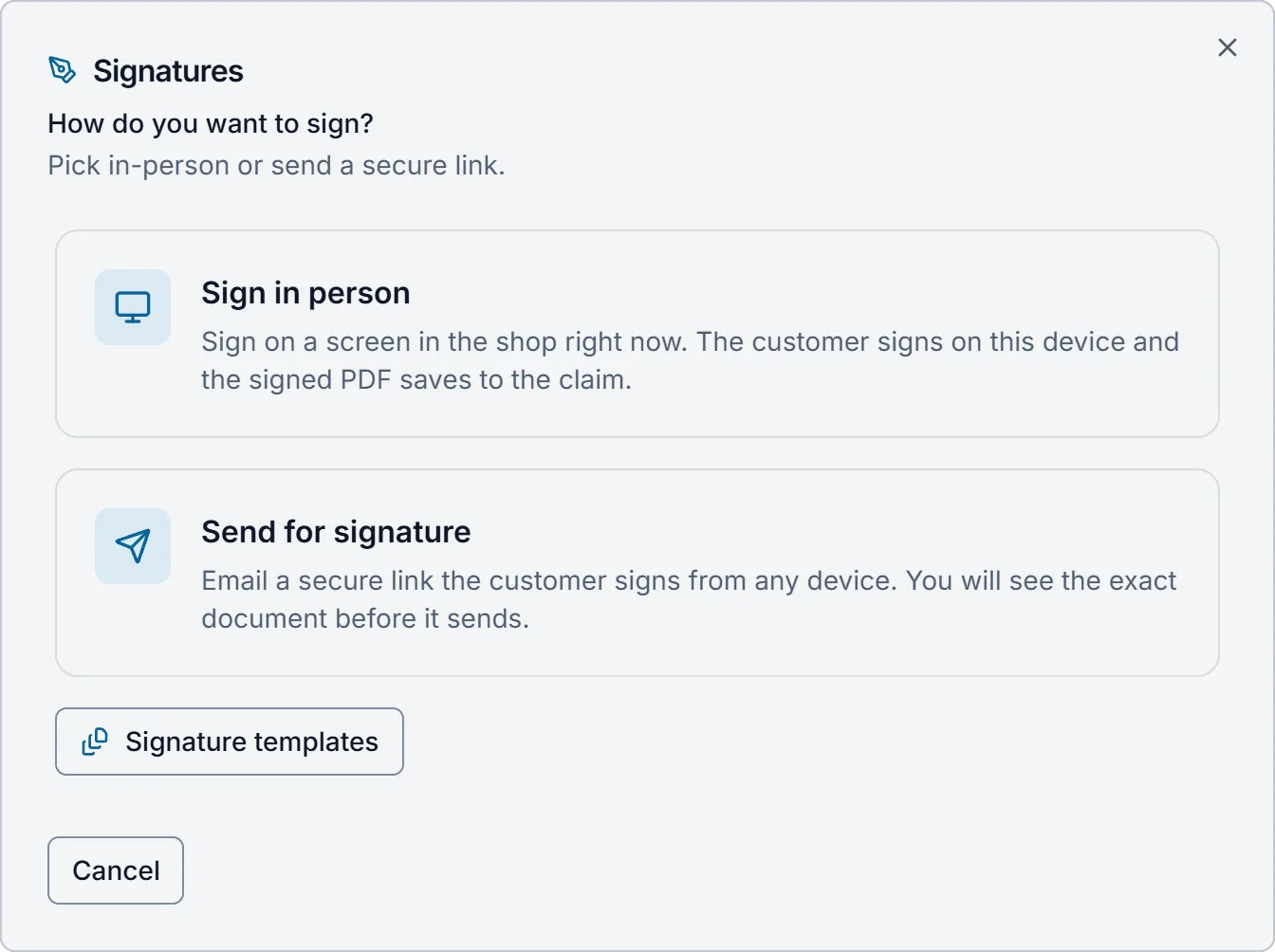
Pick how they sign
Press Sign in person to use this screen. Press Send for signature to email a secure link the customer opens on any device.
Tick the documents
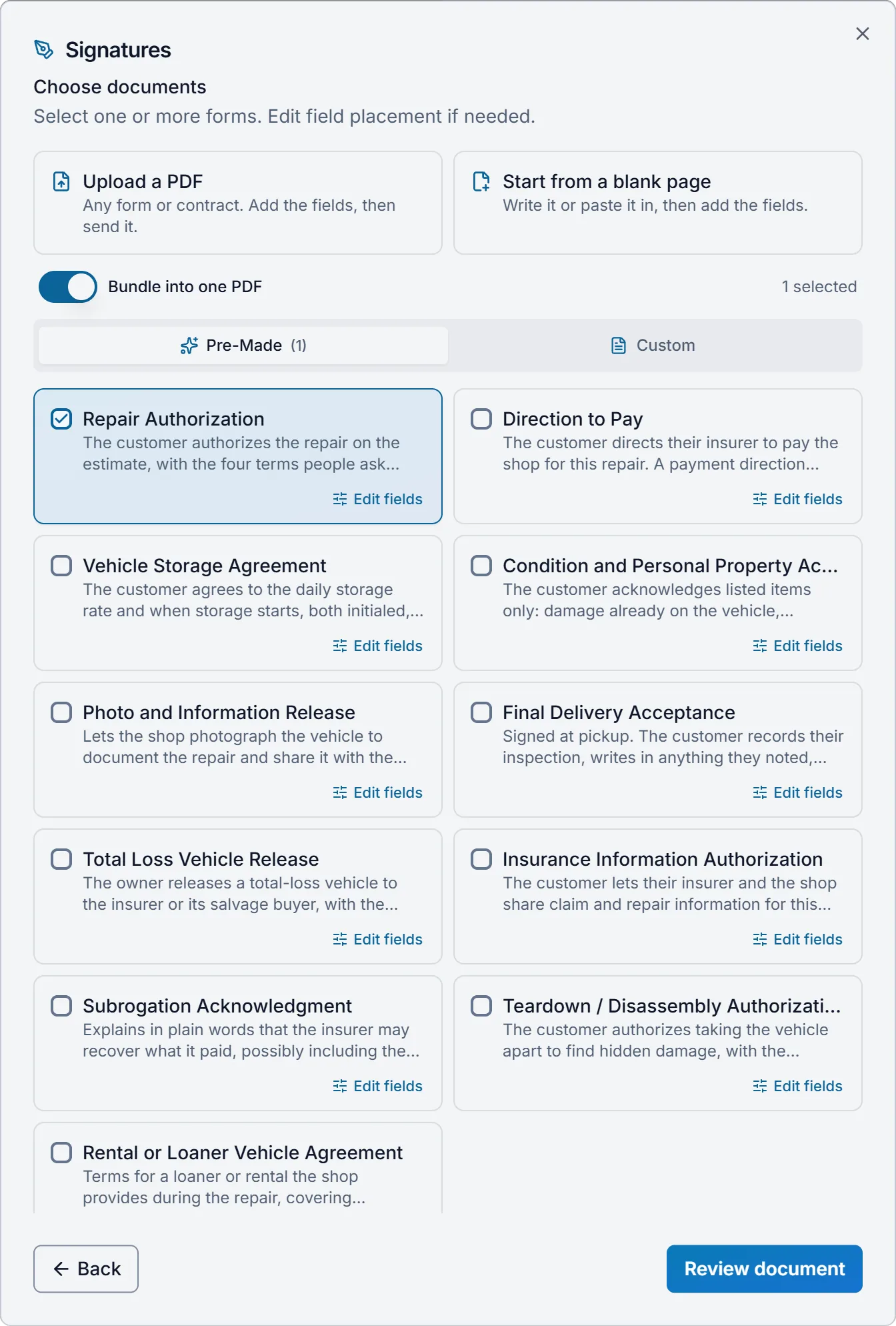
Tick one or more under Pre-Made or Custom. Press Upload a PDF to use any form you already have. Press Review document.
- Pre-Made has 11 forms, such as Repair Authorization, Direction to Pay and Final Delivery Acceptance.
- Keep Bundle into one PDF on to send them as one file.
- Press Edit fields on a form to move where the customer signs.
Check the document, then press Continue
This is the exact document the customer will see. If it lists Missing from these documents, press Fix on each line and come back.
A line in red must be filled before the document goes out. The rest print as a blank line to fill in by hand.
Sign here, or send it
In person, press Start signing and hand over the screen. By email, check Customer email and press Send to, with the customer's name on the button.
If the form has a line for your shop, press Adopt your signature once. Claimory uses it on later forms.
See who signed
Look at Signature requests on the Files tab
Links that still need someone are at the top of the claim's Files tab. Finished ones are under Customer uploads, in Signed and closed. A cash job shows them on its estimate tab.
- Sent: the email went out.
- Opened: the customer looked and has not signed yet.
- Signed: press Download for the signed PDF.
- Declined: the customer said no, with the reason if they typed one.
- Expired or Canceled: the link is closed.
Resend, copy or cancel a link
Press Resend to email the link again, or Copy link to send it yourself. Press Cancel, then Cancel link, and the link stops working right away. You can send a new one any time.
Make your own form
Open Document Templates
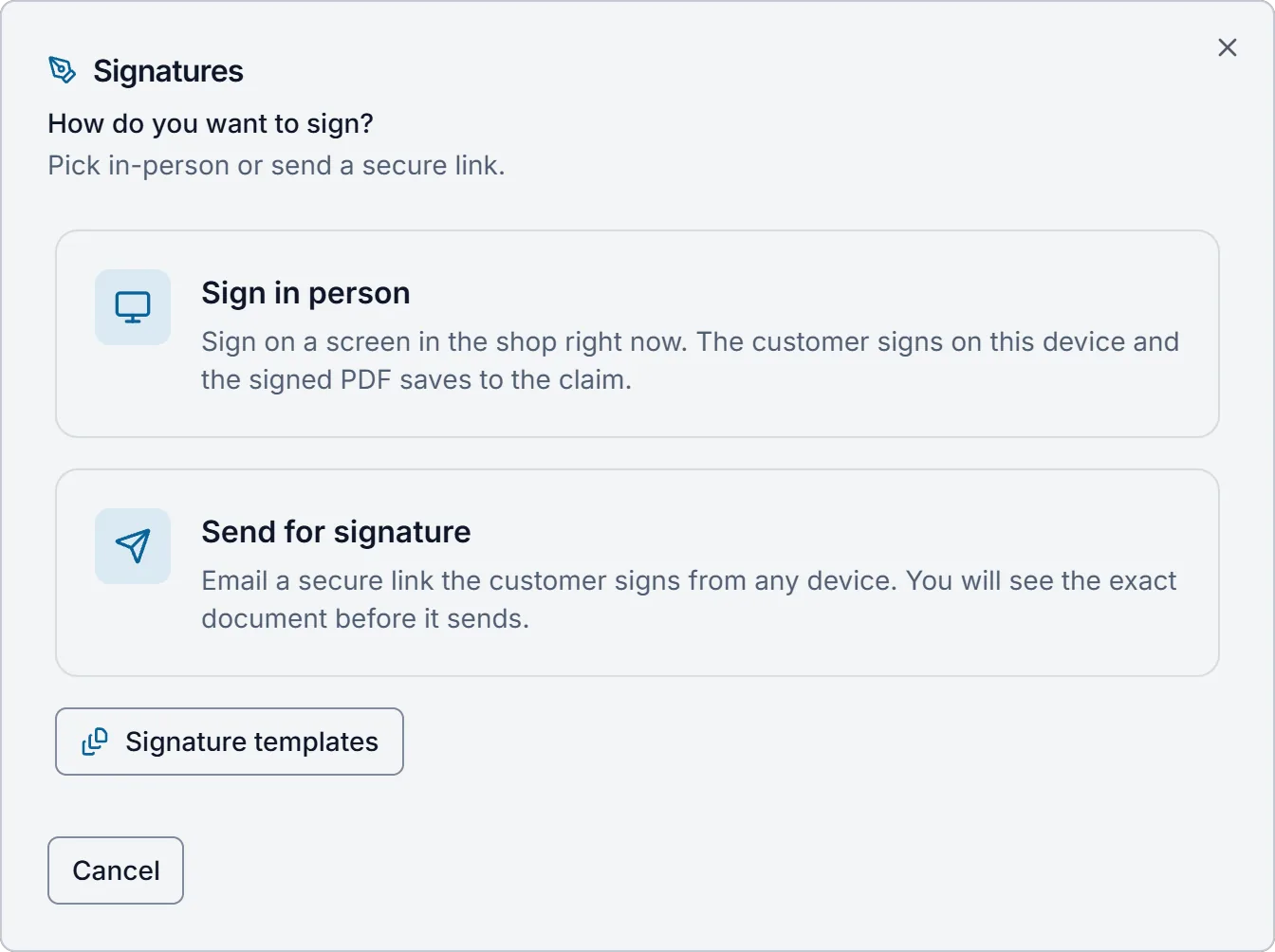
Press Signatures on any claim, then Signature templates. You can also press Ctrl+K (Cmd+K on a Mac) and type signature templates.
Press New template
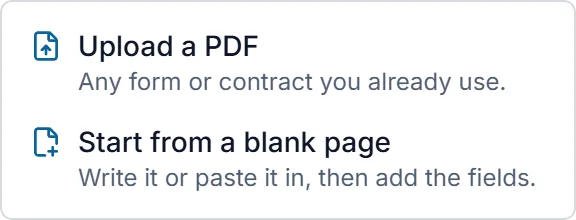
Choose Upload a PDF for a form you already use, or Start from a blank page. To change a pre-made form, press Edit on its card and Claimory saves your version under Custom.
Name it, add fields and press Save
Type the Document name at the top. Press a field such as Signature, then click the page where the field goes. Press Cancel placing to stop. Press Save.
Open Checks before you leave. It tells you if someone has fields but no place to sign.


Questions and fixes
How do I get a customer to sign a document on a claim?
On the Claimory claim, press the three-dot menu, then Signatures. Choose Sign in person or Send for signature, tick the forms, check the preview and press Continue.
How long does a Claimory signing link last?
A Claimory signing link lasts 14 days. After that, send a new one from Signatures on the claim.
Where is the signed copy?
The signed PDF saves to the Claimory claim's files. Open the Files tab, press Customer uploads, find the row under Signed and closed and press Download. Claimory also emails the signed copy.
Can a customer sign several forms at once?
Yes. In Claimory, tick every form you need before you send. The customer signs them in one visit, and Bundle into one PDF keeps them together.
Can I use my own form in Claimory?
Yes. Press Upload a PDF in the Signatures window, or in Document Templates press New template. Add the fields, save it, and find it under Custom next time.
Can I take Claimory's name off the documents?
Elite takes Powered by Claimory off the footer of every document you send for signature and every signed copy, so customers see only your shop.
Do Claimory signatures work for Canadian shops?
Yes. The legal wording on the pre-made forms is written for US law, so check that it fits your province before you send.
The link did not go out. Try again, or copy the link and send it yourself.
Press Resend on that row. If it fails again, press Copy link and paste the link into your own email.
Email failed. Copy this link to send manually
The document is saved and ready to sign. Copy the link in the message and send it yourself, or open the claim's Files tab and press Copy link there.
Enter the customer's email address.
Type the customer's full email in the Customer email box, then send again.
Select at least one document.
Tick at least one form under Pre-Made or Custom, then press Review document.
The Send or Start signing button is gray
Read the red line under the button and fill in what it names. If you see Your signature on the screen, press Adopt your signature first.
The signed PDF is not saved yet
The customer's signature is safe. Press Retry on that row. The signed copy is being made right now means wait a minute. The signed copy is still not ready means wait a few minutes and press Retry again.
The signed PDF could not be opened. Try again.
Press Download on that row again, and let your browser open new tabs from Claimory.
Could not save the template
Check your internet connection and press Save again. If it says Give the document a name first, type the Document name at the top.
That PDF is over 10 MB, has more than 50 pages, or is locked
Save a smaller copy under 10 MB, split it to 50 pages or fewer, or save a copy without the password. Then upload it again.
What to do next
- Your repair linkOpen the Claimory repair link your body shop sent, check your repair, sign a document, pay by card, and make a free account to send photos.
- Check in a carCheck a car in with Claimory: save the customer's papers, pick what they sign, and take guided photos that keep uploading while you work.
- Files and photosUpload photos, estimates and papers to a Claimory claim, sort them, email or share them with an adjuster, and keep customer IDs in a locked place.
- Still stuck?Open the Support Center to find the fix or write to a person.