
Files and photos on a claim
Every photo, estimate and signed paper for one car sits on its Files tab, ready to send when the adjuster asks.
- 6 min read
- All plans
- Owner, Manager, Front desk, Estimator, Technician
What you get
- All of a car's photos and papers in one place, sorted
- Files sent to the adjuster by email or a link
- Customer IDs and insurance cards kept apart in locked storage
Before you start
- Uploading, sorting and downloading one file work on every plan.
- Email files, bulk downloads and share links start on Professional.
- Adding, moving and deleting files takes permission to edit the claim.
Step by step
0 done of 10 steps
Add files
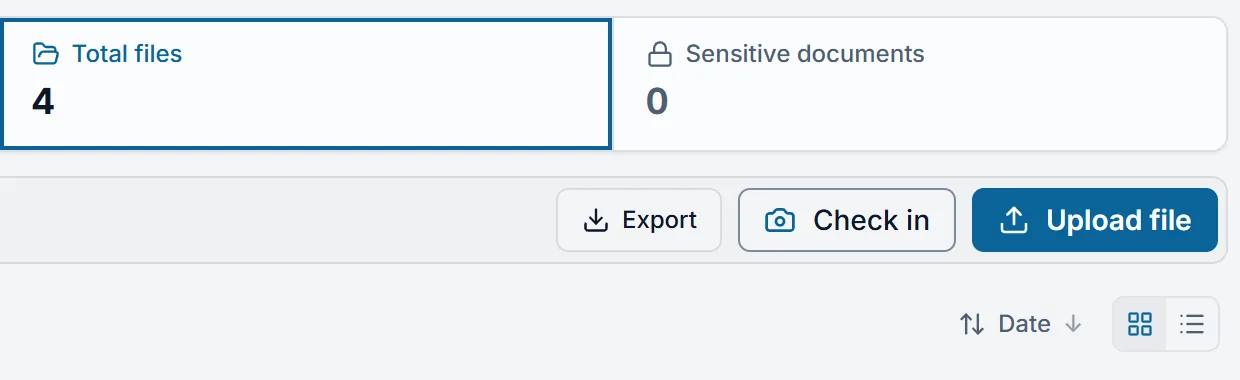
Open Upload file
Open the claim, press Files, then Upload file. On an empty tab the button says Upload files.
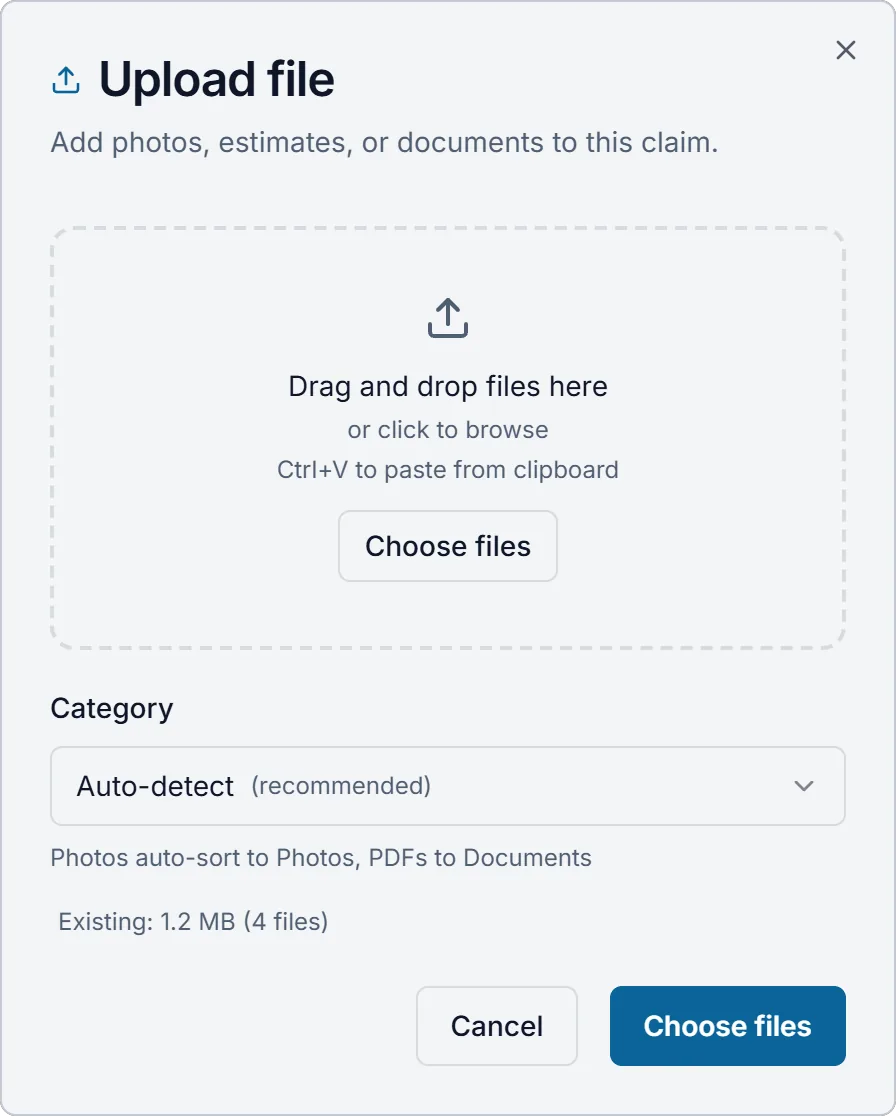
Choose the files
Drag and drop the files, click to browse, or press Ctrl+V (Cmd+V on a Mac) to paste a picture. Each file can be up to 200MB.
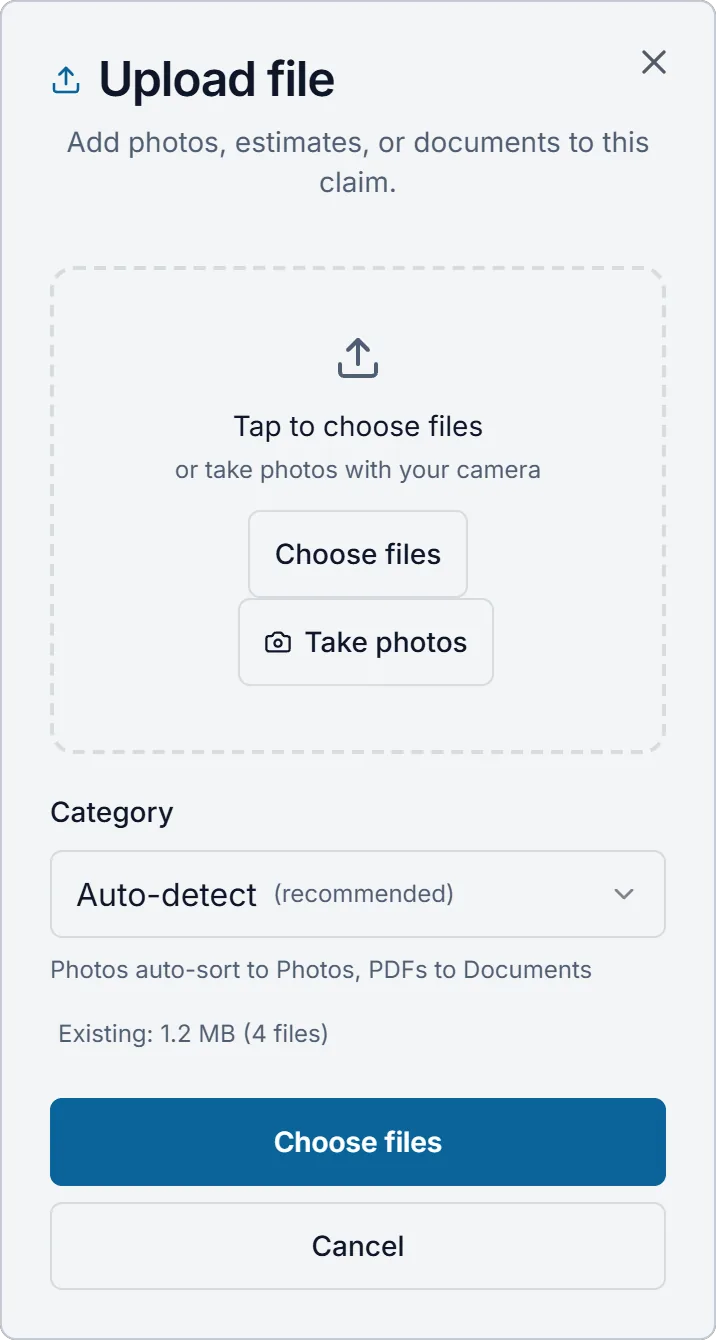
Or take photos
On a phone or tablet, press Take photos and shoot as many as you need. Tap Take notes and say what you see, and each photo gets that label. Press Done to finish.
The first time you use Take notes, tick the notice about the microphone.
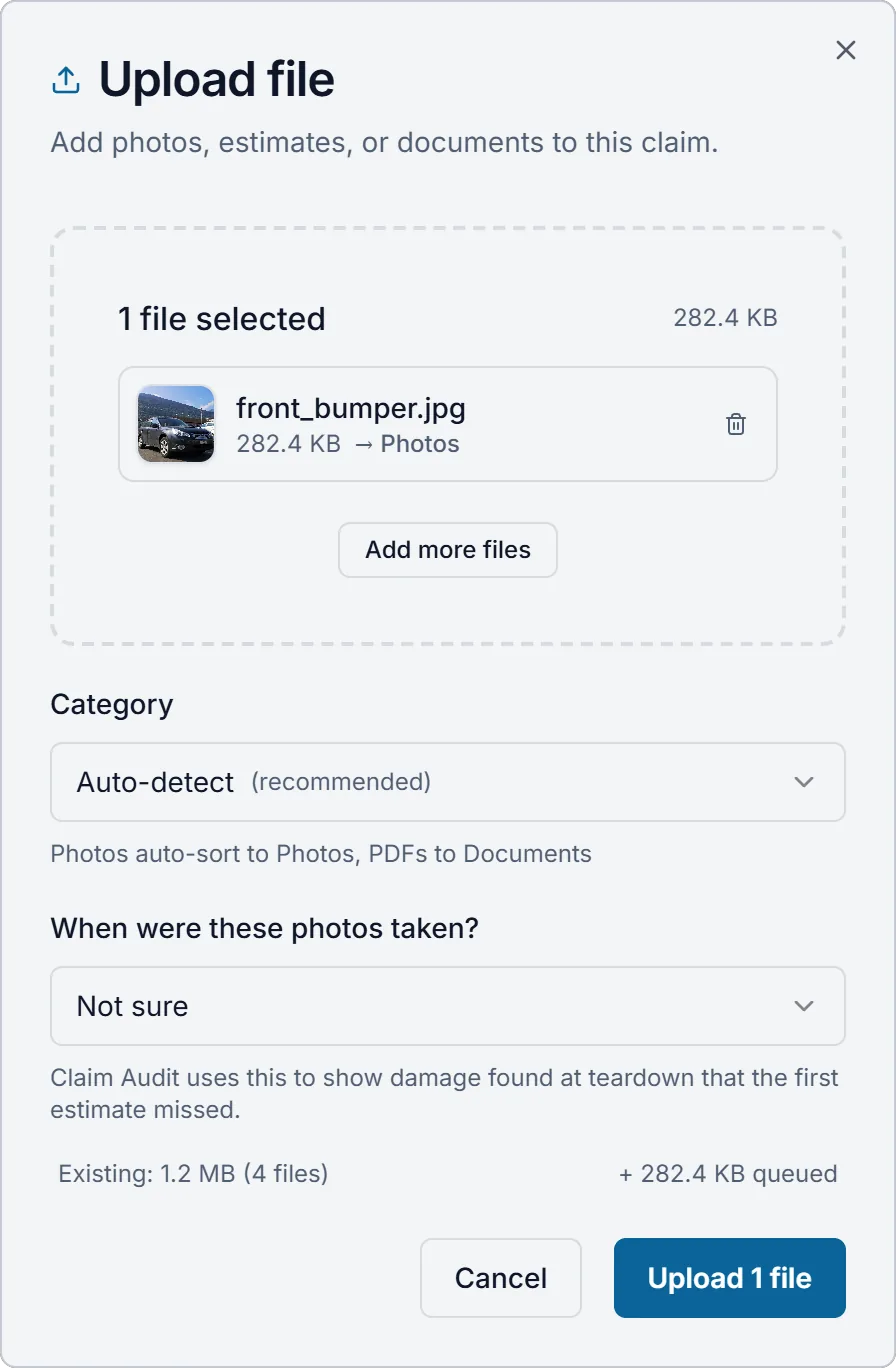
Press Upload
Leave Category on Auto-detect: photos go to Photos and PDFs go to Documents. Press Upload and keep the window open until it finishes.
- For photos, answer When were these photos taken? so Claim Audit can use them.
- Large photos are made smaller to save storage.
Sort and find
Find a file
Press a card: Photos, Documents, Estimates/Supps or Total files. With more than 5 files, a search box finds them by name, category or uploader.
Sort by Name, Date, Size, Type or Category, and switch between Grid view and List view.
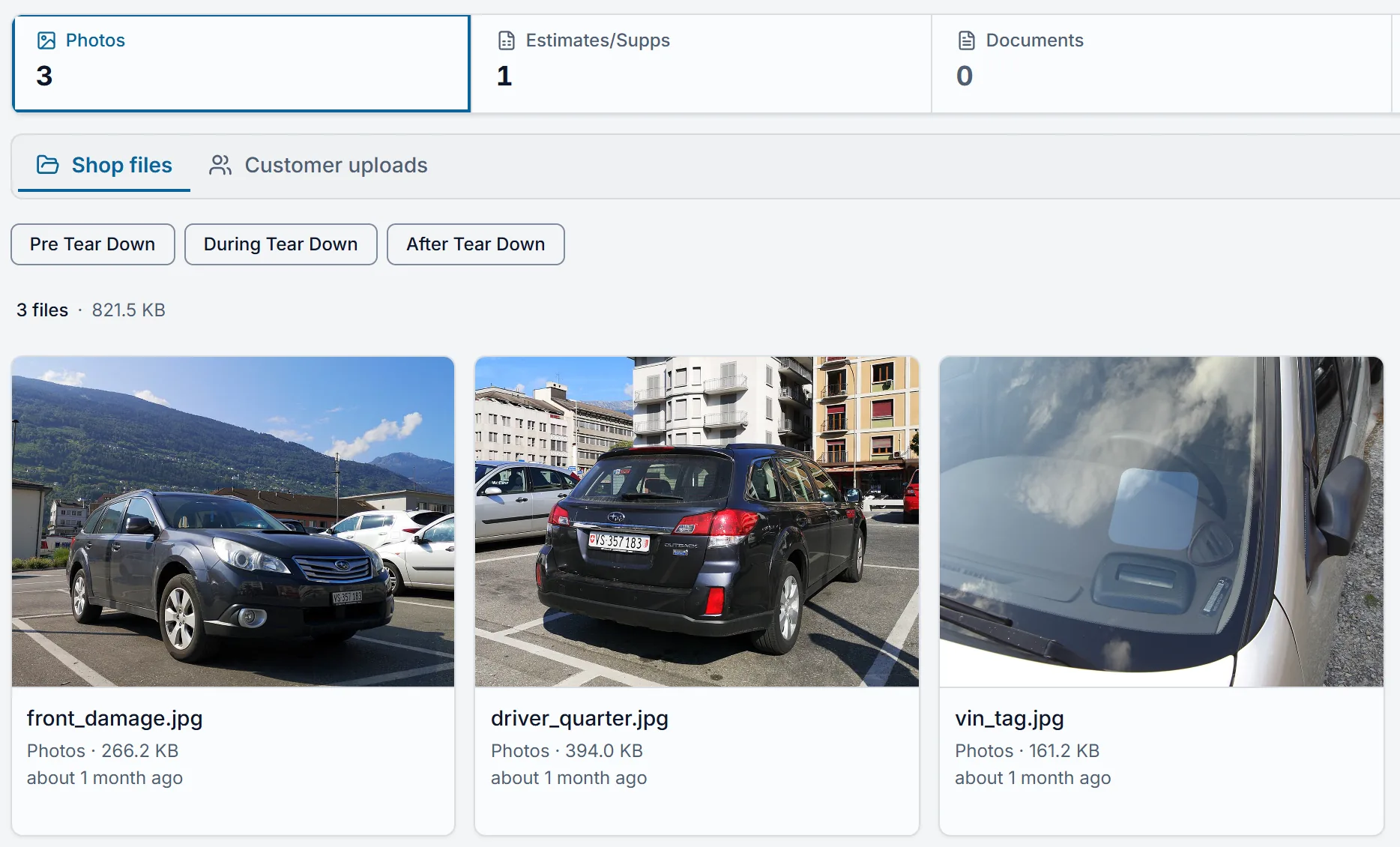
Change one file
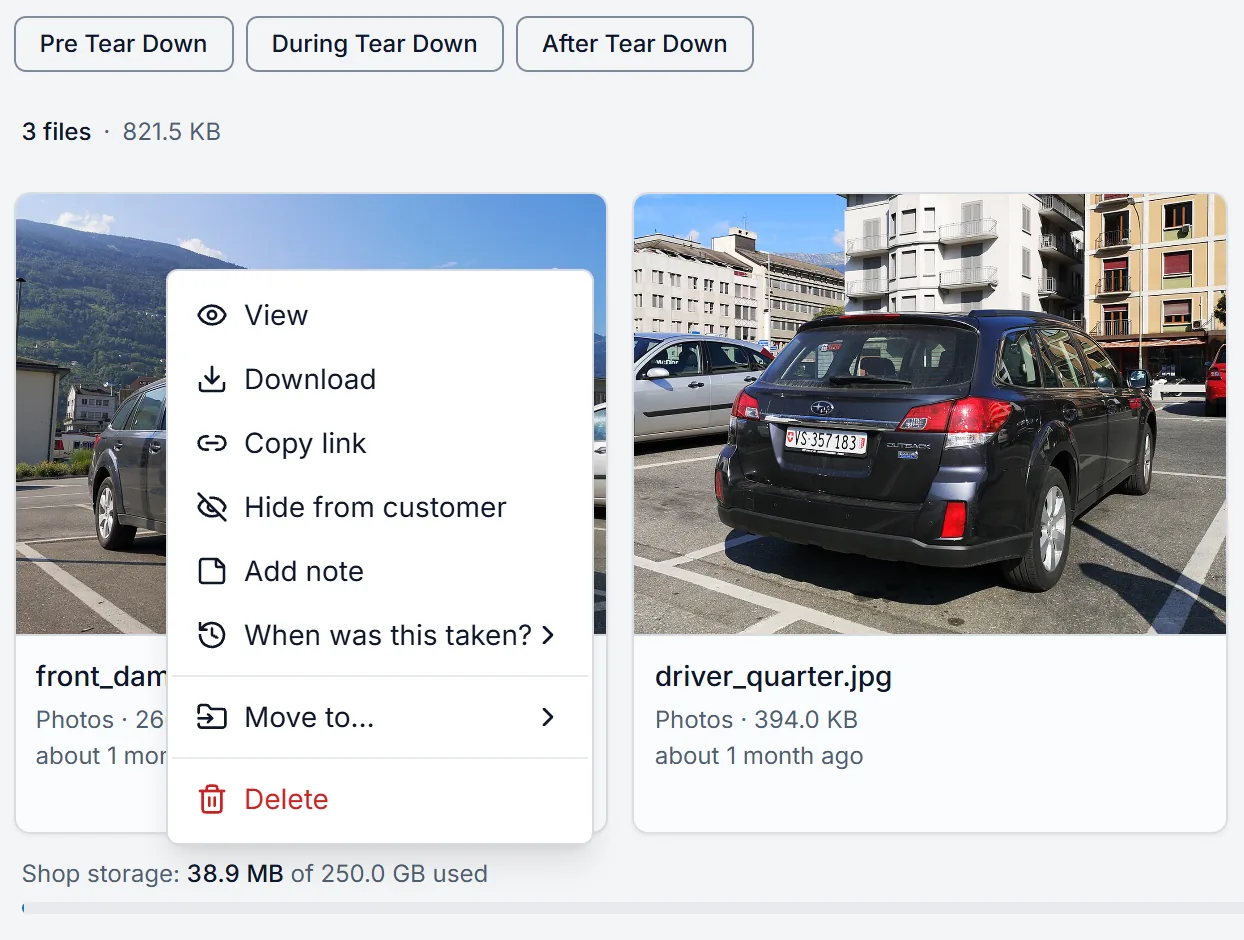
Press File actions, the three dots on the file.
- View, Download or Copy link
- Add note, up to 500 characters. Ctrl+Enter saves it.
- Move to… another category, or drag the file onto a category card
- Hide from customer or Show to customer
- When was this taken? and Delete
Change many files
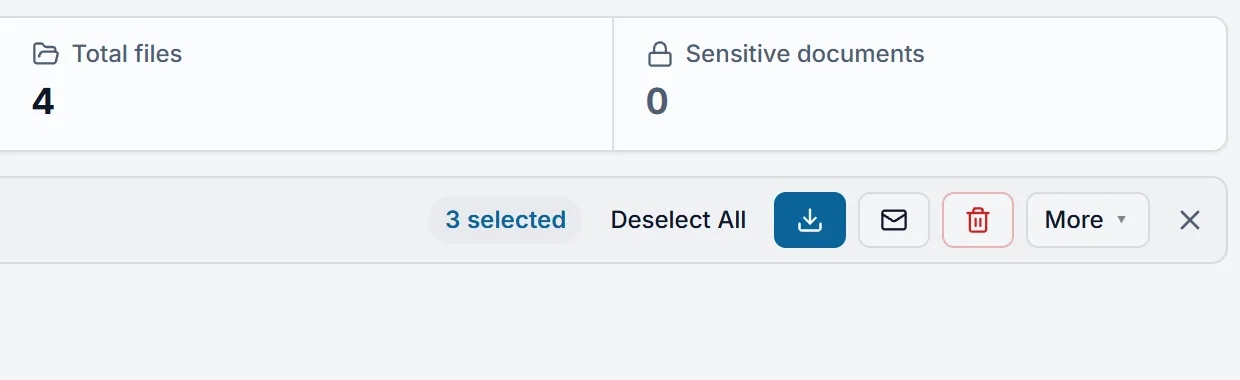
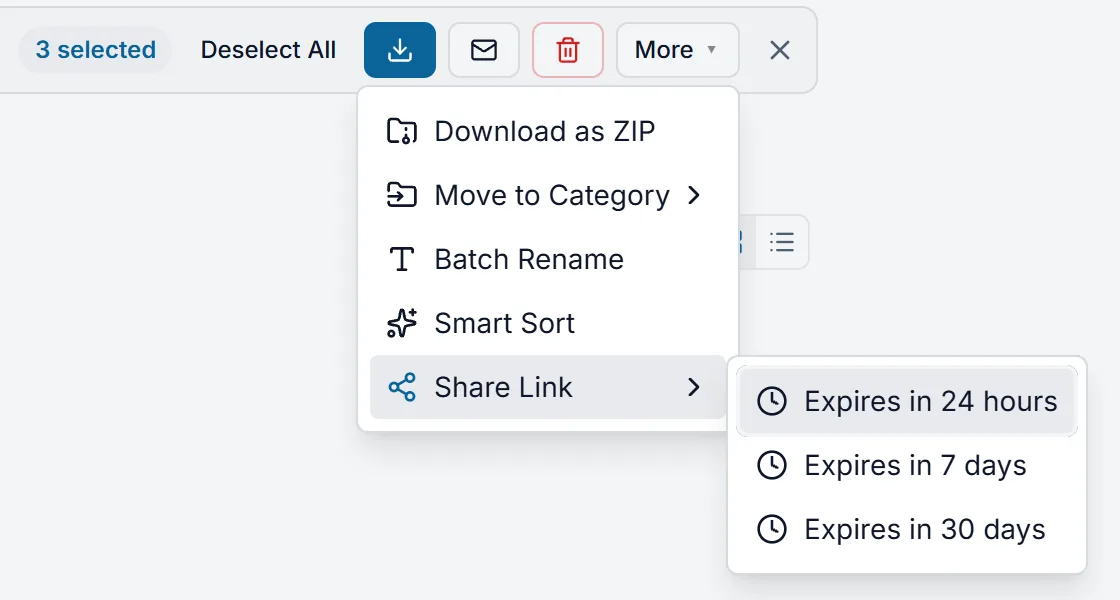
Press the circle on each file, or Select All. Then use the bar or More.
- Download selected, Email selected or Delete selected
- Move to Category, or Smart Sort to sort them for you
- Batch Rename, with File category, Claim ID prefix, Sequence and Original name
Send files
Email them
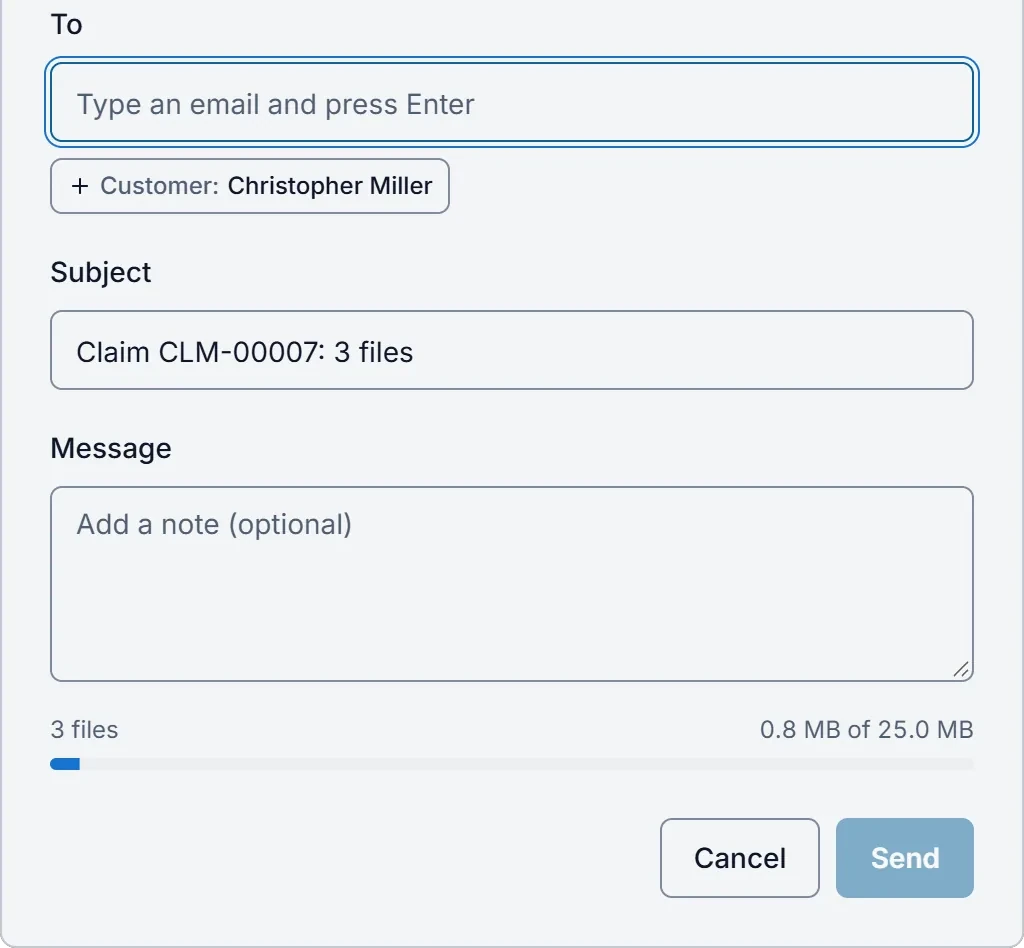
Select the files and press Email selected, the envelope. Type an email and press Enter, or press a name on the claim. Add a note and press Send.
The email goes out as you from your shop. Replies come to your inbox and you get a copy.
Or share a link
Select the files, press More, then Share Link. Pick Expires in 24 hours, 7 days or 30 days. The link is copied, so paste it where you need it.
Keep IDs private
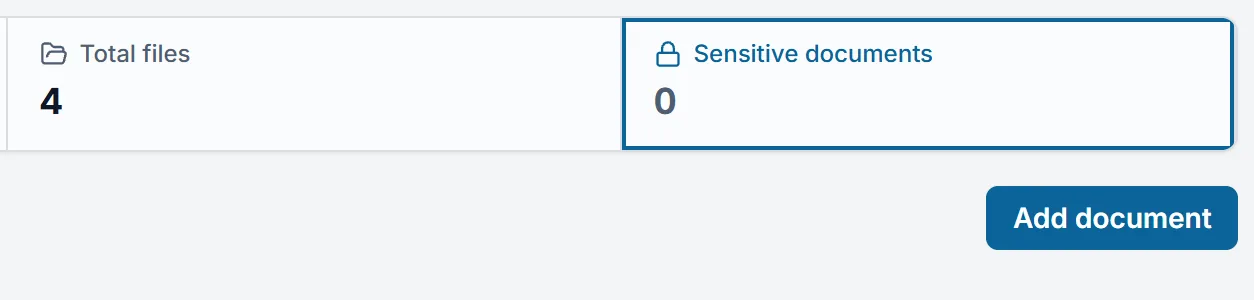
Press the Sensitive documents card, then Add document. Press Take a picture or Choose a file. Claimory AI never reads these and your customer never sees them.


Questions and fixes
What does Upload an estimate do?
Upload an estimate on Claimory's New Claim screen reads the file from CCC, Mitchell or Audatex and fills the claim. You check each field and press Save Claim. It starts on Professional and is open during the free trial.
What estimate files can I import?
Claimory imports PDF from any platform, plus XML, EMS and CIECA files from CCC and Mitchell, up to 50MB each, on Professional and up.
How do I scan a VIN with my camera?
In Claimory's claim form, press the Scan VIN barcode button beside VIN on the Vehicle step. Point the camera at the barcode on the driver's side dashboard or door jamb. Press Switch Camera to use another camera.
How much storage does my shop have?
Claimory gives 1 GB on the free trial, 10 GB on Starter, 50 GB on Professional and 250 GB on Elite. The bottom of a claim's Files tab shows Shop storage and This claim.
How do I free up storage?
On a Claimory claim's Files tab, press Optimize, then Optimize now. Images over 500 KB are saved at up to 2048 px. HEIC photos and other files stay the same, and an image is replaced only when the new copy is smaller.
What happens to photos when I mark a claim complete?
Claimory makes large photos on that claim smaller in the background and tells you how many it is optimizing.
How do I download every file on a claim?
On the Claimory claim's Files tab, press Export, then Download all or ZIP all. Single ZIP File gives one download, with images made smaller past 23 MB. Individual Files gives separate downloads you can skip or cancel. It starts on Professional.
What categories do files go in?
Claimory sorts claim files into Photos, Estimate, Supplement Estimate, Supplement Photos, Authorization, Documents, Signed Documents, Scan Reports, Procedures, Documentation, AI Citations and Other.
Where are the photos my customer sent?
On the Claimory claim's Files tab, press Customer uploads. New ones say Needs review until you press Mark reviewed. Customers upload through the customer portal, on Professional and up.
How many people can I email files to at once?
Claimory sends claim files to up to 10 people in one email, with up to 100 files and 25 MB.
Can I get a deleted file back?
Deleting a file in Claimory is final and removes it from storage. Download a copy first if you may need it.
What are Sensitive documents?
Sensitive documents is the place on a Claimory claim for a driver's license, insurance card or registration. Sign the notice once, then add them. Claimory AI never reads them, the customer portal never shows them, and they are deleted 1 year after the claim is closed.
What are Photo claim cards?
Photo claim cards is a Claimory Marketplace add-on. Each claim card shows the car's newest photos, the repair stage on the photo, and starred contacts to tap and call. A car with no photos shows Add photos.
File too large (max 200MB)
Trim the video or save a smaller copy, then upload it again. Each file on a claim can be up to 200MB.
Blocked file type
Programs and scripts are kept off claims. Upload photos, videos, PDFs, office files or estimate files.
Failed to upload
Check your connection, then upload one file at a time. If Shop storage at the bottom of Files is full, press Optimize or ask an owner to move up a plan.
It is saved, but not read
The file is on the claim. Reading a PDF with Claimory AI starts on Professional, so an owner or manager can move up in Billing.
File too large (max 50MB)
This is the limit for Upload an estimate. Export a smaller copy, or use the XML or EMS file from your estimating system.
Unsupported file type when I import an estimate
Use a .pdf, .xml, .ems or .cieca file. Export it again from CCC, Mitchell or Audatex, then press Upload an estimate.
Parse failed, Upload failed or Save failed
Try the file once more. If it fails again, use the XML or EMS version, or press Enter manually and type the claim.
Camera access was blocked
Open your browser's site settings, allow the camera for Claimory and press Try again. Or press Use the phone camera, or Choose files.
The microphone is blocked
Allow the microphone for Claimory in your browser settings, then tap Take notes. Your photos still save while you fix it.
Dictation needs a signal. Photos still save.
Keep taking photos. Add the notes later with File actions, Add note.
Camera access denied while scanning a VIN
Allow the camera for Claimory in your browser settings, then press Try Again. Or type the 17 characters.
No camera found while scanning a VIN
Open Claimory on your phone and scan there, or type the VIN from the dashboard or door jamb.
Bulk downloads is locked
Downloading many files or a ZIP starts on Professional. Until then, press File actions and Download on each file you need.
Too big for one email
One email carries up to 100 files and 25 MB. Claimory shrinks photos to fit past 23 MB and leaves estimates and PDFs alone. Remove the amount shown, or send two emails.
The email did not send
Check each address, then press Send again. Not a valid email address and Add at least one recipient both mean the To box needs a full email.
Your shop has emailed files 100 times in the last 24 hours
Wait and send again later. To keep going now, use Share Link and paste the link into your own email.
Failed to create share link
Wait three seconds and press Share Link again. If it keeps failing, use Email selected.
Signed documents are final and can't be deleted.
Signed papers stay as the legal record. If a form was wrong, have the customer sign a new one.
You do not have permission to remove this file. Ask an owner or manager.
Give an owner or manager the claim number and the file name, and they can delete it.
These files look like customer IDs or insurance papers
Press Move to put them in Sensitive documents, or Not sensitive to leave them. If it says Ask an owner or manager to move them, do that. Moving a file that was read as an estimate removes that estimate's numbers from the claim.
Photos could not be added to the PDF
Those photos were skipped. Open each one, save it as a JPEG, upload it, then press Export PDF again.
PDF downloaded, but failed to attach to Files
The report is in your downloads. Press Upload file on the Files tab and add it.
What to do next
- Check in a carCheck a car in with Claimory: save the customer's papers, pick what they sign, and take guided photos that keep uploading while you work.
- Supplement packageBuild one PDF for the carrier in Claimory from a Claim Audit: a cover letter, each item with its reason, the cited law and your own documents.
- Customer portalSend a customer a Claimory repair link or QR code, choose what they see, lock it with a PIN, stop it any time, and set the automatic update emails.
- Still stuck?Open the Support Center to find the fix or write to a person.