
Appointments, leads and the booking page
Every call, booking request and website form lands in one Inbox. Call the customer back, book a time, and turn the lead into a job.
- 6 min read
- Elite
- Owner, Manager, Front desk
What you get
- One Inbox for calls, booking requests, website forms and forwarded emails
- Today's appointments with Arrived, No-show and Reschedule
- A booking link, a QR poster and a form for your website
Before you start
- Appointments starts on Elite. Add it from the Marketplace first.
- The Inbox and Setup need a role that can see leads. Other teammates see Today.
- An owner or manager turns on the booking page, the forwarding address and the form colors.
Step by step
0 done of 9 steps
Work your leads
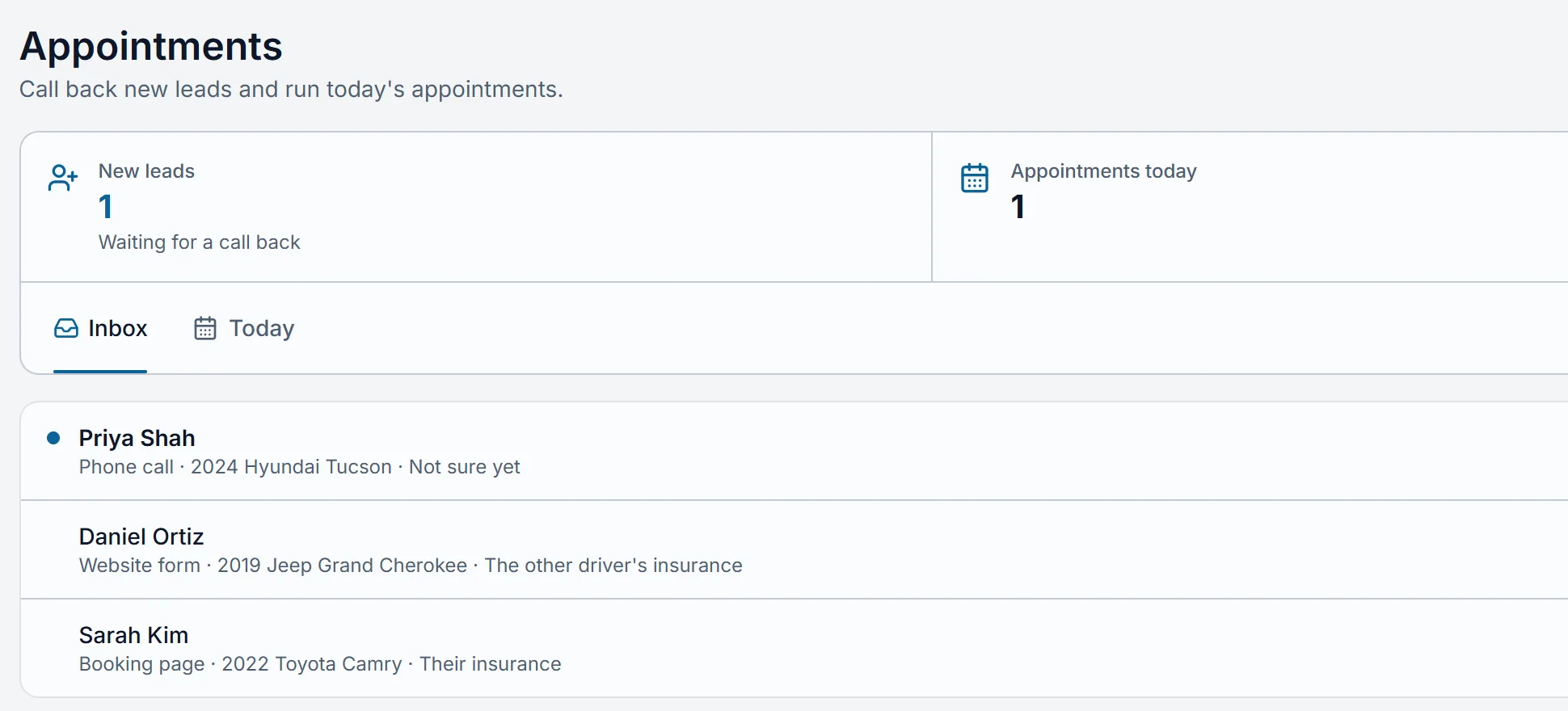
Open Appointments and stay on Inbox
Press Appointments in the menu. New leads and Appointments today are counted at the top, and each lead is listed below.
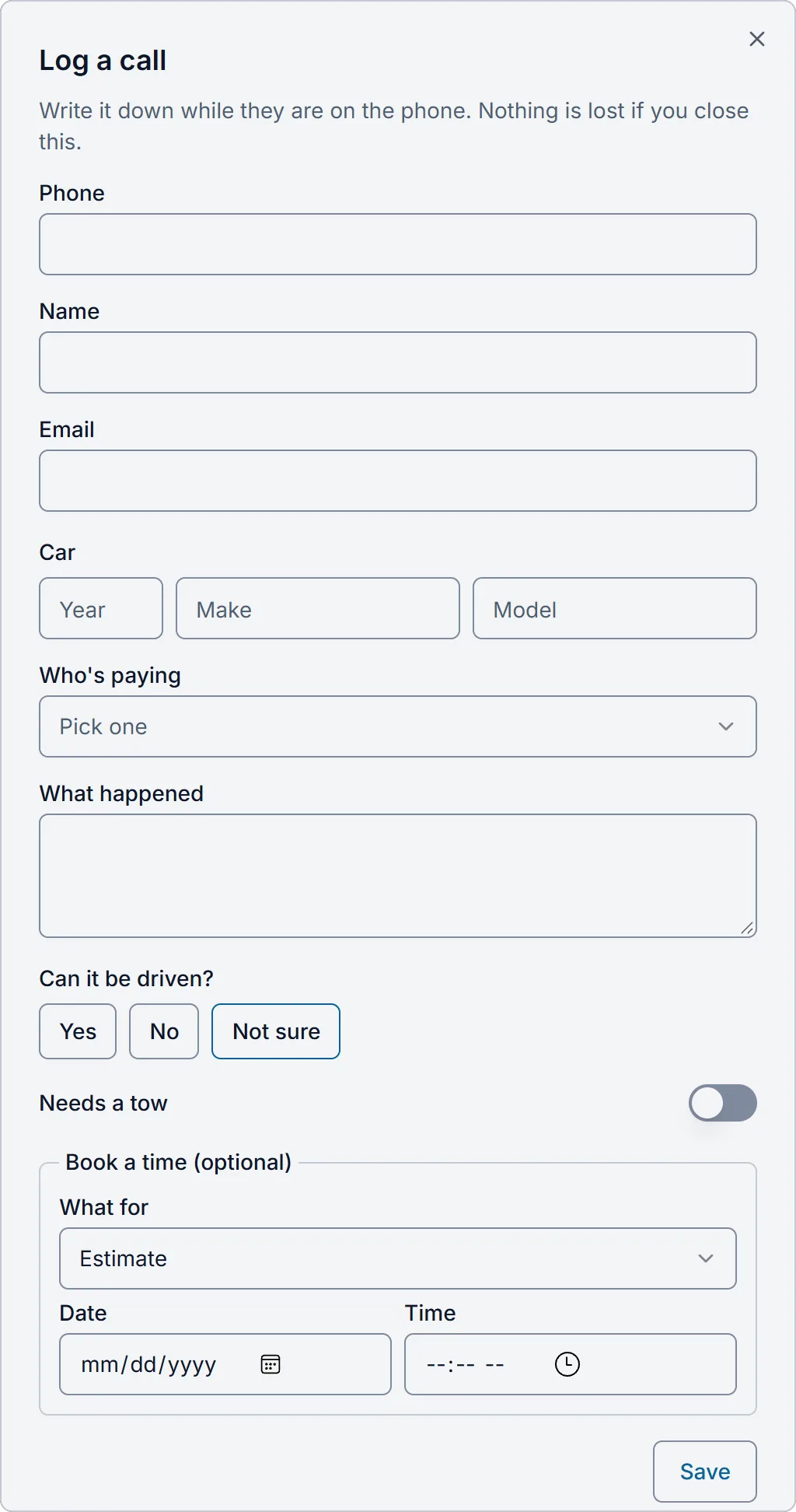
Log a call
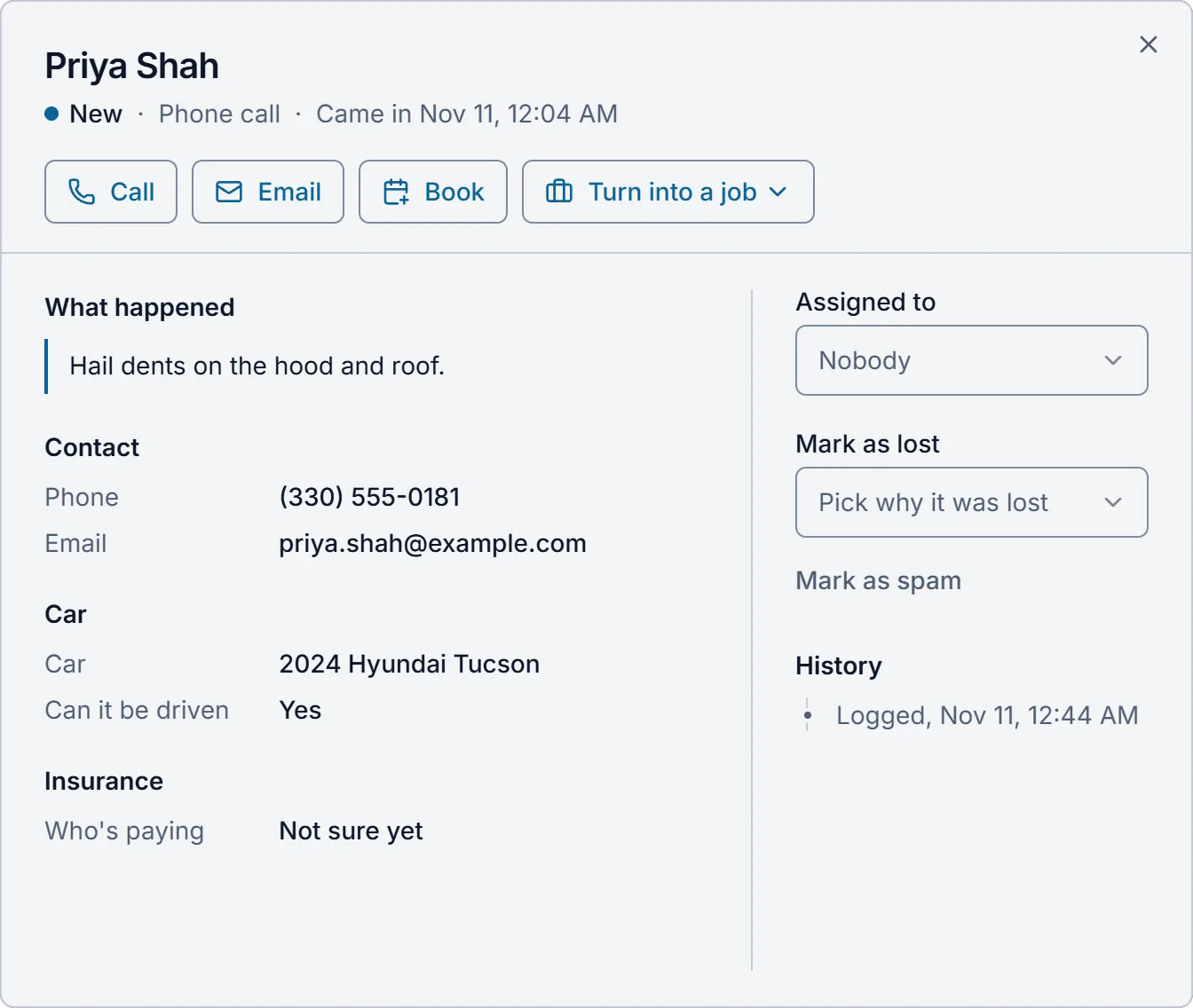
Press Log a call. Type the phone number first, so a known caller fills in from Contacts. Add the name, the car, Who's paying, What happened and Can it be driven? If insurance is paying, boxes for the insurance company open. Then press Save.
Pick a date under Book a time (optional) to book the visit in the same step. What you typed stays if you close it.
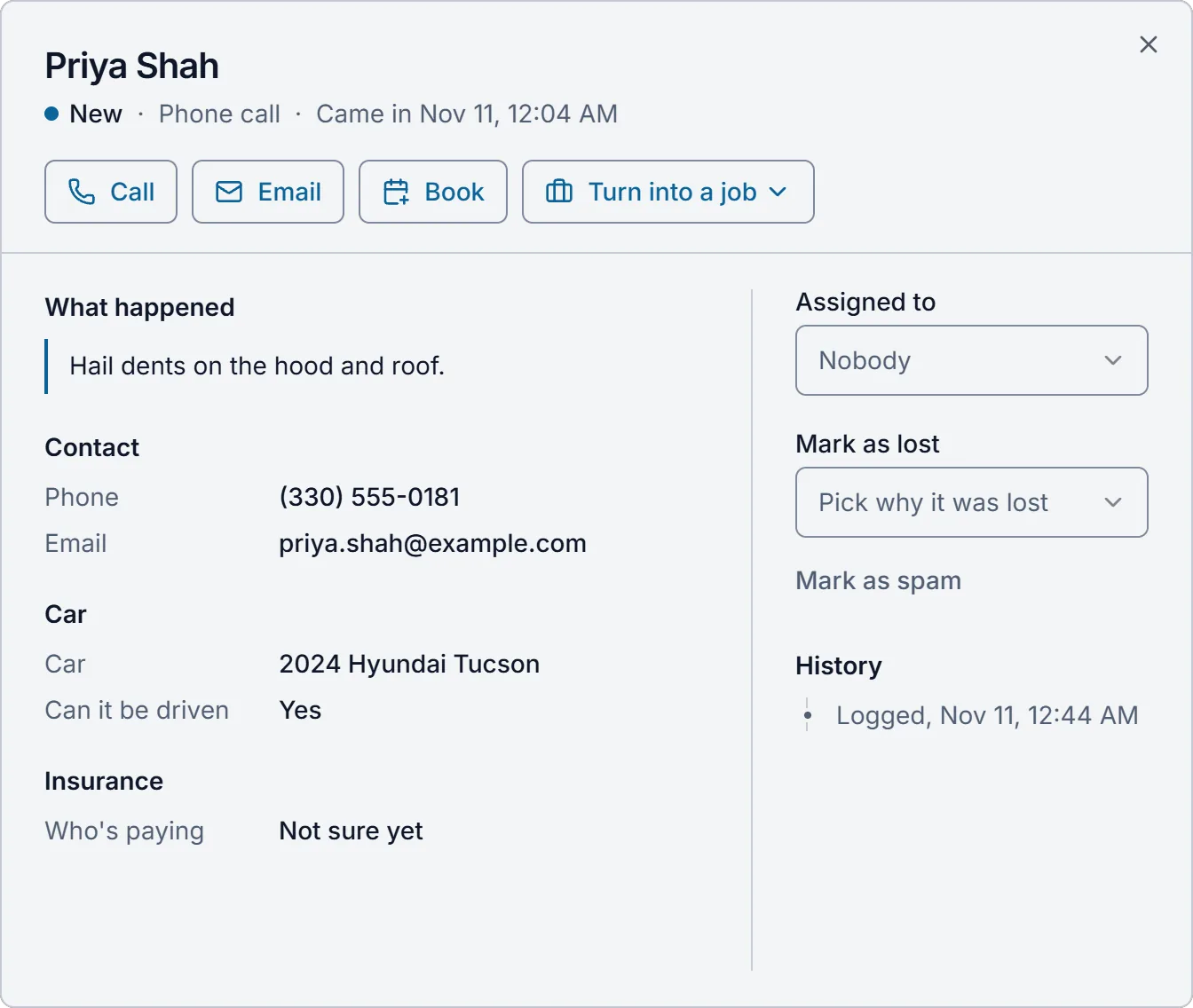
Open a lead, then call, email or book
Press the lead. Press Call, Email or Book. In Book, pick What for and the date. The time is optional.
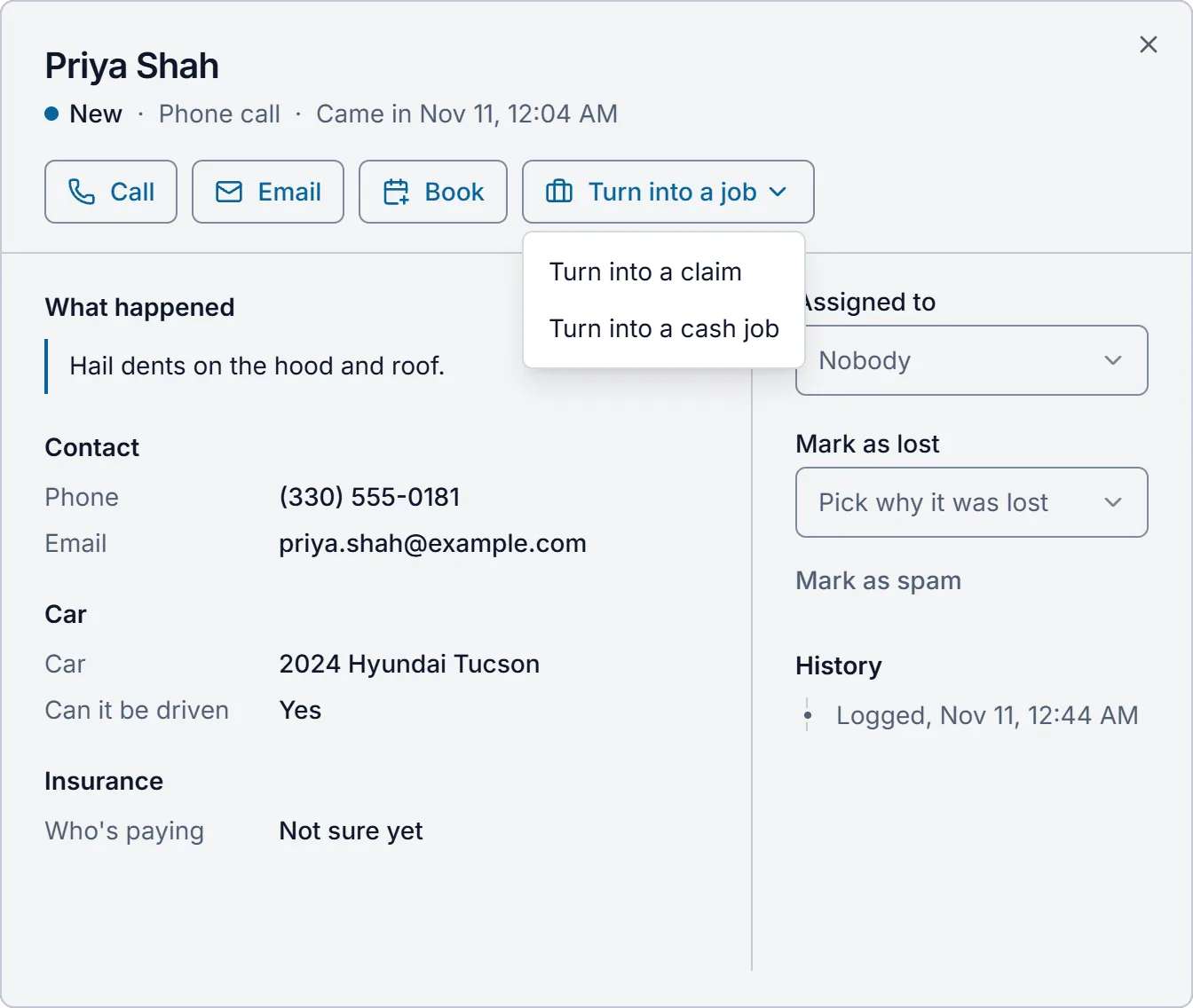
Turn the lead into a job
Press Turn into a job, then Turn into a claim or Turn into a cash job. The lead fills in what it knows. Press Open job later to go to it.
Turning it into a cash job uses Cash jobs, which Elite includes.
Close a lead you lost
Open the lead. Under Mark as lost pick why: No response, Price, Went elsewhere, Not our kind of work or Other. Press Mark as spam for junk. Press Reopen to bring it back.
Run today
Open Today
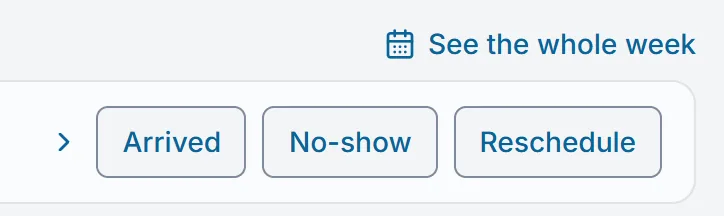
Press Today. Press Confirm on a request, Arrived when the car pulls in, or No-show. To change the time press Reschedule, pick a New date, then press Move.
Get leads in
Share your booking page
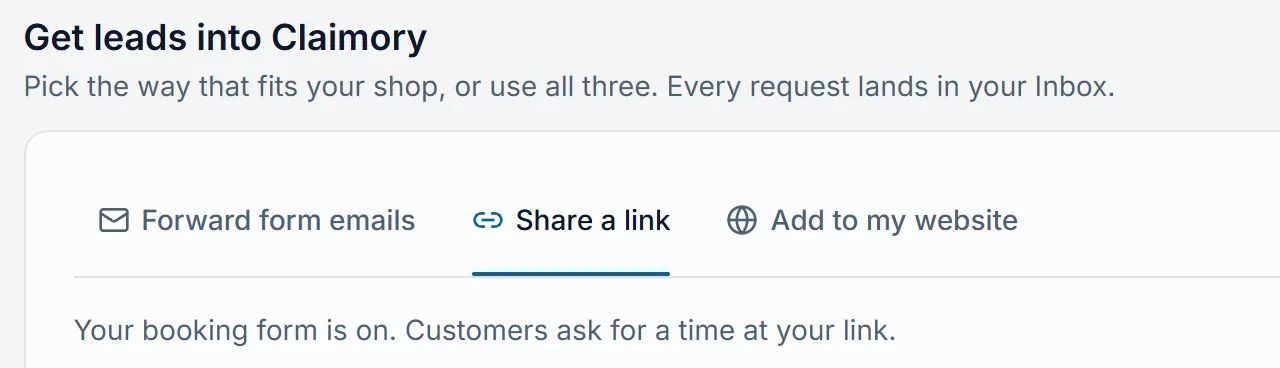
Press Setup, then Share a link. Press Turn on my booking page, then Copy link. Press Print QR poster for the front counter.
Paste the link as the appointment link on your Google Business Profile, as a Book Now button on Facebook, and in your email signature.
Put the form on your website
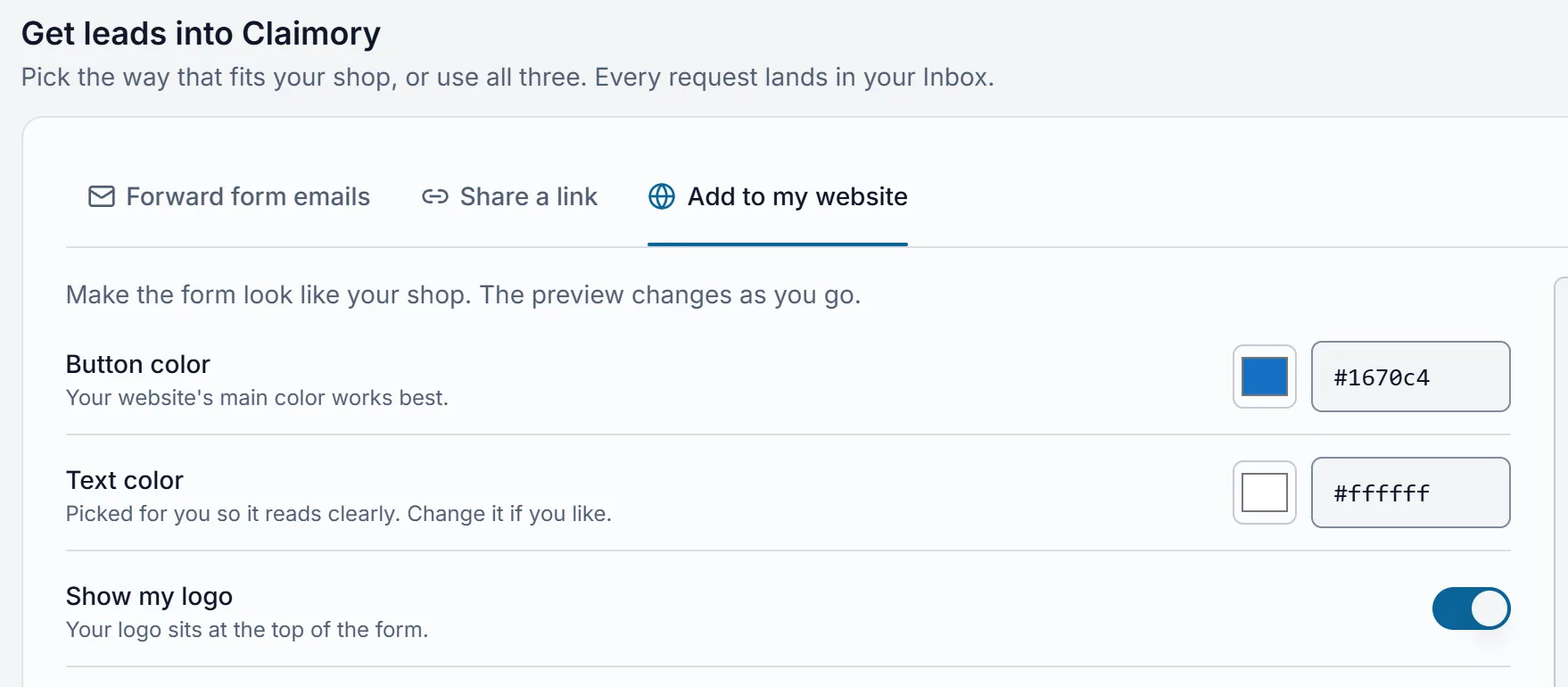
In Setup press Add to my website. Pick what your website is built with, press Copy code and paste it where the form should appear.
- Pick from Any website (HTML), WordPress, Wix, Squarespace, GoDaddy, Shopify or Webflow.
- Press Copy for my web person to email the steps and the code.
- Pick Button color and Text color, turn on Show my logo, and press Save colors. Reset to Claimory blue puts them back.
Forward your form emails
In Setup press Forward form emails, then Get my forwarding address and Copy address. Add that address to your website form's notification emails, after your own.
For Gmail forwarding, pick Gmail under Where your form emails arrive and follow the steps.


Questions and fixes
Where do I see new leads in Claimory?
Claimory leads are in Appointments, on the Inbox tab. Calls you log, booking requests, website forms and forwarded emails all land there.
What does a customer answer on the Claimory booking page?
The Claimory booking page asks four things: What happened?, Who's paying for the repair?, When can you bring it in? (the next 14 days), and How can the shop reach you?
Is a Claimory booking confirmed when the customer sends it?
A Claimory booking request waits for your shop. The customer reads that the time isn't booked until the shop confirms it. Open Today or the lead and press Confirm or Book.
How do I know email forwarding to Claimory works?
Fill in your own website form once. The test shows in the Claimory Inbox within a minute, and Setup shows when the last lead came in.
Where is my whole week of appointments?
In Claimory Appointments, open Today and press See the whole week. It opens the Calendar.
Can I give a lead to a teammate?
Yes. Open the lead in Claimory and pick a teammate under Assigned to.
How do I turn my booking page off?
In Claimory Appointments, open Setup, Share a link, and press Turn off. An owner or manager can do this.
Appointments, your booking page and website leads start on Elite.
Open Billing and choose Elite, then add Appointments from the Marketplace.
An owner or manager can turn this on, or can get your forwarding address
Ask an owner or manager to open Appointments, Setup and press the button. Form colors need one of them too.
The call was not saved. Try again.
Press Save again. If a reason follows the colon, fix that first. Add a name, phone number or email, and use 10 digits for the phone.
Call logged, but the time was not booked. Book it from the lead.
Open the lead in the Inbox and press Book.
Pick a date, or The booking was not saved. Try again.
Choose a date in Book a time, leave the time blank if you like, and press Book again.
Add a subject, or Write a message
Fill in both Subject and Message, then press Send.
Emailing a lead asks me to Connect an inbox
Press Connect an inbox and pick your Claimory inbox or Gmail. To send from your own mail program, press Use my email app.
This lead is already a job. Open it from the lead.
Open the lead and press Open job.
Gmail is waiting for you to confirm lead forwarding.
Press Confirm it in Setup, then Confirm in Gmail. Then make the Gmail filter that forwards to your Claimory address.
No leads match these filters.
Pick Anyone under Assigned to, From anywhere under Came from, and Open under Status.
No leads yet, and I see an Example
The example shows how a real lead looks. Press Set up how leads reach you, or press Log a call to add your first one.
Nothing booked today.
Book a time from a lead or a call, and it shows under Today on its day.
Add a logo in Settings, Business & Legal first.
Open Settings, Business & Legal, add your logo, then turn on Show my logo in Setup.
A customer sees This booking page isn't available
Press Copy link in Setup and send the customer that link again. If they see Online requests are off right now, press Turn on my booking page.
A customer sees We could not send your request
Ask the customer to reload the page and press Send my request again, or take the request by phone and log the call.
What to do next
- Using the calendarSee deliveries, task deadlines, appointments and follow-ups on the Claimory calendar, then add, edit, filter or delete an entry in seconds.
- Add a toolAdd free tools and dashboard widgets to Claimory from the Marketplace, see which plan each one needs, remove one safely, and hide menu items you skip.
- Cash jobs and estimatesWrite an estimate in Claimory, email it, turn a yes into a cash job, then log costs and payments, send the invoice and see the profit on the job.
- Still stuck?Open the Support Center to find the fix or write to a person.