
Claimory on a phone or shop tablet
Claimory opens in the browser you already have on your phone or tablet, with no app store download. Same shop, same claims, sized for one hand.
- 3 min read
- All plans
- Owner, Manager, Front desk, Estimator, Technician
What you get
- Every claim in your pocket, at the bay or at the tow yard
- Photos that land on the right claim straight from your camera
- Notes the front office sees right away
Before you start
- Your Claimory email and password. Every plan and every role.
- A current Chrome, Safari, Edge or Firefox on your phone or tablet.
- Camera permission for claimory.io, to take photos.
Step by step
0 done of 6 steps
Open it and get around
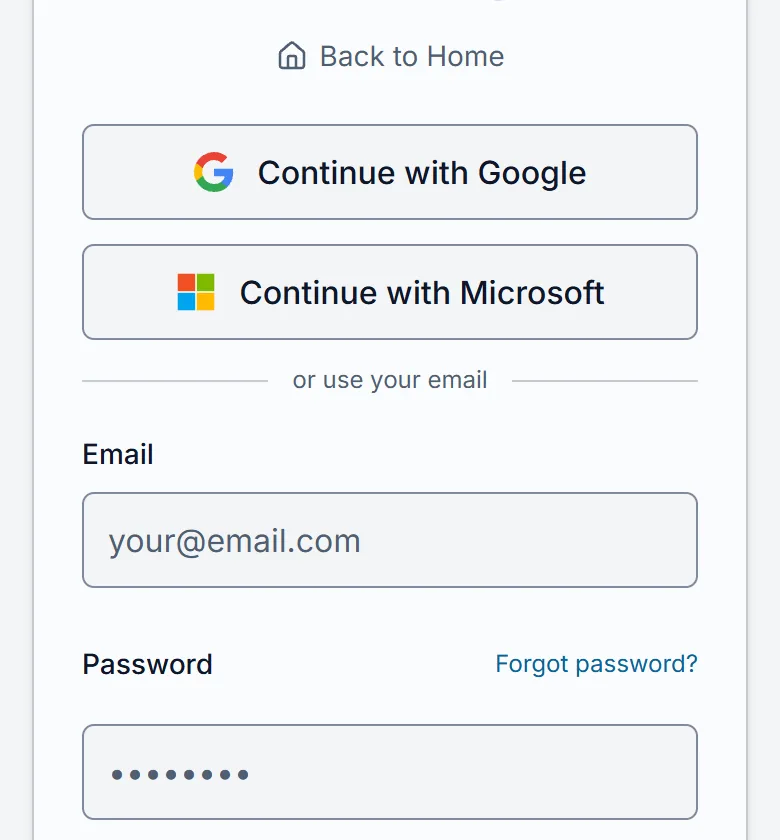
Sign in on your phone
Open your phone's browser, go to claimory.io and press Log in. Type your email and password and press Sign In.
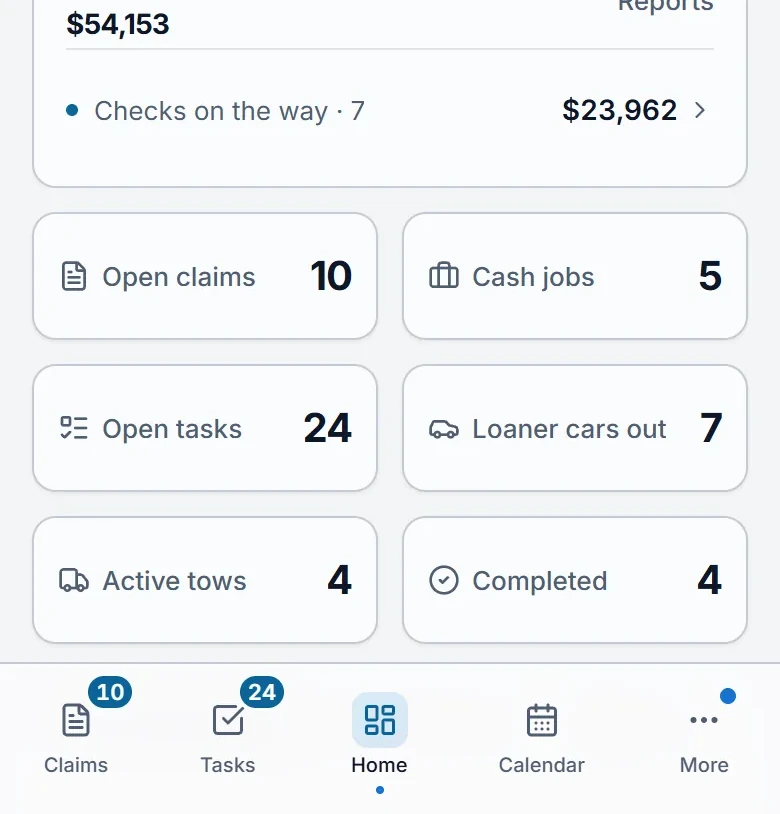
Use the bar at the bottom
Press Claims, Tasks, Home, Calendar or More. More opens the Marketplace, every other screen and Contact Support.
Search and the bell are at the top of the screen.
Work on a claim
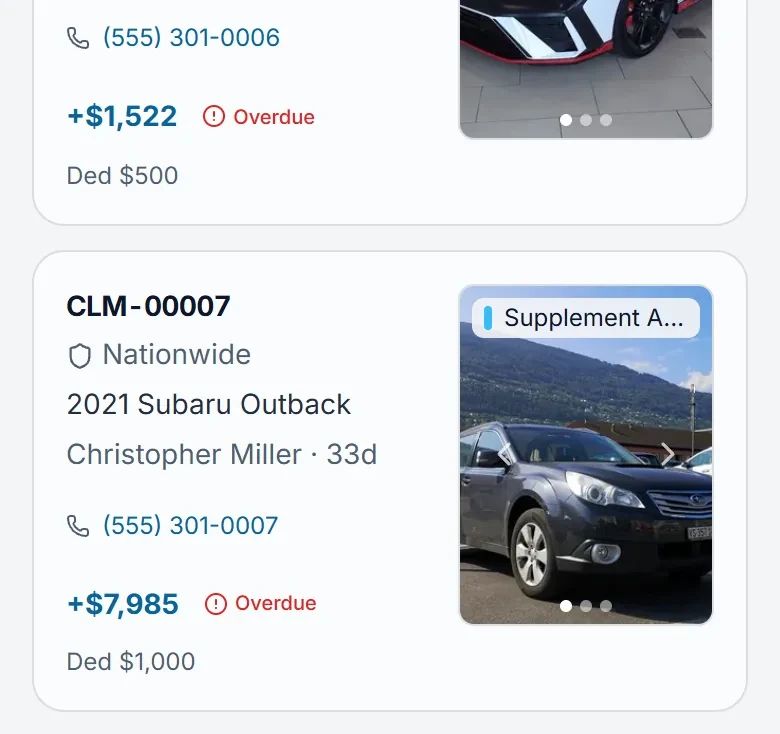
Open the car
Press Claims, then press the car. Press search and type a customer, VIN or claim number to go straight to one.
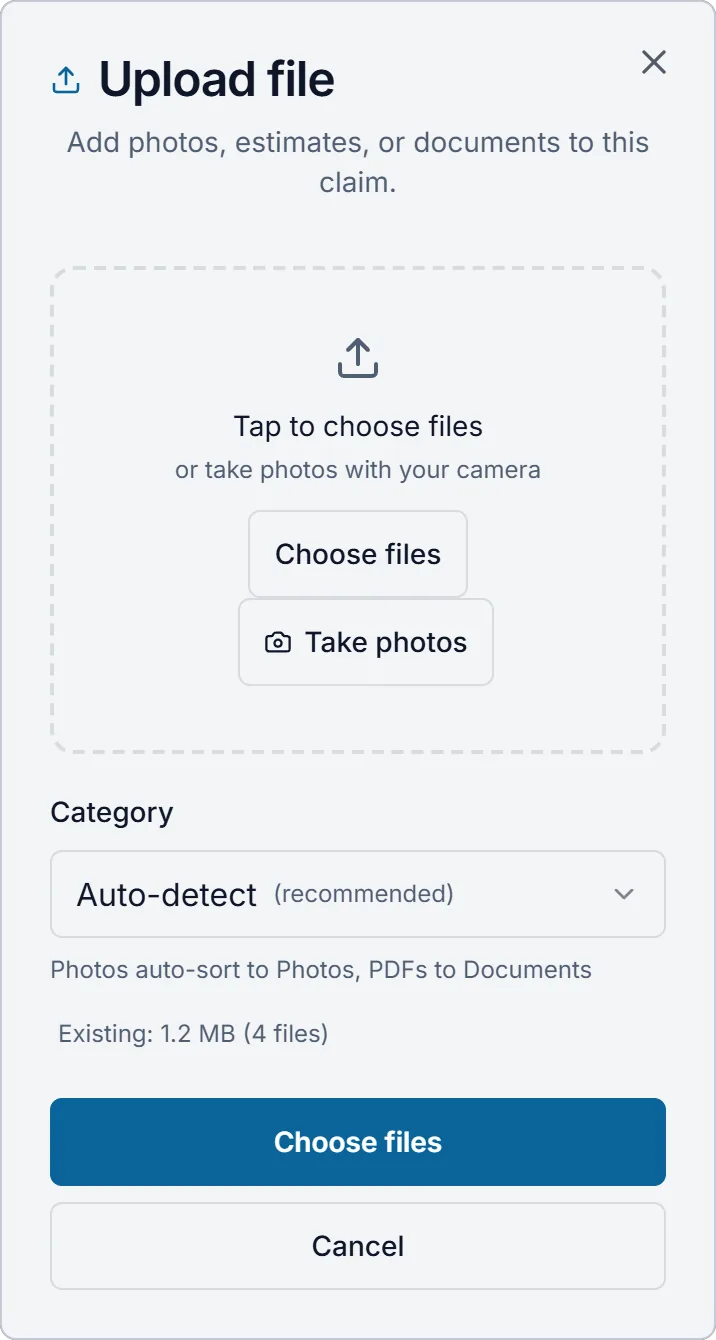
Take photos
Open the claim's Files, press Upload file and press Take photos. Take them, then press the Upload button. They land on this claim with the time.
Press Check in on Files to take the arrival photos in order.
Write a note
Type what you found under Activity and press Add Note. Switch on Polish with AI first and Claimory AI rewrites your note in clear shop wording.
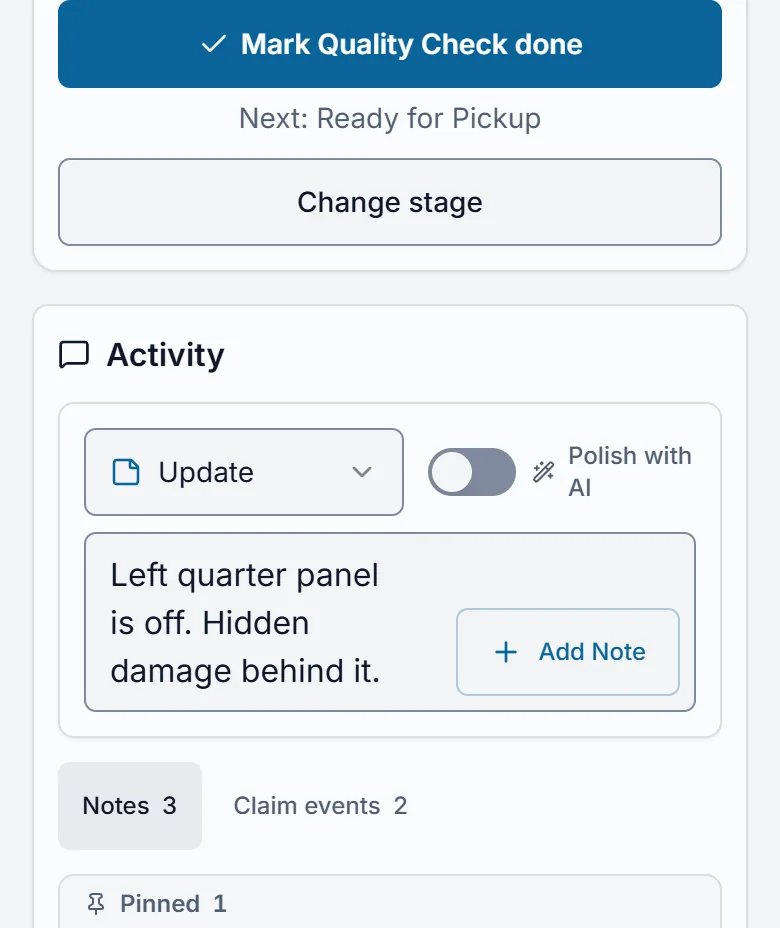
On a shop tablet
Set up a tablet by the bay
Open claimory.io in the tablet's browser and sign in. Turn it sideways or upright, and Claimory fits the screen.
Give the shop tablet its own login, so each note shows who wrote it.
Questions and fixes
Do I need to download an app?
Claimory works in the browser on your phone, tablet and computer. Open claimory.io and sign in.
Can technicians update a claim from the shop floor?
Yes. In Claimory on a phone, a technician can write notes, take photos and tick tasks and checklist steps that their role allows, and the front office sees them.
What can I do on a phone?
Claimory on a phone opens the same claims, tasks, messages, files and reports as a computer, laid out for a small screen. A few wide screens, such as the TV dashboard, are for a computer.
Does Claimory work without internet for a while?
Claimory works online. Photos from a check-in wait safely on your phone and upload when you are back on, so a strong Wi-Fi signal in the shop helps.
Can estimators write field notes on a phone?
Yes. Type rough notes on the claim in Claimory, switch on Polish with AI and press Add Note. The team sees the note on the claim right away.
Which browsers work best?
Claimory works best on a current Chrome, Safari, Edge or Firefox, on iPhone, iPad and Android too.
Camera access was blocked
Allow the camera for claimory.io in your phone's browser settings, then press Take photos in Claimory again. Or press Choose files and pick photos already taken.
No connection. Your photos are safe and will upload when you're back.
Keep Claimory open on the check-in. The photos wait on your phone and upload when the signal is back.
Having trouble connecting. Retrying...
Walk toward the Wi-Fi or turn on mobile data. Claimory keeps trying and the bar clears by itself.
Claimory is loading slowly
Refresh the Claimory page, close tabs you do not need, and check your Wi-Fi. If it stays slow, clear the browser cache or try another browser, then call (810) 692-5246.
The file is too large
Files up to 200MB upload to a Claimory claim. Send a long video in shorter clips.
Tasks or Calendar is missing from the bar
The Claimory bar shows the tools your shop added and your plan opens. Ask your owner or manager to add Tasks or Calendar from the Marketplace.
What to do next
- Check in a carCheck a car in with Claimory: save the customer's papers, pick what they sign, and take guided photos that keep uploading while you work.
- Files and photosUpload photos, estimates and papers to a Claimory claim, sort them, email or share them with an adjuster, and keep customer IDs in a locked place.
- Find your way aroundLearn where every screen lives in Claimory, on a computer and a phone, and jump to any claim, customer, VIN or page with one search and two shortcuts.
- Still stuck?Open the Support Center to find the fix or write to a person.