
What each Marketplace tool does
Find the job you want done, read the tool beside it, then add it. Every tool is free to add. Tools marked Elite come with the Elite plan, and the rest start on Professional and on the trial.
- 7 min read
- Professional and up
- Owner, Manager
What you get
- One line on what each tool does for your shop
- Where to look for it after you press Add
- The plan each tool needs
Before you start
- Professional, Elite or a free trial to open the Marketplace.
- Owner or manager to add a tool for the shop. Everyone else presses Ask your owner.
- To add any tool below: open Marketplace, open the tool, press Add.
Step by step
0 done of 9 steps
Tools in your menu
Run the front of the shop
Each Claimory tool here adds an item with its own name to your menu.
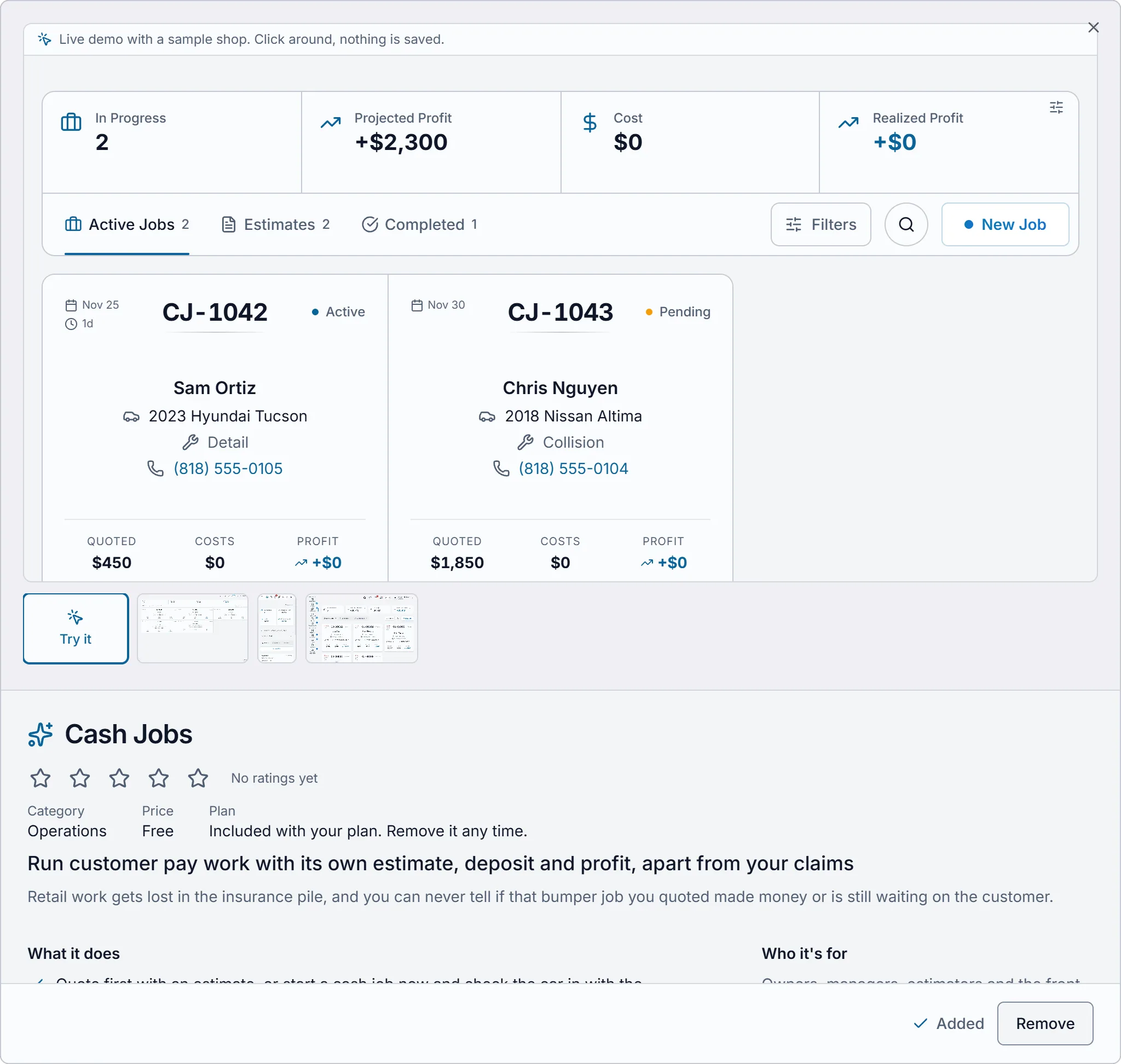
- Cash Jobs: track customer-pay work from estimate to paid.
- Tasks: give each car a to-do list and see what is due.
- Calendar: see drop-offs, pickups and visits by day.
- Contacts: keep customers, adjusters and vendors in one place.
- Claimory AI: ask a question about your shop and get an answer.
- Appointments (Elite): log every call and book estimates for today's schedule.
Follow the cars
Each Claimory tool here adds an item to your menu.
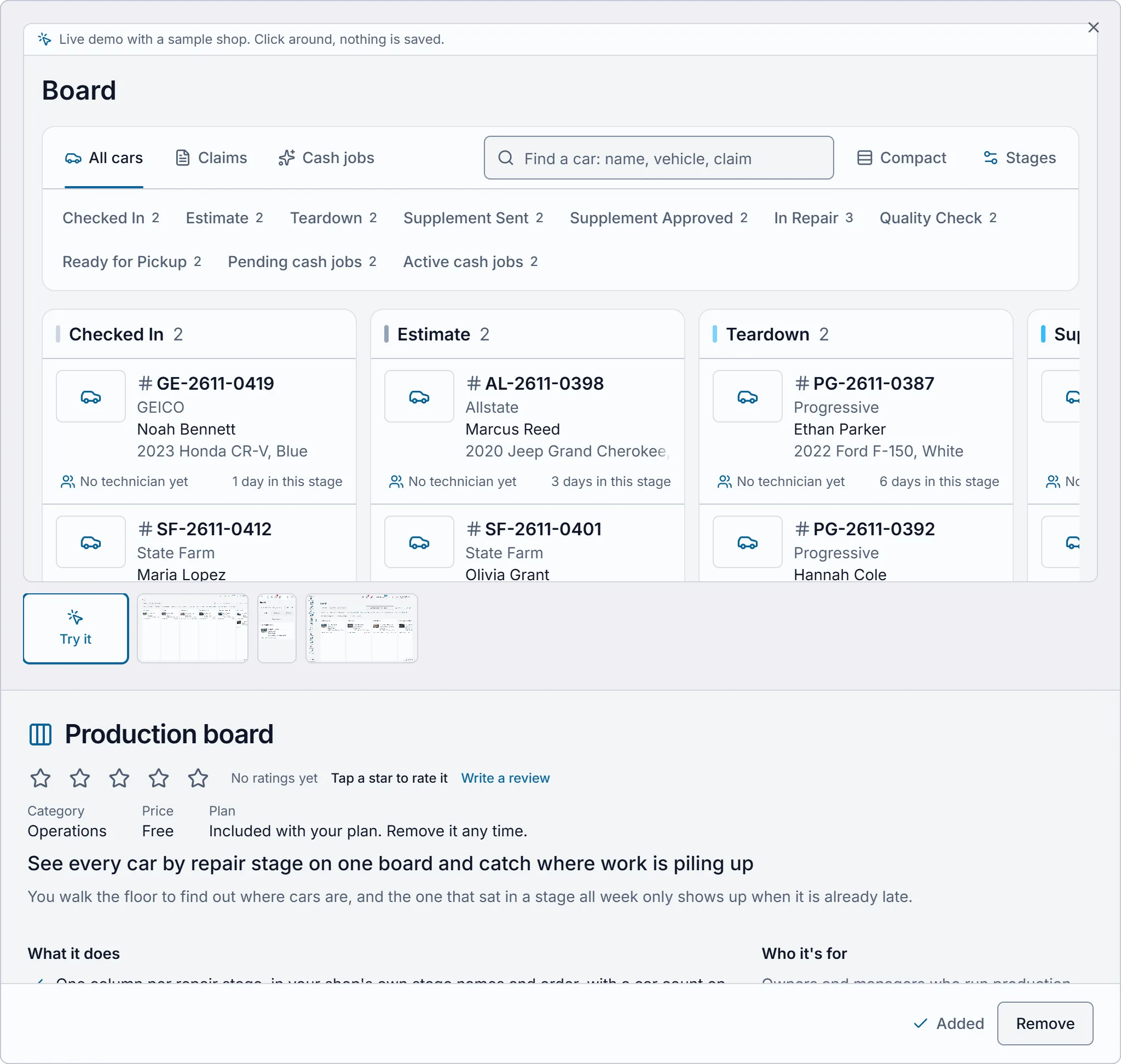
- Production board (Elite): see every claim and cash job by repair stage. Look for Board.
- Loaners: know which loaner car is out and when it comes back.
- Towing & Transport: log every tow, from pickup to drop-off.
- ADAS Coordination: schedule each ADAS calibration with its vendor, attach the report and verify it Pass or Fail. Look for ADAS.
- Warranty and Comebacks: a warranty for every delivered car, each comeback with its cost, and the car's full repair history. Look for Warranty.
Run the office
These Claimory tools come with Elite.
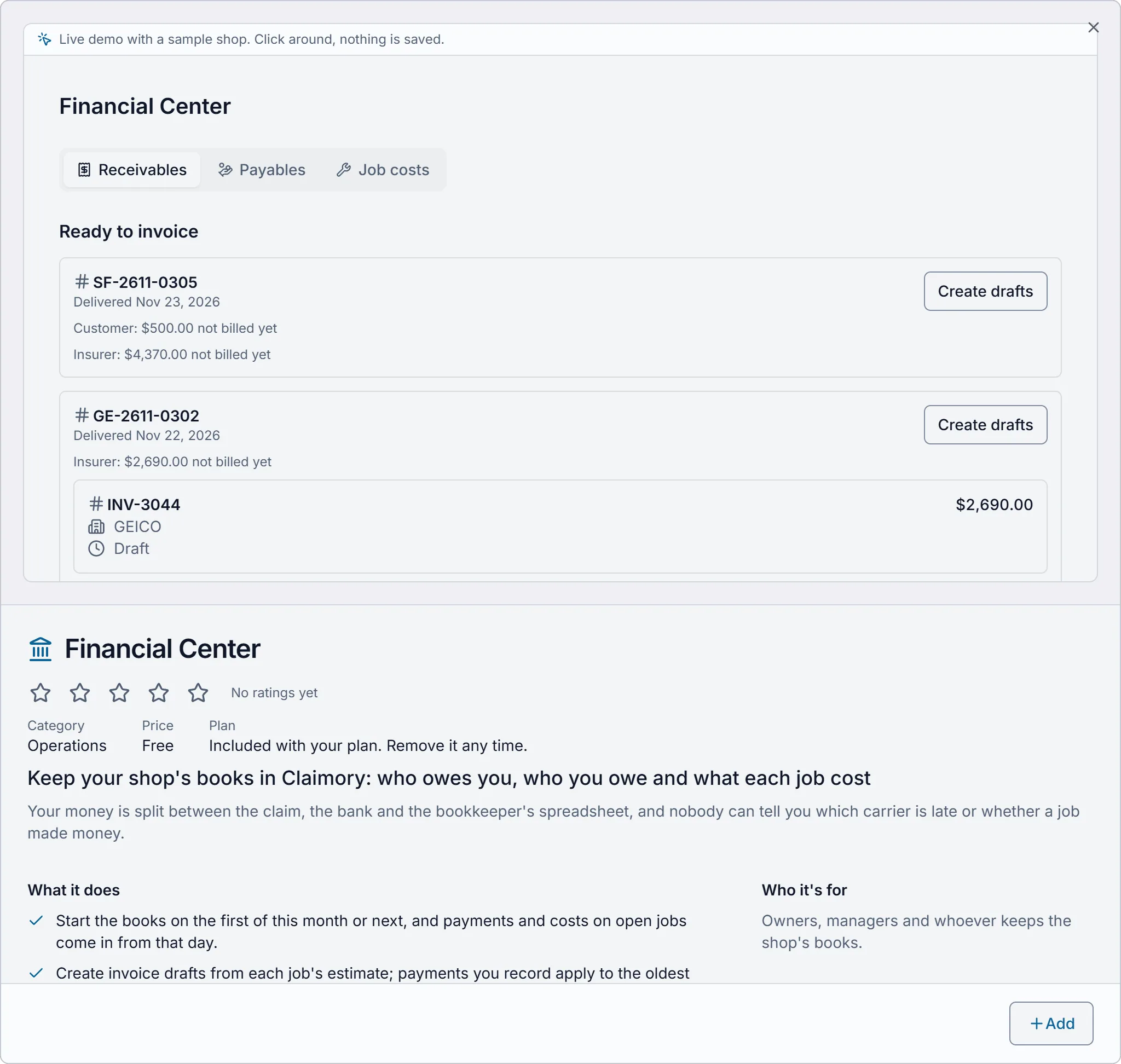
- Financial Center (Elite): keep your books, who owes you, who you owe and what each job cost.
- Time Clock (Elite): replace your clock system and see what labor costs on every car.
- Payroll (Elite): gross pay, tax withholdings and net pay, in a Payroll tab in Reports.
- Inventory (Elite): count the parts on your shelves.
- Supplier Score (Elite): see which suppliers deliver on time and whose parts arrive right, in the Vendors tab in Inventory.
Tools on every claim
Check the money and the supplement
These Claimory tools show up inside each claim and start on Professional.
- Supplement Document Check: see what a supplement is missing before it goes to the carrier, on the Supplements tab.
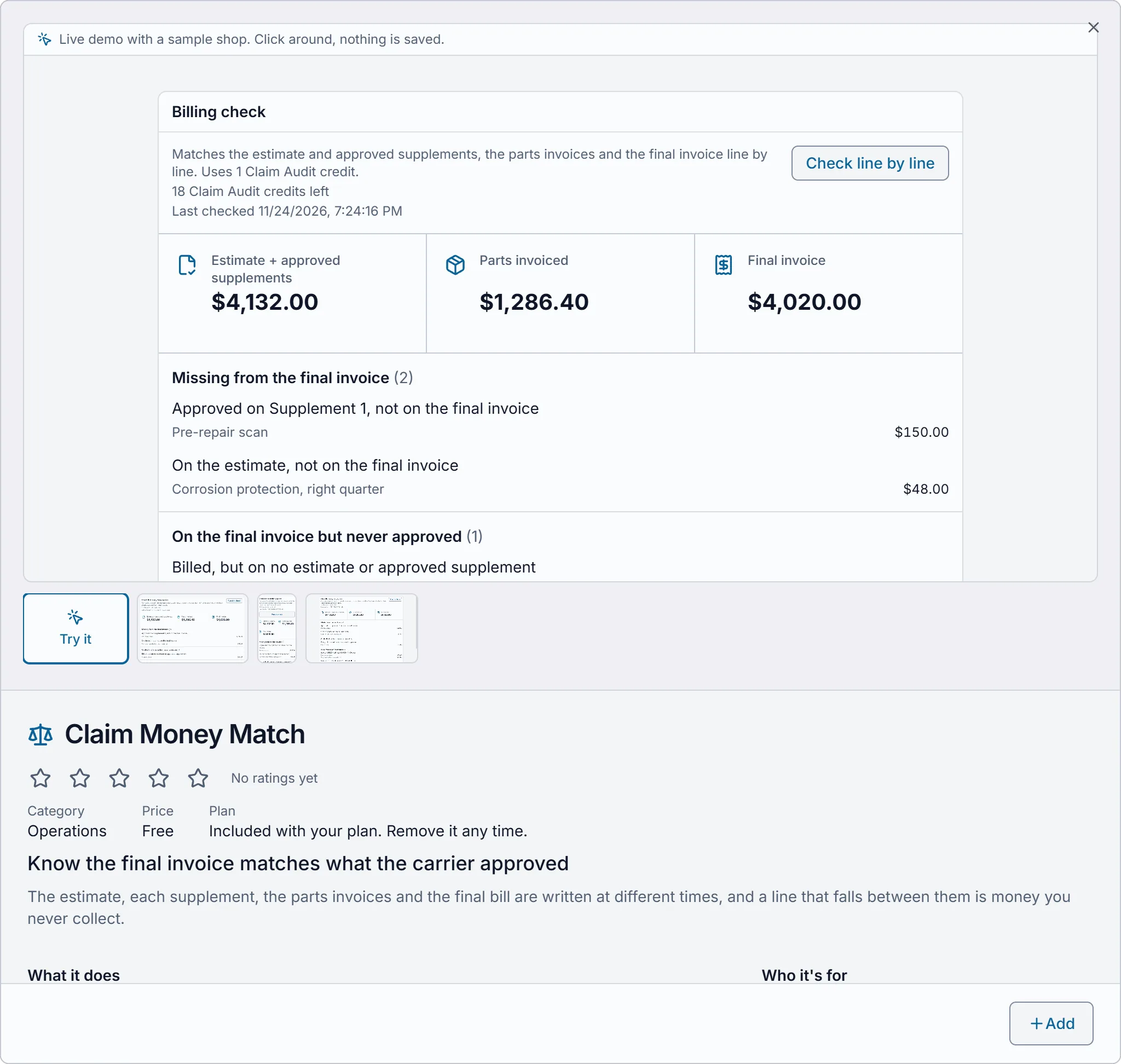
- Claim Money Match: check that the estimate, supplements, parts invoices and final invoice agree, in the Billing check on the Financials tab.
- Profit Leak Alerts: catch unbilled sublet and labor, uninvoiced supplements and parts over estimate, in the same Billing check.
- Adjuster Supplement Decisions: let the adjuster approve, reject or ask about a supplement from your portal link.
Log and check off work
These Claimory tools change what you can press on a claim.
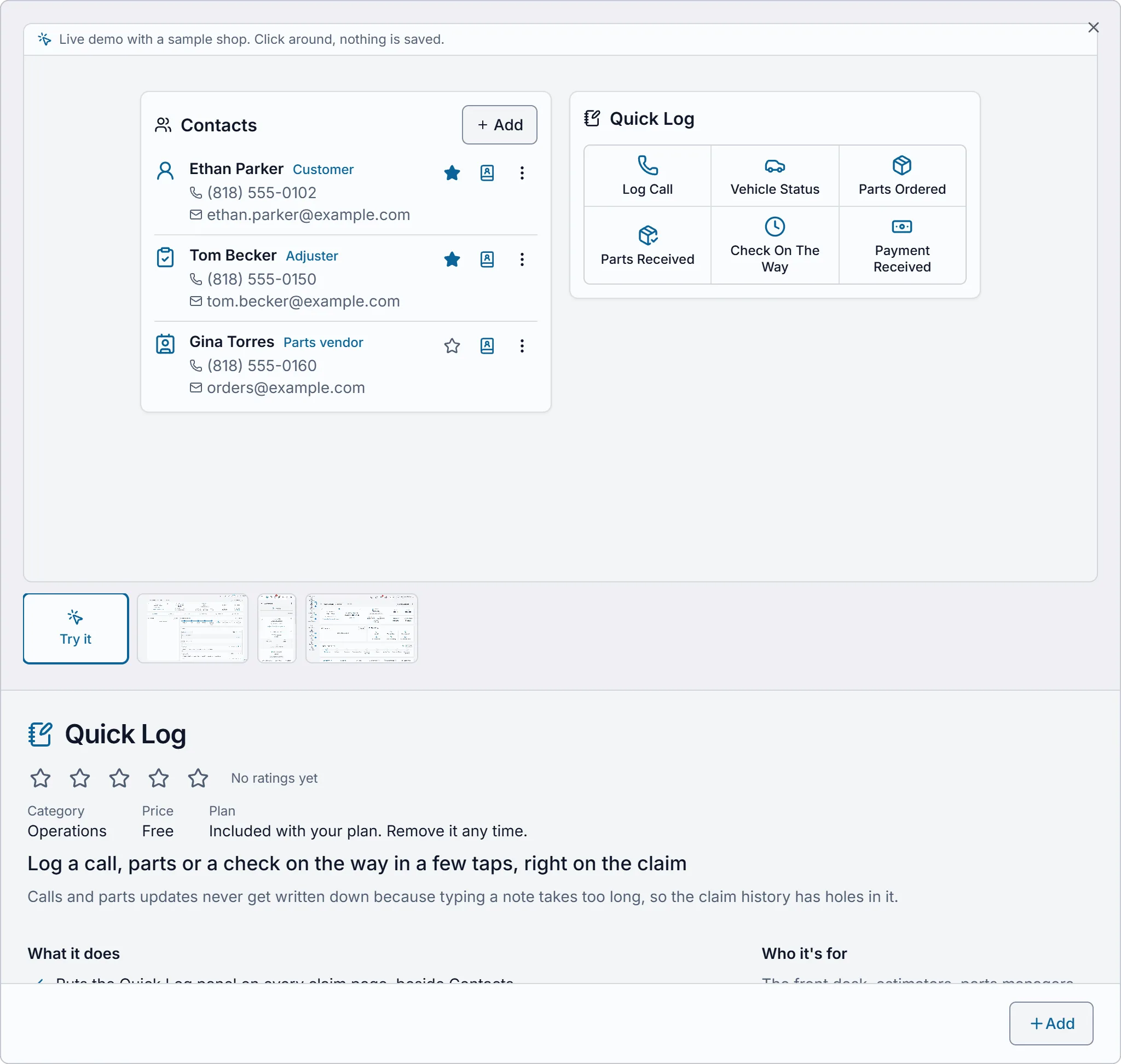
- Quick Log: log a call, vehicle status, parts, a check on the way or a payment in a few taps. Look beside Contacts on the claim.
- Custom Shop Checklist: add, delete and reorder the steps in your Shop SOP Checklist. Look for Edit steps.
- Delivery Sign-off: keeps a claim from being marked Completed or Delivered until its delivery checklist is ticked.
- Review Requests (Elite): email each customer a short survey after delivery, then invite them to review you on Google. Look in Settings, Shop Info, Directory Listing.
Delivery Sign-off starts right away for everyone in the shop, so tell the team first.
Parts and the floor
Keep parts moving
These Claimory tools follow a part from the order to the car.
- Parts: each claim's parts in one list, what to order and what arrived. Press Open parts on the Financials tab.
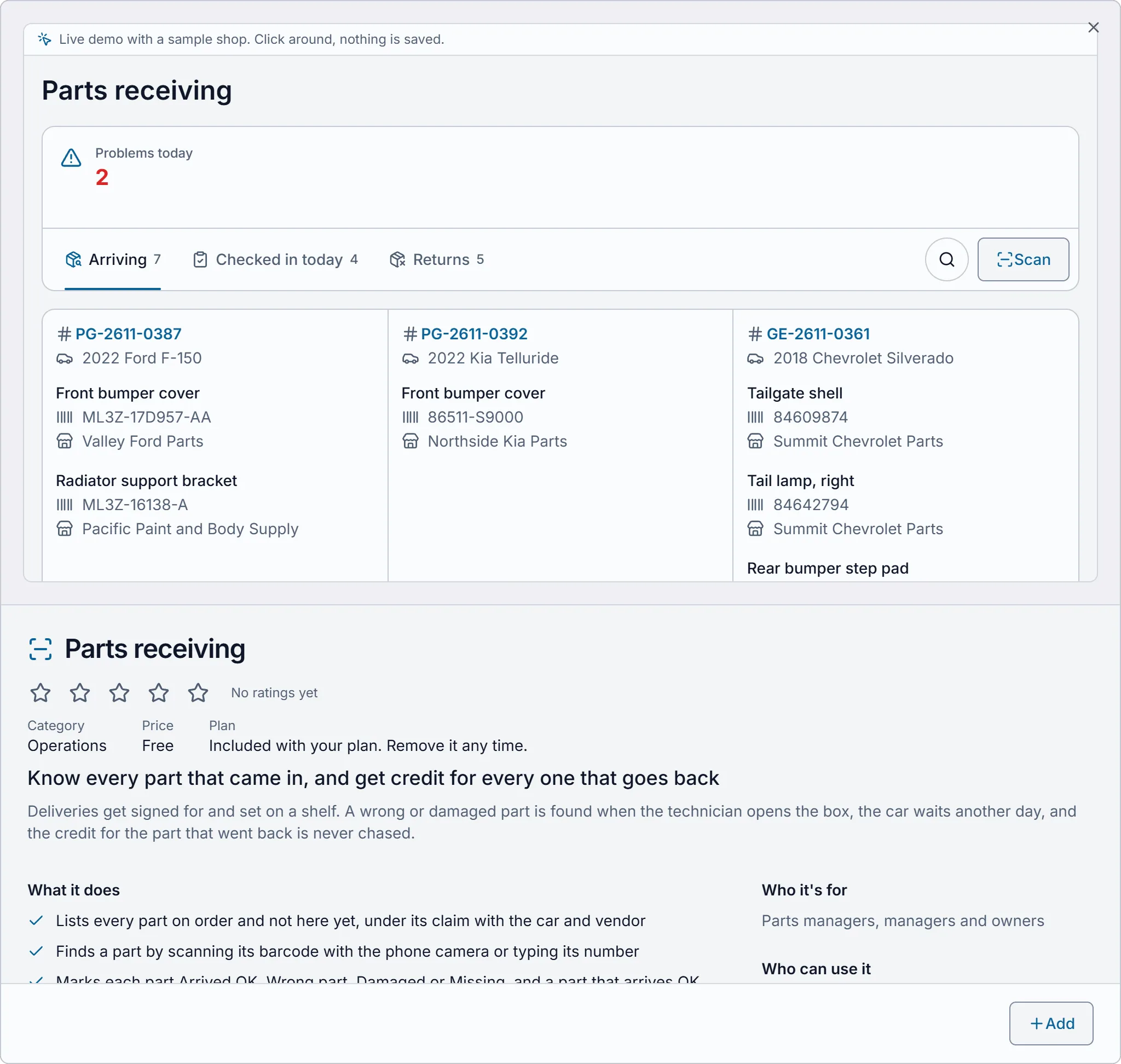
- Parts receiving (Elite): check parts in at the door, then track every return, core and credit in its Returns tab until the vendor pays.
- Parts Hold (Elite): keeps a car out of In Repair until its parts are in, on the Board and on each claim.
- Materials (Elite): log the seam sealer, clips and tape each job uses and mark them billed, on the Financials tab.
Plan the technicians
These Claimory tools come with Elite.
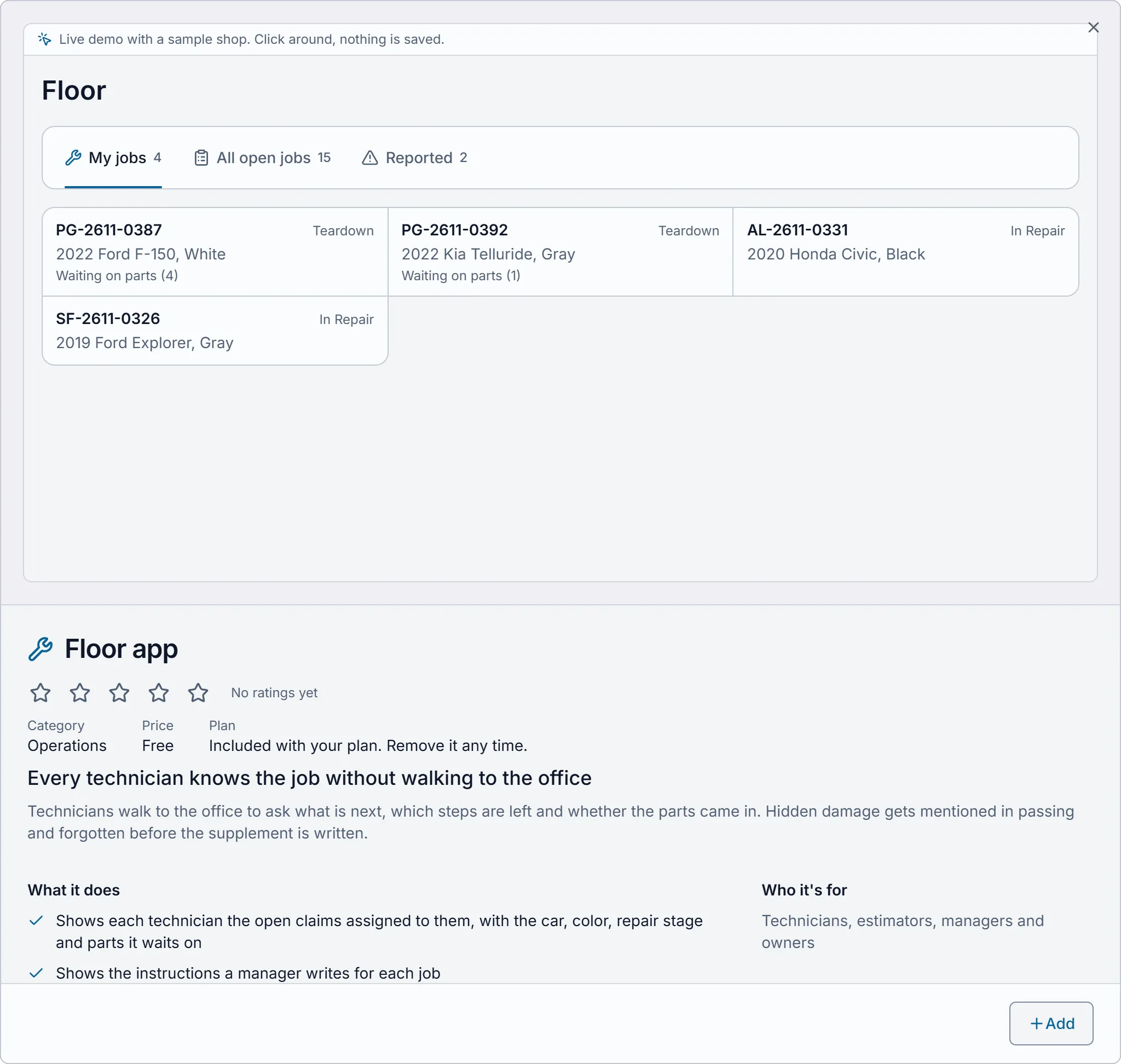
- Floor app (Elite): each technician's jobs on a phone or tablet, with instructions, checklist, photos and extra damage. Look for Floor in the menu, or My jobs in My clock for a shop with Time Clock.
- Capacity Planning (Elite): your team's hours each week against the work on your cars. Look for Capacity.
- Team Skills (Elite): each technician's skills and certifications, and what expires soon, on Team Management.
- AI picks the technician (Elite): a Suggest button in the Technician list for owners and managers. You decide.
Team Skills comes first. AI picks the technician works from it, so Claimory offers Add both.
Connections and looks
Connect shops and other apps
These Claimory tools come with Elite, for owners and managers.
- Multi-location Tools (Elite): lend technicians, see purchasing and share company accounts across linked shops, on the Locations page.
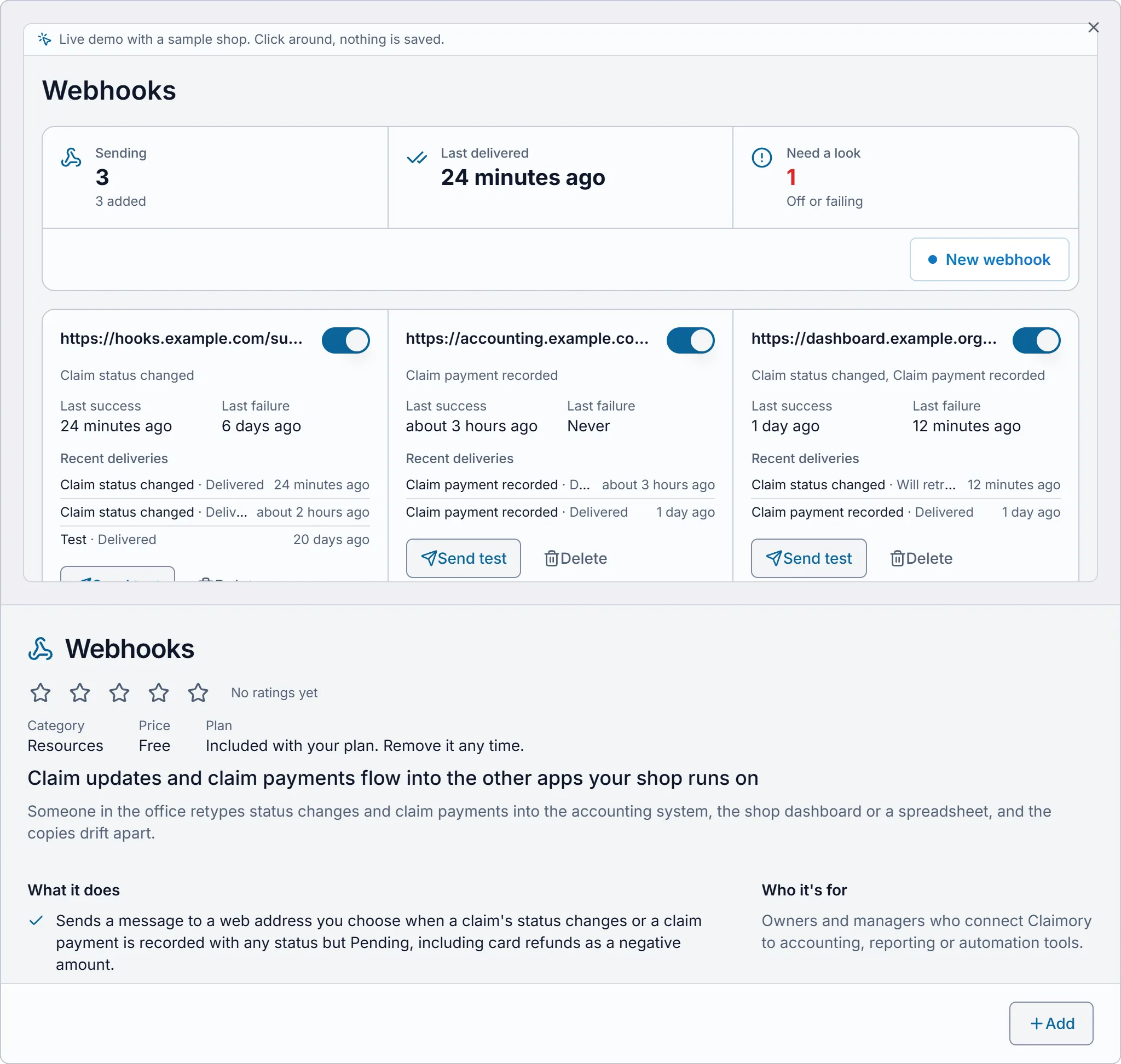
- Webhooks (Elite): send claim status changes and claim payments to your other apps, in Settings, Integrations.
Multi-location Tools is listed for shops that are linked in a location group.
Change how lists and claims look
These Claimory tools change the look for the whole shop.
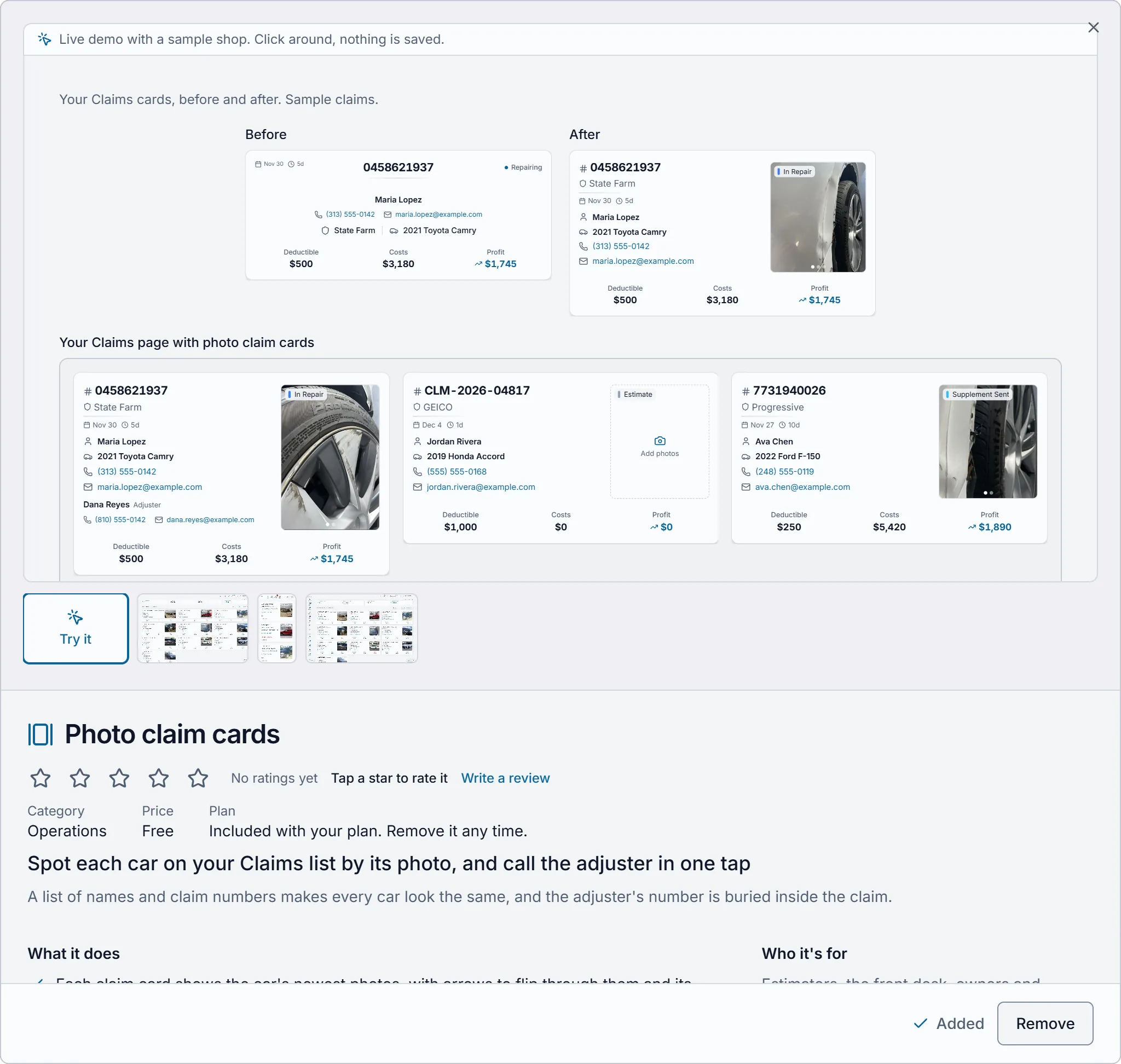
- Photo claim cards: your Claims list cards, built around each car's photos, repair stage and adjuster.
- Tabbed claim page: open each claim to one screen with tabs for files, tasks, financials, supplements and audits.
- New lists: your numbers and tools in one panel and your cards in one tidy grid. Every shop starts with it.
- Classic lists: the original look of your list pages. Adding it takes the place of New lists.


Questions and fixes
Does adding a tool cost anything?
Every tool in the Claimory Marketplace is free to add. The plan decides which ones you can add.
Which Elite tools are coming to Professional?
The Claimory Marketplace marks these Coming to Professional, on Elite today: Parts receiving, Parts Hold, Materials, Floor app, Capacity Planning, Team Skills and Review Requests.
Will removing a tool delete my records?
Claimory keeps everything in a tool you remove. Add the tool again and all of it is back.
Where do profit leaks show up?
Profit Leak Alerts in Claimory shows on the Billing check in each claim's Financials tab, in the Financial Center, and in the Not billed yet widget.
I added a tool and I do not see it
Press Show me right after adding, or open the tool's page in the Claimory Marketplace and read where it shows. Some tools live inside a claim, Settings or Reports. If you hid the menu item, open Installed, My menu, Edit my menu.
Included with Elite. Upgrade to unlock it.
The Claimory tool on that page comes with Elite. An owner or manager presses Upgrade and picks Elite in Billing.
Where are Ready for pickup and Parts Returns?
In Claimory, Ready for pickup is now the Pickups today widget, and Parts Returns is the Returns tab inside Parts receiving.
The button says Ask your owner
Owners and managers add Claimory tools for the shop. Press Ask your owner, or tell them the tool's name.
What to do next
- Add a toolAdd free tools and dashboard widgets to Claimory from the Marketplace, see which plan each one needs, remove one safely, and hide menu items you skip.
- Plans and billingChoose a Claimory plan, move from your free trial to paid, change plans, fix a failed card, find invoices, cancel or restart your subscription.
- Quick Log and checksLog a call, a parts order, a payment or a check on the way from any claim in Claimory with Quick Log, then follow every check until it arrives.
- Still stuck?Open the Support Center to find the fix or write to a person.