
Quick Log and checks on the way
Quick Log puts six buttons on every claim for the things a shop logs all day. Checks On The Way lists the money that is still coming in.
- 4 min read
- Professional and up
- Owner, Manager, Front desk
What you get
- A note in the claim's Activity for every call, part and payment
- Checks you are waiting on, in one list with a total
- Parts costs and payments added to the claim as you log them
Before you start
- Quick Log is a free Marketplace add-on on Professional, Elite and the free trial. An owner or manager adds it once for the shop.
- Checks On The Way is on every plan.
- Owner or manager to log a check or a payment on a claim. Anyone who can open the claim can log a call or a vehicle status.
Step by step
0 done of 9 steps
Log from a claim
Find Quick Log on the claim
Open a claim. Quick Log sits beside Contacts, with Log Call, Vehicle Status, Parts Ordered, Parts Received, Check On The Way and Payment Received.
Log a call
Press Log Call. Fill in who, phone, subject and notes, whatever you have. Press Save and Claimory says Call logged.
Log the car's status
Press Vehicle Status. Type the Status, and the blocker if something is holding the car. Press Save. The note lands in Activity, and the repair stage stays where it is.
Log parts
Press Parts Ordered and fill in the vendor, the part, the Order date and the Estimated arrival. When parts come in, press Parts Received and add the Invoice / PO number and the Received date. Type an Amount to add the parts to the claim as a cost.
Log a check on the way
Press Check On The Way. Pick the Payer type, then add the Expected amount, Check number and Expected arrival date. Press Create Reminder. The claim gets a Pending payment.
Log a payment
Press Payment Received. Pick the Payer, type the Amount and add the check number. If it is in the bank, switch on Mark as deposited and set the Deposit date. Press Save.
Follow checks on the way
Open Checks On The Way
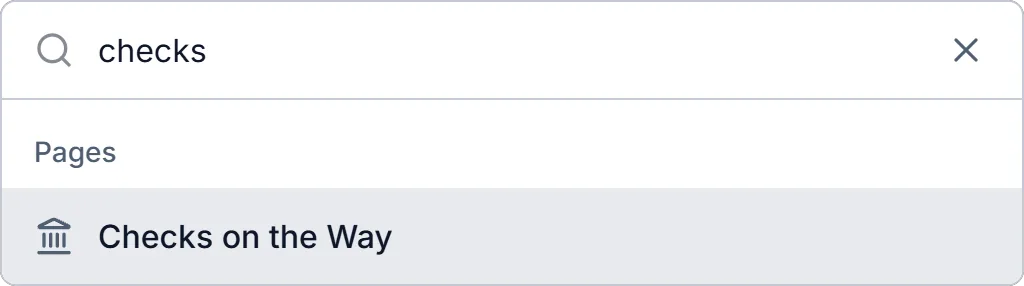
Press Ctrl+K (Cmd+K on a Mac), type checks and open Checks on the Way. The total expected is at the top.
The This month money widget on your dashboard also opens the list. Press Checks on the way there.
Narrow the list
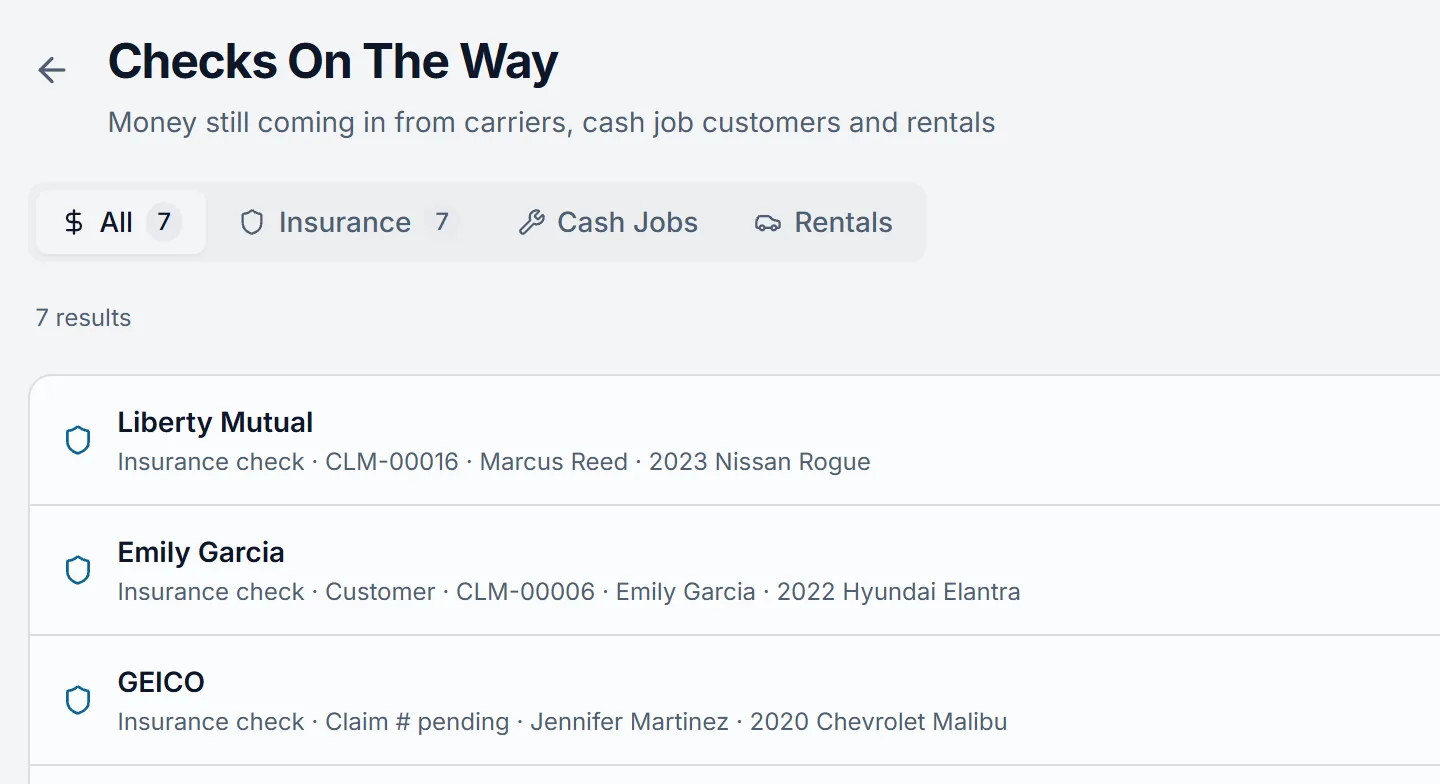
Press All, Insurance (Carrier on a phone), Cash Jobs (Cash on a phone) or Rentals, or use Search checks to find a payer, claim or check number. Press a row to open its claim or job.
Press Mark Received
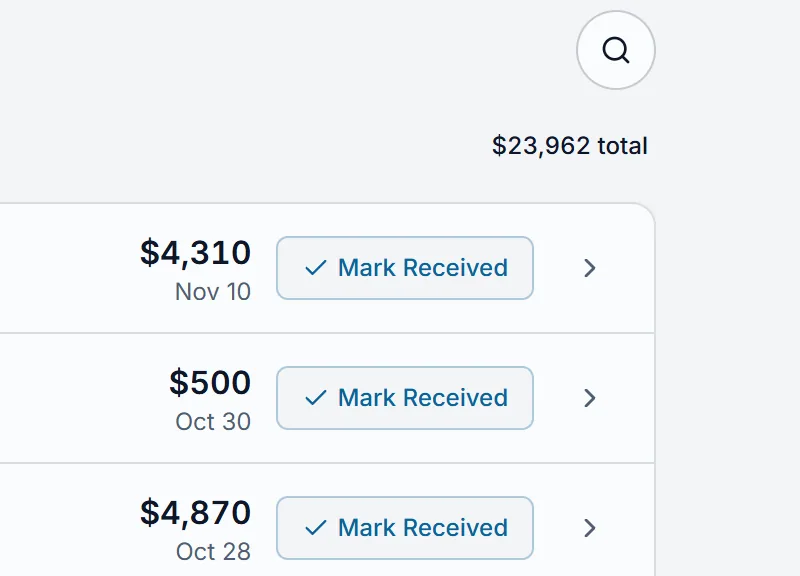
When a check arrives, press Mark Received on its row. On a phone it is the check mark. The row leaves the list and the payment on the claim turns Received. On a cash job it turns Paid.


Questions and fixes
What is Quick Log in Claimory?
Quick Log is a Marketplace add-on that puts six logging buttons on every claim, beside Contacts. Each entry lands in the claim's Activity.
Does logging parts in Quick Log add the cost to the claim?
Yes, when you type an Amount in Parts Received. Claimory says Parts received logged and cost added.
What is on the Checks On The Way list in Claimory?
Pending payments on claims and cash jobs, and rental charges. Mark Received is for claim and cash job payments, and rentals open in Loaners.
What happens to my entries if my shop removes Quick Log?
The panel leaves the claim and every entry stays in Activity. Adding Quick Log again brings the panel back.
Do cash jobs have Quick Log?
Yes. Every cash job in Claimory has its own Quick Log panel beside Contacts, with no add-on needed. Its buttons write notes in Activity, so log the money itself on the Financials tab of the job.
Quick Log is missing from the claim
Open Marketplace, find Quick Log and press Add. It is added for the whole shop, so if you are not an owner or manager, press Ask your owner.
The Quick Log buttons are gray
The claim is archived. Restore it, then log on it.
Please enter a valid amount
Payment Received needs an amount above zero. Type it in digits, like 450.00, and press Save.
Failed to log payment
Payments on a claim are saved by an owner or manager. Ask one of them to log it, or check your connection and try again.
No checks are on the way right now
Nothing is Pending on a claim or cash job, and there are no rental charges. A check shows up after you press Check On The Way, log a payment as Pending or send a payment link.
No results match your search
Press Clear search, or press All to see every check.
Could not update check
Press Mark Received again. If it still fails, open the claim's Financials tab and press Received on the payment line. Your role needs to be able to edit financials.
What to do next
- Log costs and paymentsLog parts costs, labor hours and checks on a claim in Claimory, mark a payment received or deposited, and fix or delete a line that is wrong.
- Add a toolAdd free tools and dashboard widgets to Claimory from the Marketplace, see which plan each one needs, remove one safely, and hide menu items you skip.
- Cash jobs and estimatesWrite an estimate in Claimory, email it, turn a yes into a cash job, then log costs and payments, send the invoice and see the profit on the job.
- Still stuck?Open the Support Center to find the fix or write to a person.