
Run a Claim Audit and read the report
A Claim Audit is a second set of eyes on the carrier's estimate. Claimory AI reads the files you pick and lists possible misses with proof. It suggests, you decide.
- 8 min read
- Professional and up
- Owner, Manager, Estimator
What you get
- A list of findings, priced where the numbers are there
- A note for each finding, ready to copy to your supplement
- Where the carrier may push back, and what to answer
- A To do list that makes the supplement stronger
Before you start
- Professional or higher, or your free trial. Each run uses 1 Claim Audit credit.
- The carrier's estimate as the PDF the estimating system prints, and damage photos, on the claim.
- Your body and paint labor rates, your shop's state, and the car's year, make and model. Claimory asks if one is missing.
Step by step
0 done of 10 steps
Run it
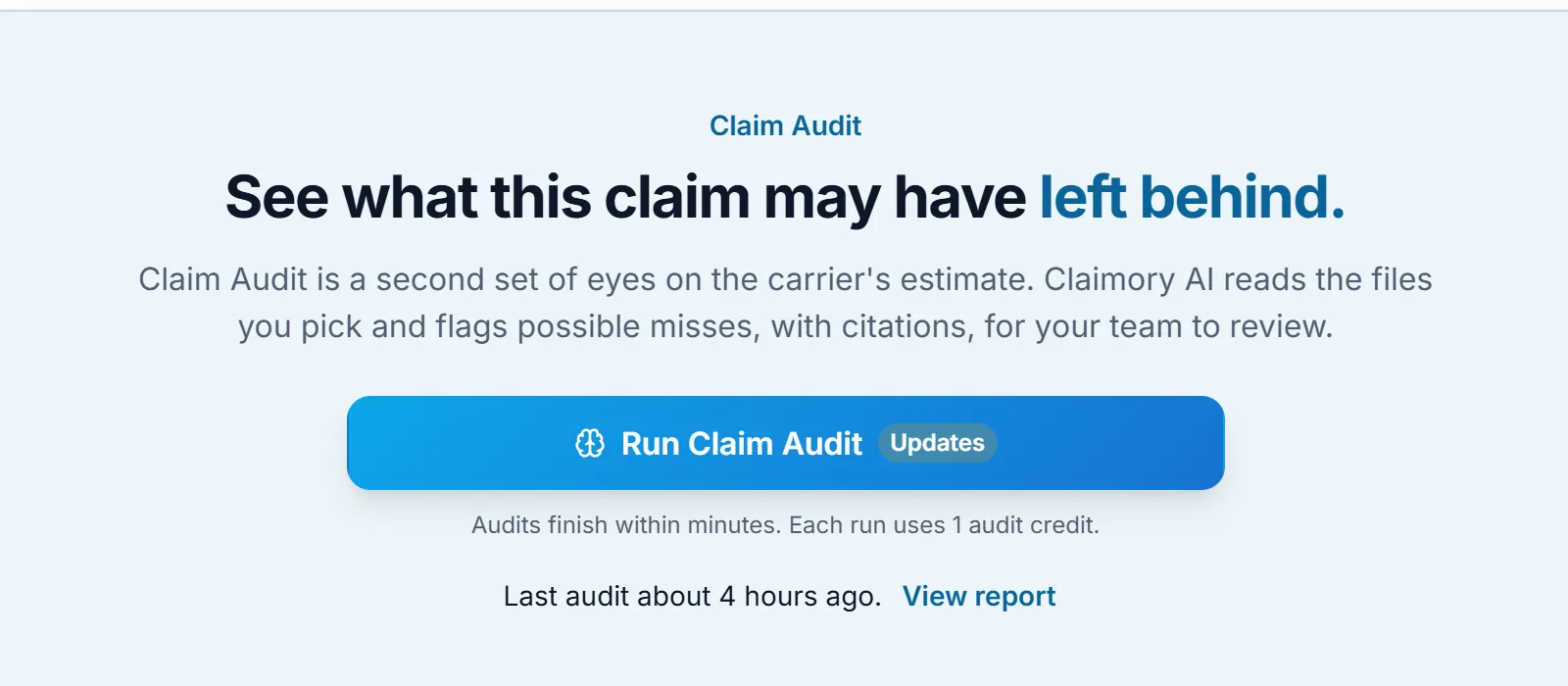
Open Claim Audit and press Run Claim Audit
Open the claim, press the Claim Audit tab, then Run Claim Audit. If the claim has no photos, Claimory asks first: Add photos first, or Run anyway.
Fill in what is missing, if Claimory asks
Finish setup for an accurate audit shows only what is missing. Fill it in and press Save and run audit. It is saved for every future audit.
- Labor rates price the missed labor. Owners, admins and managers add them.
- Shop state is used to cite your state's insurance rules. Owners, admins and managers set it.
- Vehicle matches the carmaker's repair statements.
- Estimate: press Upload estimate, then run again once the file shows its lines.
Press Skip to run without it. Claimory tells you what the report will lack and asks again. Use 1 credit and run starts it.
Pick the insurance company's file
Pick their latest estimate or supplement and press Next. If it is not on the claim, press Upload a PDF. Files added since your last audit are marked New.
Let us choose picks the newest file labeled as the carrier's, and the newest photos. The report says which file it read.
Add your supplement, documents and photos
Press Next through the steps, then check the list on Review and press Run Claim Audit.
- Supplement: yours, if you wrote one. Press Skip if not.
- Documents: scans, calibration reports, invoices. Up to 5.
- Photos: up to 30. The newest are ticked for you. Photos the customer sent show too.
- A photo PDF is read page by page and counts as one document.
Wait for the report
The screen shows five checks and the time so far. Audits finish within minutes, and photo-heavy claims take longer. You can leave the page: the audit keeps going, and the Claim Audit tab shows it when you come back.
- Reading estimate line items
- Scanning damage photos
- Checking state regulations
- Identifying supplement opportunities
- Calculating money left on the table
Press Cancel to stop it. A canceled audit uses no credit.
Read it
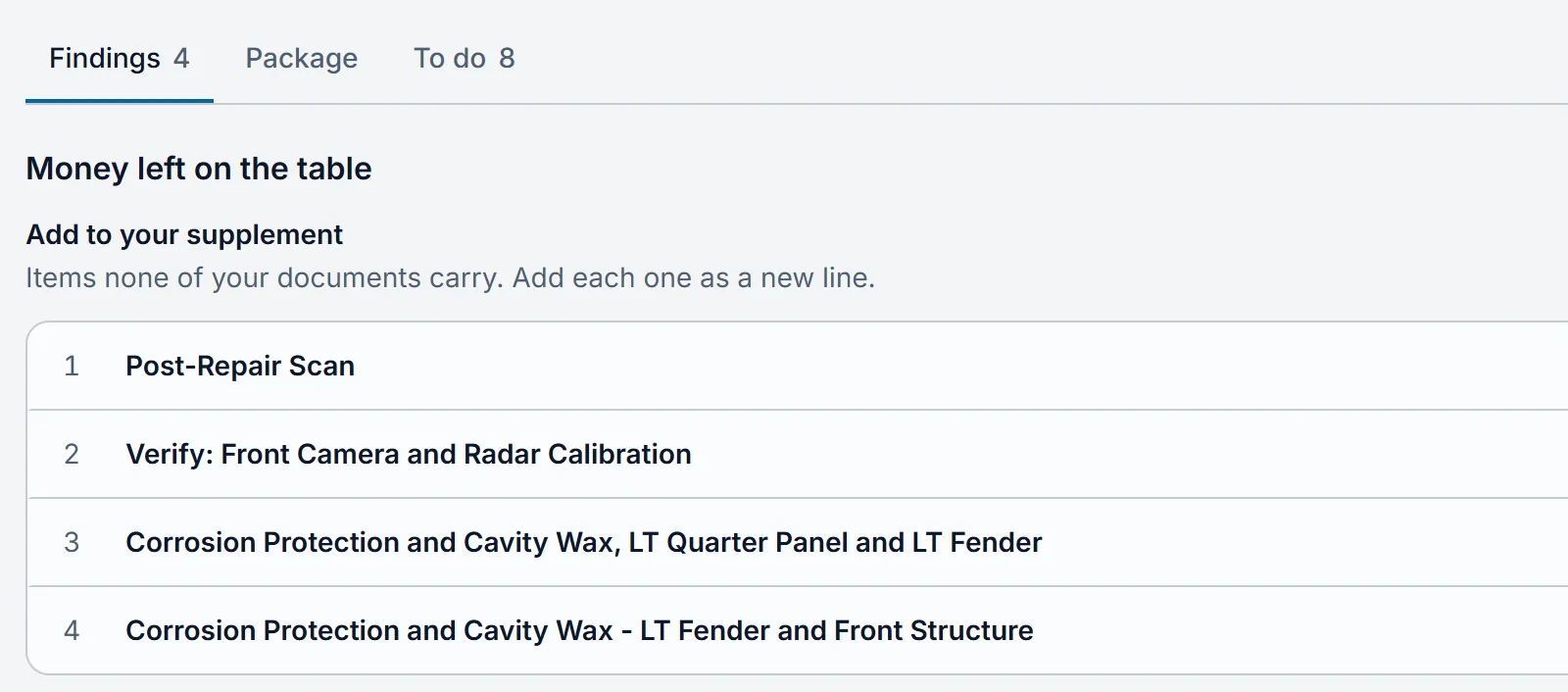
Start with the number and the Findings tab
The report opens on top of the claim. The dollars left on the table are an estimate of what the priced findings could add. Items with no price show TBD. Press the i beside the number for the files read, the labor rates used and the audit's confidence.
- Add to your supplement: items none of your documents carry.
- Still on your supplement, not paid yet: lines you asked for, marked Still owed, Fix its line note first, Add proof to its line note first, or Waiting on the carrier.
- A labor rate line shows the rate asked, the rate paid and the dollars between them.
- Below the bar: findings Claimory set aside, with the reason.
Open a finding
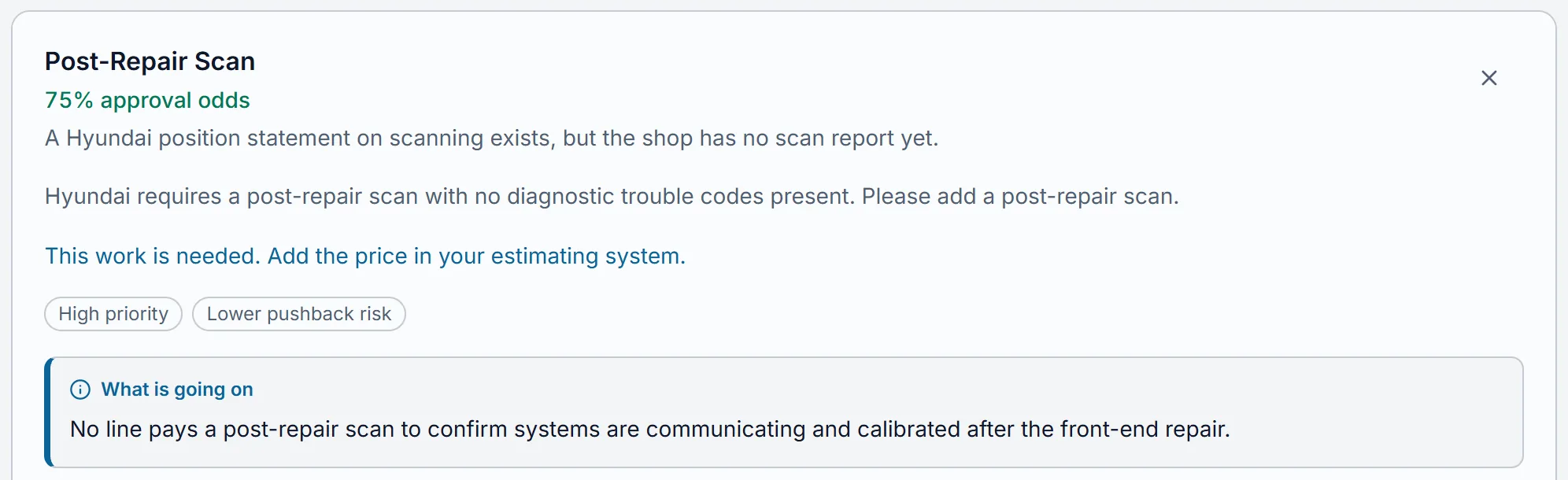
Press a finding. The label says Critical, High, Medium or Standard priority. Approval odds are how likely Claimory AI thinks the carrier is to approve it, an estimate and not a promise.
- What is going on, and Why this holds up
- Proof in the file: the photo, page, rule or procedure
- Where the carrier will push back: They'll say, and Your reply
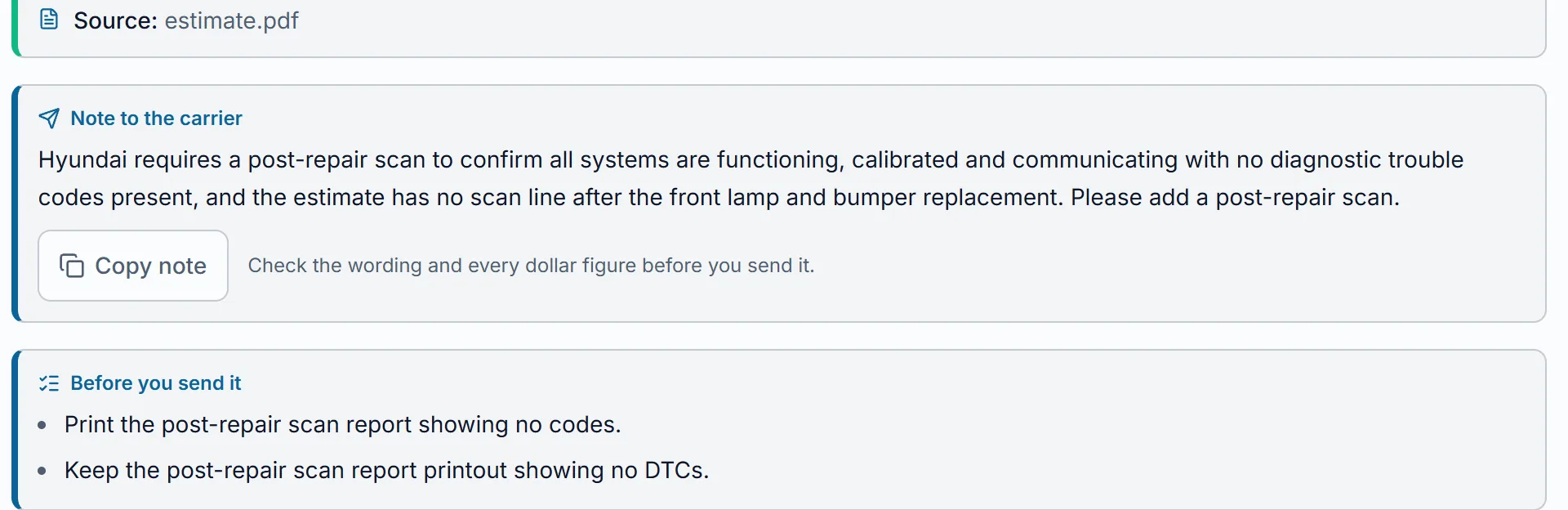
- Note to the carrier, and Before you send it
- Missing from your supplement, Needs proof, or Needs a stronger note
Ask about this finding answers questions such as Why might they deny this? Press Continue in Claimory AI to keep going.
Use it
Copy the note or press Add Line
Copy note puts the note on your clipboard. Check the wording and every dollar before you send it. Add Line puts the line on the claim's draft supplement.
With Draft Only Mode on, the line waits under Waiting for your approval. Press Add to supplement or Dismiss.
Work the To do tab
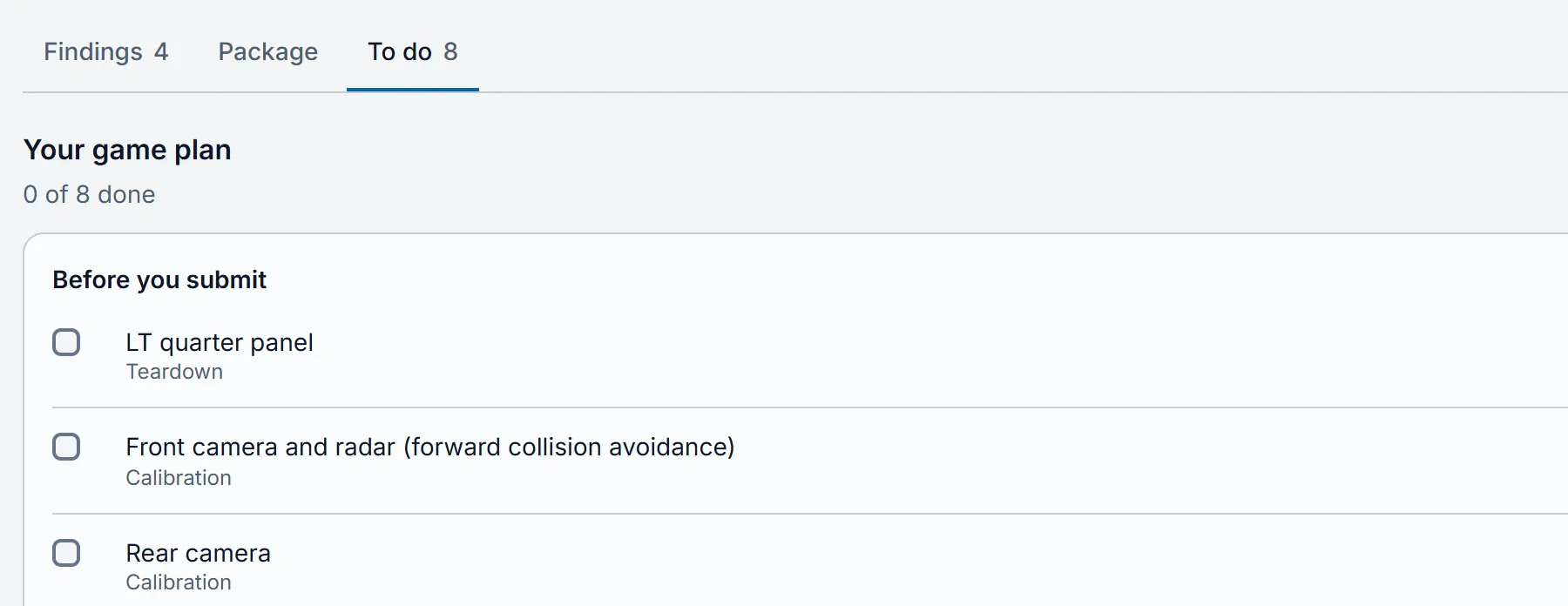
To do has Your game plan: what to do before you submit, and If the carrier stalls, with steps by day. Tick each one, or press Add as task (the list button on a phone) to give it to someone.
- Calibration, Photo to take, Teardown, Weak spot
- Each calibration says OEM required, Verify OEM requirement, already paid or asked for on a line, or Price TBD.
- Calibrations counted in the gap is the total already in the dollars on top.
Mark what is wrong, then print or package it
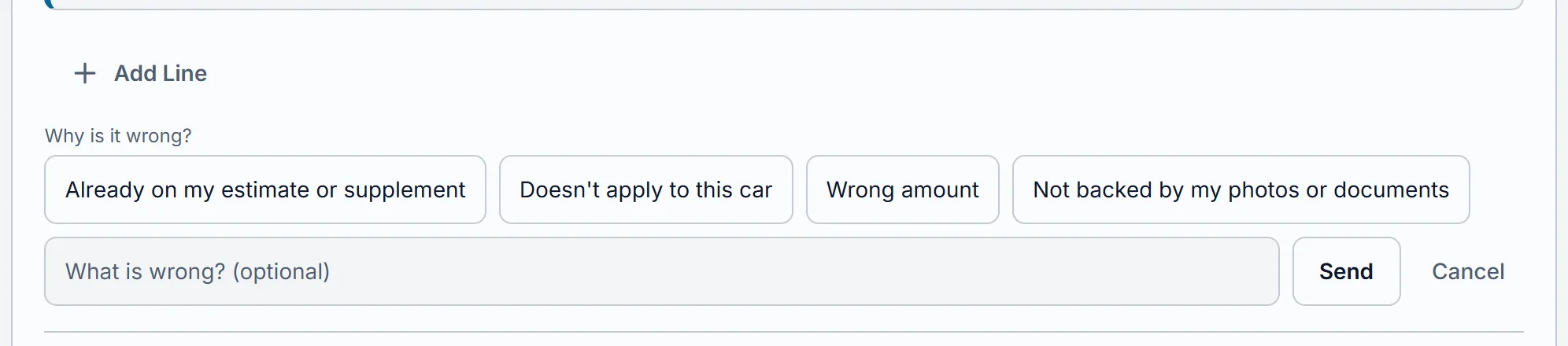
On a finding, press This is wrong, pick the reason, add a note if you like and press Send. The printer button on top saves the report as a PDF. The Package tab builds one PDF for the carrier.
Reasons: Already on my estimate or supplement, Doesn't apply to this car, Wrong amount, Not backed by my photos or documents.


Questions and fixes
What is a Claim Audit in Claimory?
A Claim Audit has Claimory AI read the carrier's estimate, your supplement, documents and photos, then list labor, procedures and parts that may be missing, with proof. Your team reviews every finding.
Does Claimory help find missed supplements?
Yes. A Claim Audit lists likely missed items, and shows which lines on your supplement the carrier has not paid.
How long does a Claim Audit take?
A Claimory audit finishes within minutes. Photo-heavy claims take longer. If it stalls, Claimory shows an error with Retry.
Where is my last Claim Audit?
Open the claim's Claim Audit tab. Under the button, Claimory shows Last audit with the time. Press View report.
The audit found nothing. Is that right?
Yes. This audit found nothing to add on this claim means the documents already carry what Claimory checked.
Which labor rates does the report use?
Press the i beside the dollars. Claimory shows Rates: shop rates, or the rate profile by name, with DRP contract when it is one. On a labor rate finding, confirm your posted rate schedule first.
Is a Claim Audit legal advice?
Every Claimory report carries an AI advisory: it is informational. Check every finding, rule and dollar before you use it. Your shop is responsible for the final estimate and supplement.
What does the Run Claim Audit button show while it works?
It says Analyzing Claim and the screen shows the five checks. When the audit is done, the report opens and a message says how many findings there are.
Existing Audit Found
This claim was audited before. Press View Existing to read that report, or Run New Audit to use 1 credit.
I added the estimate or photos after the audit
Press Run Claim Audit again, then Run New Audit, and pick the new files. They are marked New. It uses 1 credit.
This claim has no photos yet
Press Add photos first to open the Files tab, or Run anyway. The audit is more accurate with photos.
Add evidence first
Upload at least one damage photo or the carrier's estimate, then try again. No credit is used.
No estimate has been read yet
Press Upload estimate, add the PDF on the Files tab, and wait until it shows its lines. Then run the audit.
Add your labor rates first
Type your body and paint rates per hour and press Save and run audit. If the boxes are not there, ask an owner, admin or manager to add them in Settings, Labor Rates. Without them labor shows as $ TBD.
Pick your shop's state first, or Add the vehicle first
Choose the state, or type the year, make and model, and press Save and run audit. Only an owner, admin or manager can set the state.
Claimory can't tell which file is the insurance company's
Pick the file yourself in the first step, or press Upload a PDF and add it there.
This claim has no documents yet
Press Upload a PDF in the first step and add the insurance company's latest estimate or supplement. If the claim has no photos, the audit runs on the documents you picked.
Claimory could not load this claim's files
Press Try again.
This box takes a PDF, so nothing was added
Upload the estimate as a PDF. Add photos from the claim's Files tab.
You can pick up to 30 photos
Untick one photo to pick another.
The file has too many pages
The audit reads up to 100 PDF pages. Press Split into files and pick the part that matters, or Keep it whole and it reads the first 100. If the PDFs together go over, remove a file.
This file could not be split, or the split stopped partway
The whole file is still picked, and the audit reads its first 100 pages. Any parts already made are on the claim, so you can pick one of them.
A file you picked last time was deleted
Pick another file if you need one, then go on.
Pick the files again
A picked file was removed or could not be used. Pick the files and run again. Your credit was returned or never used.
We could not read or open the estimate
Upload the full estimate as the PDF your estimating system prints (CCC ONE, Mitchell or Audatex), not a photo. Pick it and run again. Any credit used is returned.
Reading a PDF with AI starts on a plan
Reading estimates with Claimory AI starts on Professional. Ask your owner to upgrade on Billing.
Audit already running
Someone started an audit on this claim. Claimory shows its progress. Wait for that report.
This claim was just audited, or Too many audits in a row
Wait a little before running it again, change the files, or audit another claim. No usage was charged.
Too late to cancel
The audit had already finished. Its report is on the claim.
The AI took too long, is rate-limited, or is unavailable
Wait 30 seconds to 2 minutes and press Retry. If it keeps happening, send the report from the error box.
Could not reach the audit service
Check your internet, then press Retry.
Session expired
Refresh the page, sign in again and run the audit.
Audit complete, but follow-up step failed
Your findings are there to use. A background step missed, so send the report to let us look.
Something unexpected went wrong
Send the report from the error box so our team sees what happened, then press Retry.
Limited audit: no estimate or photos on file
Upload the estimate and photos to the claim, then run a new audit for the full report.
Partial report - the audit was cut off
Some sections may be short. Run a new audit to get the full report.
No total shown
Claimory could not confirm every line's dollars on both documents. Compare the amounts on the carrier's estimate and your supplement yourself.
The carrier has not answered yet
Your supplement is newer than the carrier's estimate. Follow up with the adjuster. The line shows the days waiting.
Claim is still loading, or Could not complete that action
Wait a moment and press Add Line again.
Could not copy
Select the text and copy it by hand.
That did not save, after This is wrong
Press This is wrong again and Send. Your note is still typed.
Claimory AI did not answer, on a finding
Press Ask again.
Could not build the PDF
Press the printer button again.
What to do next
- Supplement packageBuild one PDF for the carrier in Claimory from a Claim Audit: a cover letter, each item with its reason, the cited law and your own documents.
- Audit creditsSee how many Claim Audit credits your shop has left in Claimory, when they top up, how they roll over, and how to buy a pack when you need more.
- SupplementsCreate a supplement in Claimory at teardown, mark it sent, watch how many days the carrier takes, and record what was approved, cut or denied.
- Still stuck?Open the Support Center to find the fix or write to a person.