
The shop checklist and quality steps
The same steps on every car, from the repair authorization to the keys going back. Anyone can see what is done and what is left.
- 3 min read
- All plans
- Owner, Manager, Front desk, Technician
What you get
- One list of steps on every car, with a count of what is done
- A final quality check only a manager can tick
- Your own steps, on every claim in the shop
Before you start
- Ticking steps works on every plan.
- Changing the steps takes the Custom Shop Checklist add-on from the Marketplace, on Professional and up, and an owner, admin or manager.
Step by step
0 done of 8 steps
Work the list
Open the checklist
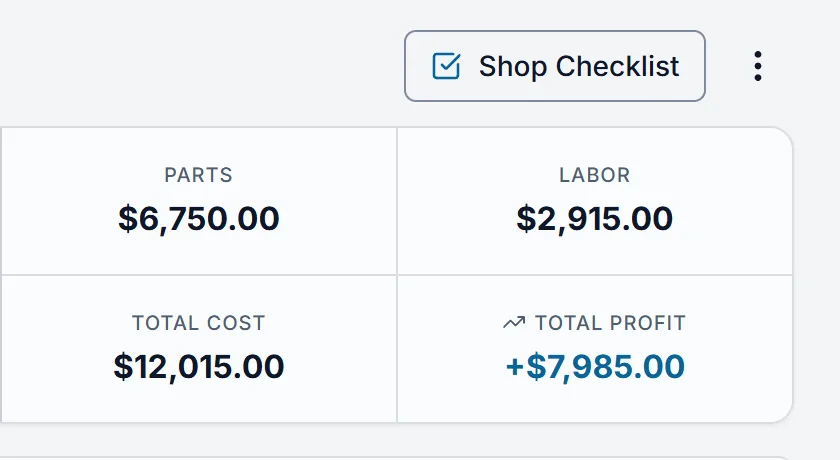
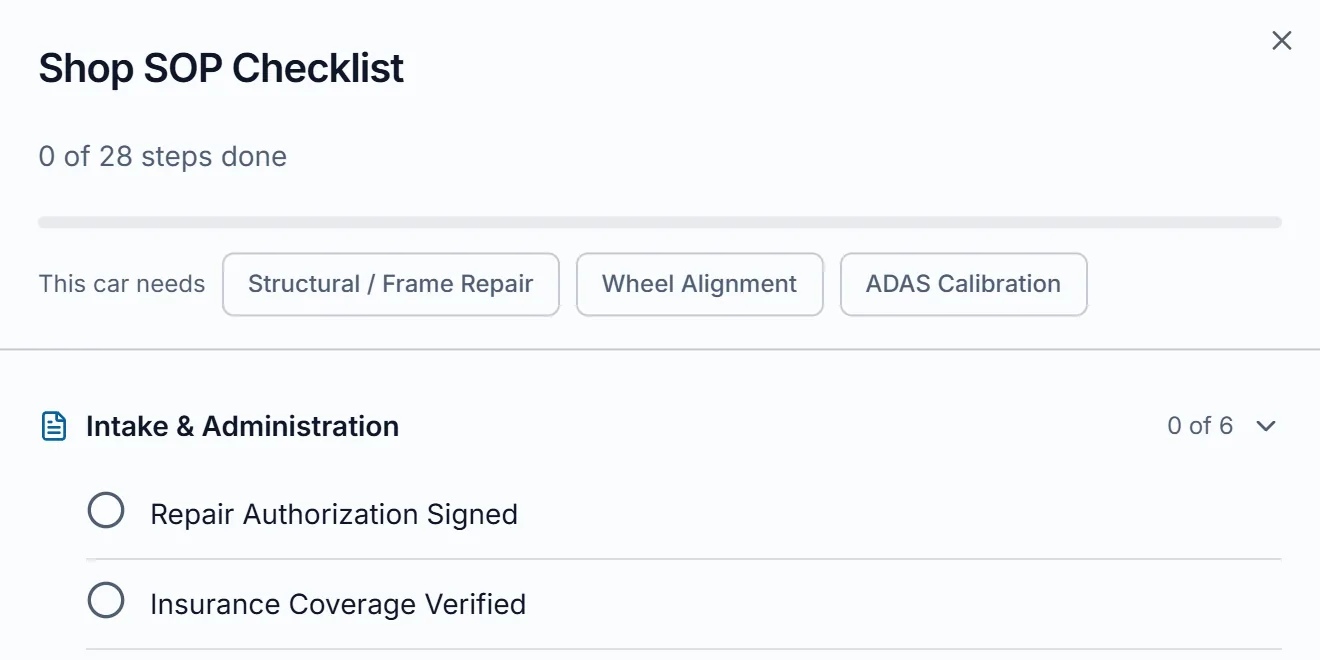
Open the claim and press Shop Checklist. On a phone the button says Checklist. Shop SOP Checklist opens with how many steps are done.
Say what this car needs
Beside This car needs, press the parts that apply. Each one adds its section to this car.
- Structural / Frame Repair
- Wheel Alignment
- ADAS Calibration
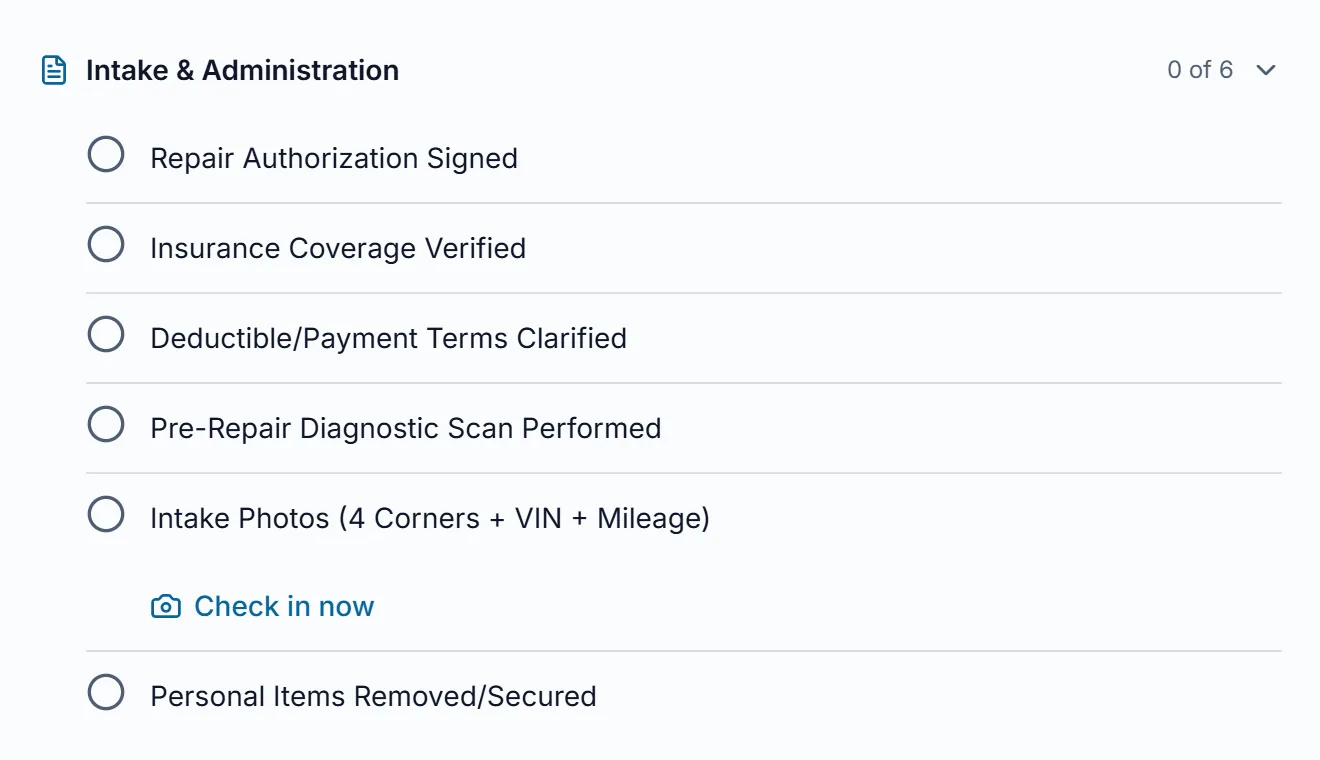
Tick each step
Press a step when the work is done. It saves right away and the whole team sees it. Press a section's name to fold it.
- Sections run from Intake & Administration through Blueprinting & Teardown, Body Repair, Refinish & Paint and Reassembly & Systems to Detail & Delivery.
On Intake Photos, press Check in now to open the check-in camera.
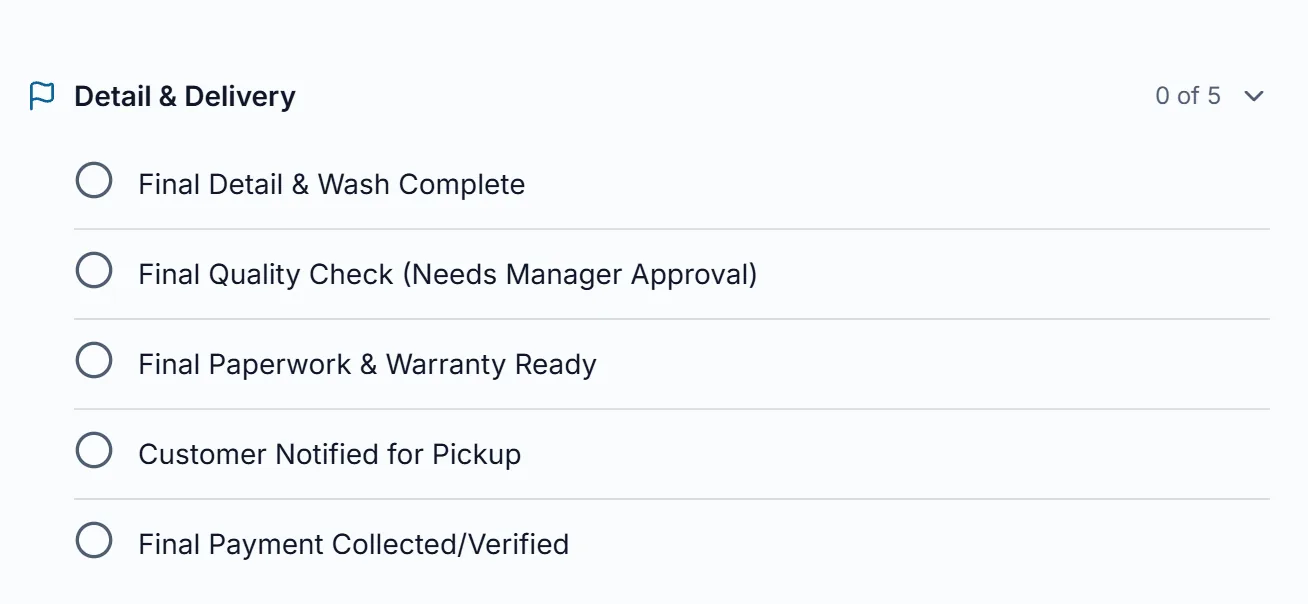
Have a manager do the last one
An owner, admin or manager ticks Final Quality Check (Needs Manager Approval) before the car goes home.
Make it yours
Add Custom Shop Checklist
Open Marketplace, choose Custom Shop Checklist and add it. Edit steps shows on the checklist for owners, admins and managers.
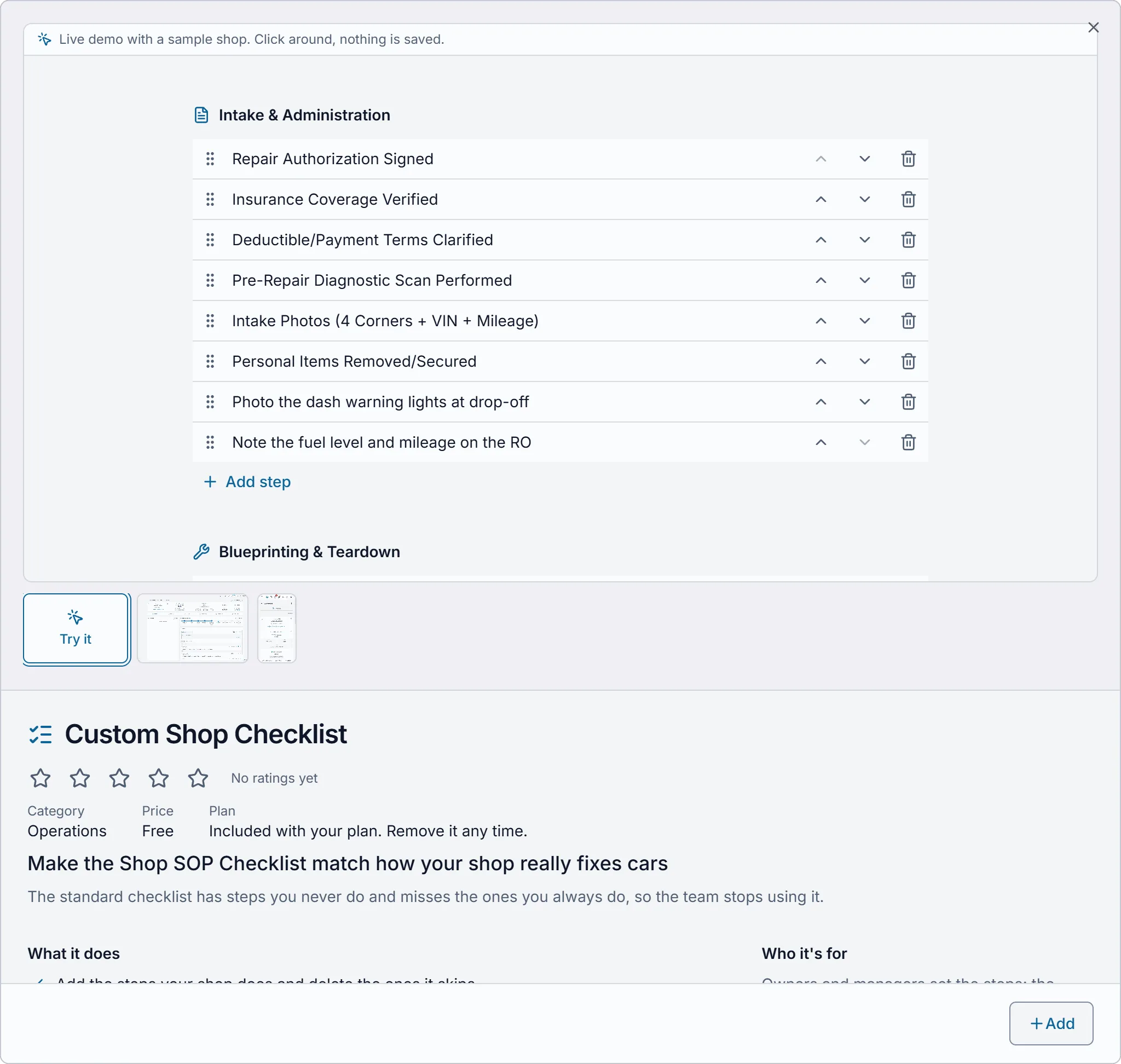
Press Edit steps
Open the checklist on any claim and press Edit steps. Press Add step, type the name and press Add. Drag a step to move it, or delete one you skip.
A section holds up to 30 steps.
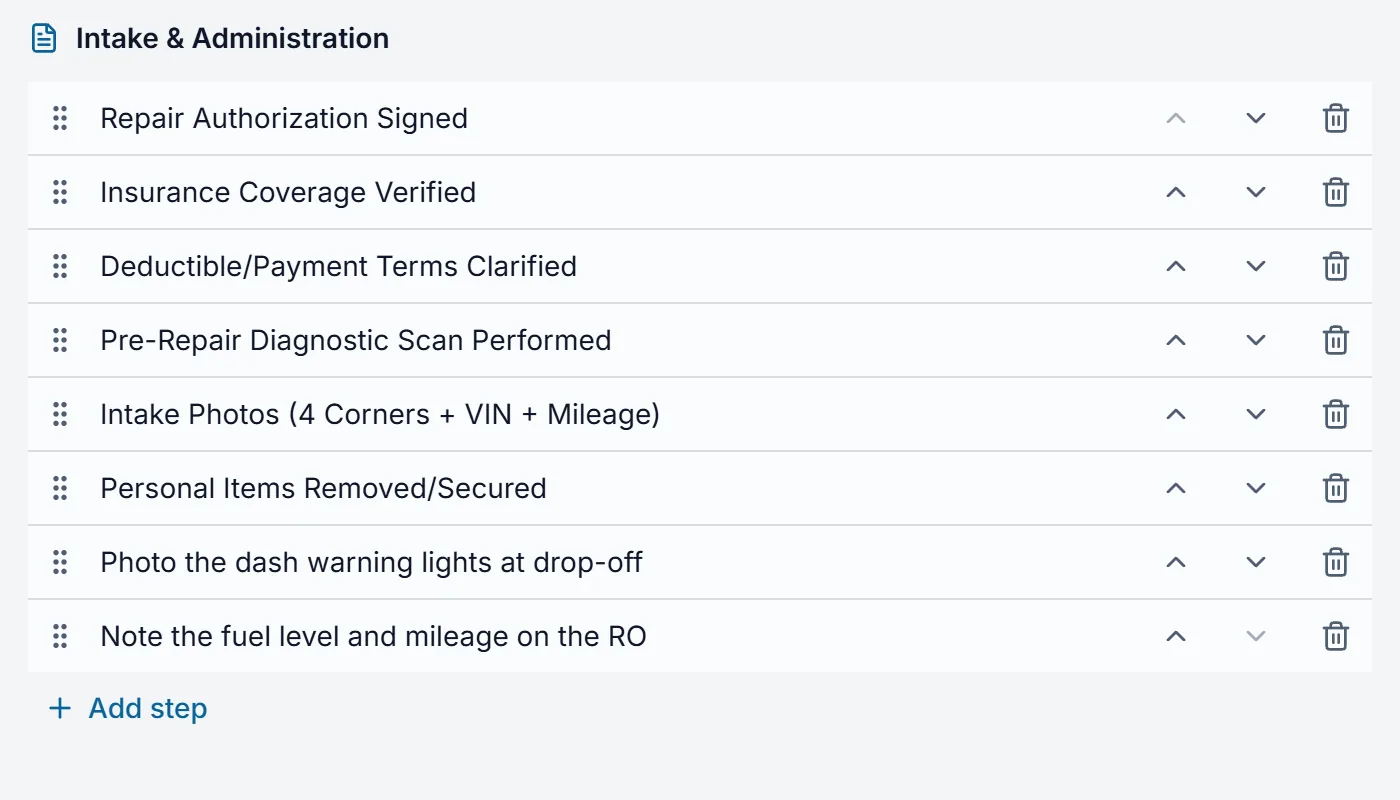
Press Save changes
Press Save changes. The new list is on every claim in your shop, and steps already ticked stay ticked.
Go back to the standard list
In Edit steps, press Restore standard steps, then Use standard steps. The steps you added are removed and ticks on claims stay. Press Save changes to keep it.


Questions and fixes
What is the Shop SOP Checklist?
The Shop SOP Checklist is the list of steps on every Claimory claim, from Intake & Administration to Detail & Delivery. It shows progress such as 3 of 10 steps done.
Can I change the checklist for my shop?
Yes. Add Custom Shop Checklist from Claimory's Marketplace, on Professional and up. An owner, admin or manager then presses Edit steps. There is one list per shop, used on every claim.
What happens to ticks when I change the steps?
Claimory keeps every step already ticked on your claims when you save a new list or go back to the standard one.
Can the checklist hold a car until it is done?
Yes. Delivery Sign-off is a Claimory Marketplace add-on. Mark Complete then waits until every Detail & Delivery step and the Final Quality Check are ticked.
Only certain roles can check this item
The message names who can tick it. Ask one of them. Final Quality Check is for an owner, admin or manager.
Could not save that step. Check your connection and tick it again.
Get back on Wi-Fi or a signal, then tick the step again.
Could not save the checklist. Try again.
Press Save changes again. If you close with changes unsaved, Discard your changes? asks first, so press Keep editing.
I do not see Edit steps
Edit steps shows for an owner, admin or manager once the shop adds Custom Shop Checklist from the Marketplace.
30 is the most steps a section can have.
Delete a step you skip in that section, or add the new one to another section.
The frame, alignment or ADAS steps are missing
Press that name beside This car needs at the top of the checklist. The section opens for this car.
What to do next
- Status and completingChange a claim's status in Claimory, move its repair stage, set the ready date, flag it, put a technician on it, then mark it complete or reopen it.
- Check in a carCheck a car in with Claimory: save the customer's papers, pick what they sign, and take guided photos that keep uploading while you work.
- Add a toolAdd free tools and dashboard widgets to Claimory from the Marketplace, see which plan each one needs, remove one safely, and hide menu items you skip.
- Still stuck?Open the Support Center to find the fix or write to a person.