
Status, flags, ETA and completing a claim
Status says what is happening with the claim. The repair stage says where the car is on the floor. Keep both right and everyone stops asking.
- 5 min read
- All plans
- Owner, Manager, Front desk, Estimator, Technician
What you get
- The right status, stage and ready date on every car
- Flags and Urgent badges on the claims that need eyes
- Finished claims off the active list, with one press
Before you start
- Status, stages, flags and ready dates work on every plan.
- Your role needs permission to edit the claim. Flags and the car's location are for everyone but technicians.
- Changing the list of repair stages takes an owner, admin or manager.
Step by step
0 done of 10 steps
While the car is here
Change the status
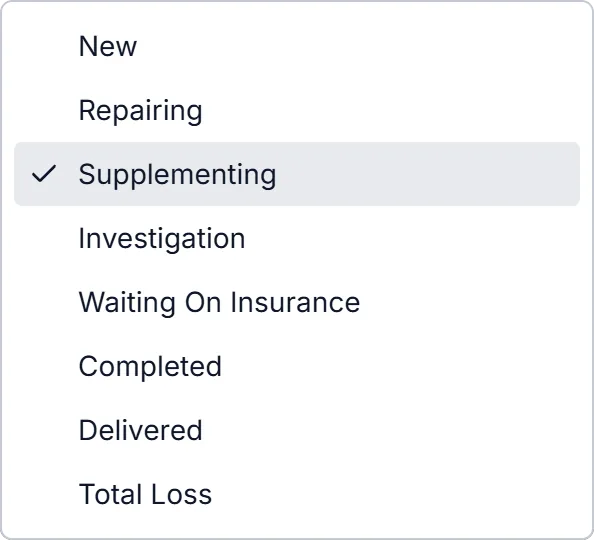
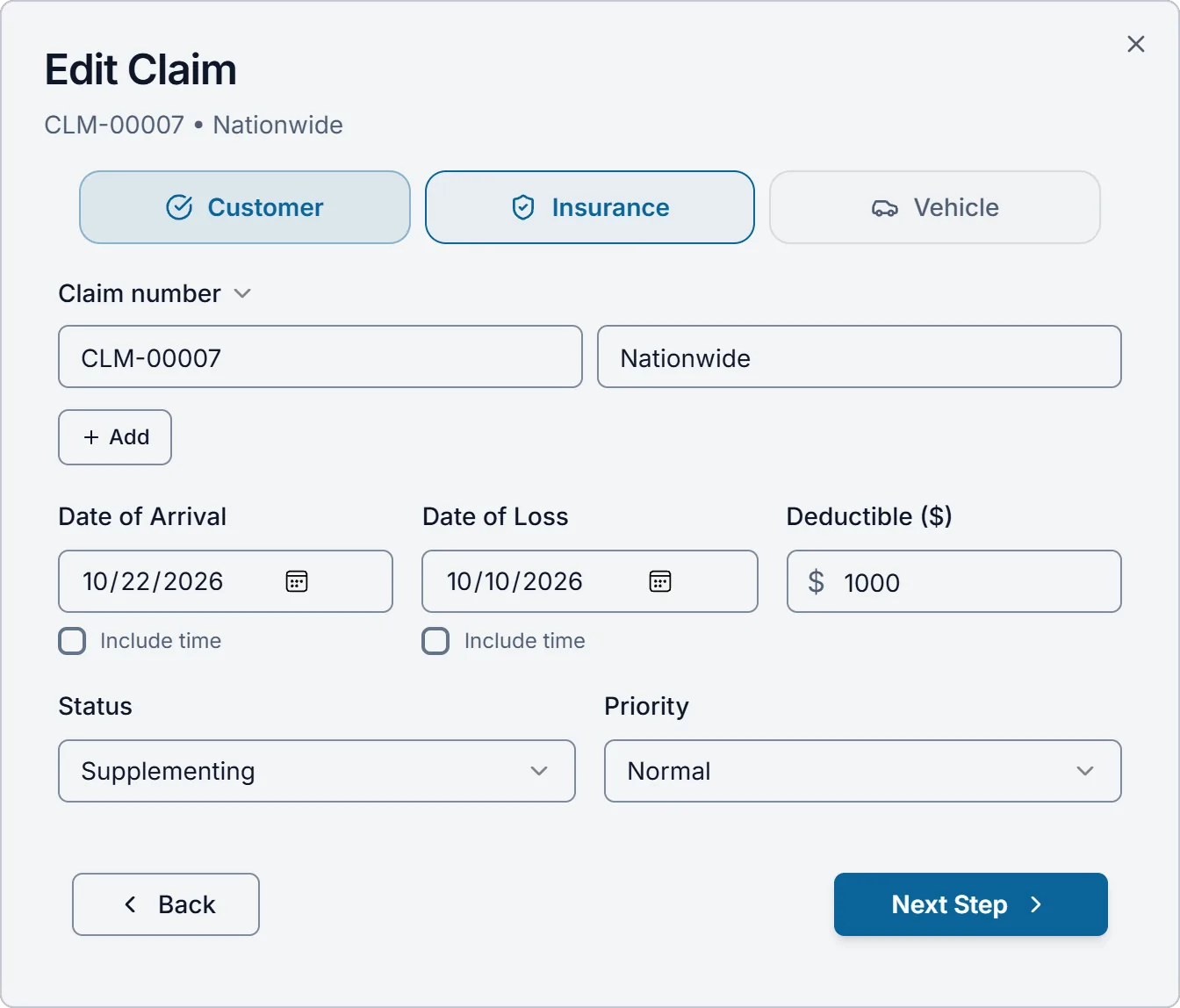
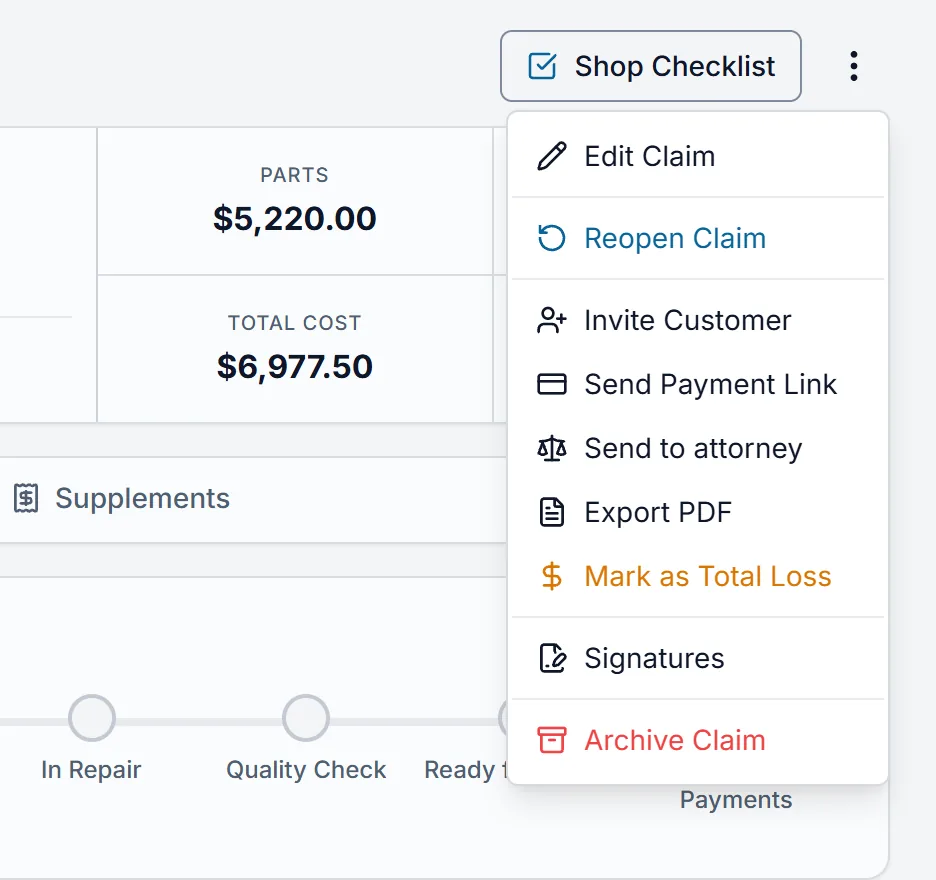
Open the claim, press the three dots, then Edit Claim. On the Insurance step, open Status, pick one and save.
- Active: New, Repairing, Supplementing, Investigation, Waiting On Insurance
- Finished: Completed, Delivered, Total Loss
On a phone, press and hold the claim card and choose Change to, or swipe the card right for the next status.
Set the priority
Priority sits beside Status: Low, Normal, High or Urgent. Urgent puts a red badge at the top of the claim.
On the Claims page, press Filters, then Sort by, then Priority to see urgent cars first.
Move the repair stage
In Repair Progress, press the dot of the stage the car is in. On a phone, press Change stage and pick under Move this car to.
- Stages to start: Checked In, Estimate, Teardown, Supplement Sent, Supplement Approved, In Repair, Quality Check, Ready for Pickup.
- Press Edit repair stages, the gear, to rename, reorder, add or hide them. A shop keeps 3 to 12.

Set the ready date
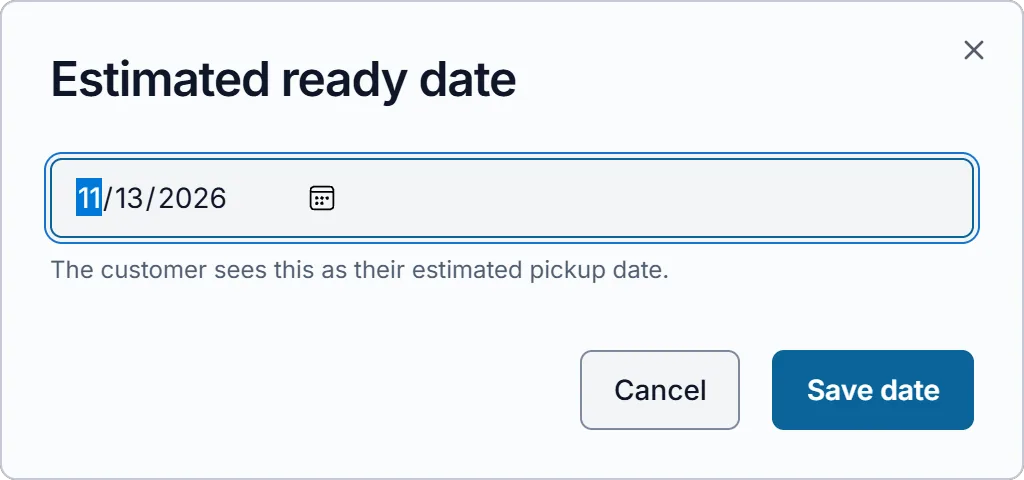
In Repair Progress, press Set ETA. Pick the Estimated ready date and press Save date. The customer sees it as their estimated pickup date.
Say where the car is
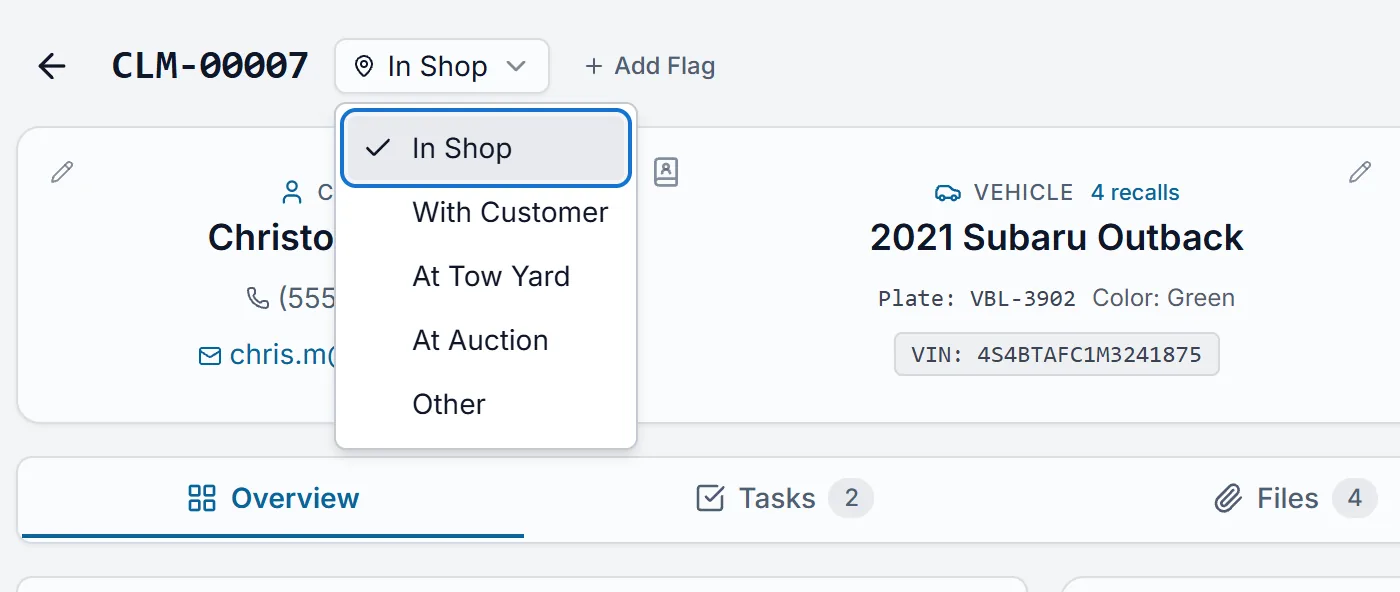
On a computer, open the drop-down beside the claim number: In Shop, With Customer, At Tow Yard, At Auction or Other. On a phone, use Edit Claim, Vehicle step, Vehicle Location.
Add a flag
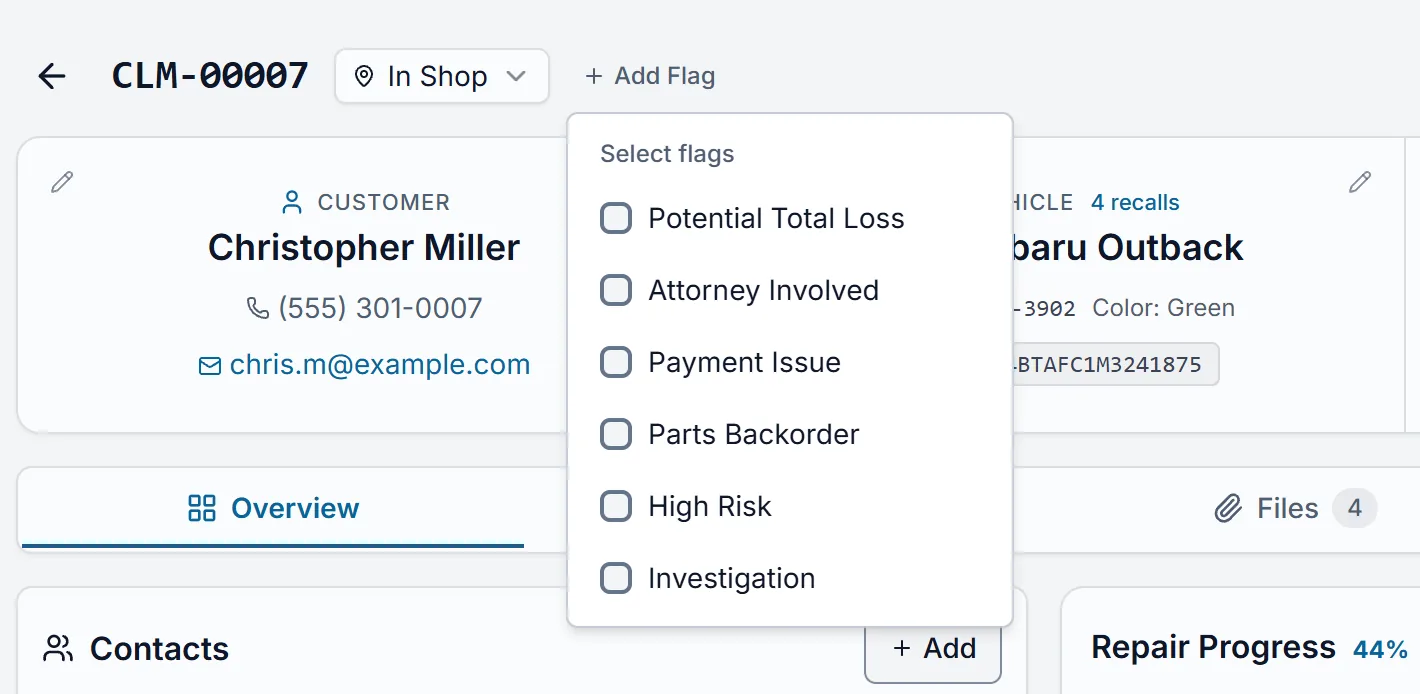
Press Add Flag and tick what fits. Potential Total Loss and High Risk show in red. Press the x on a flag to remove it.
- Potential Total Loss, Attorney Involved, Payment Issue
- Parts Backorder, High Risk, Investigation
Put a technician on the car
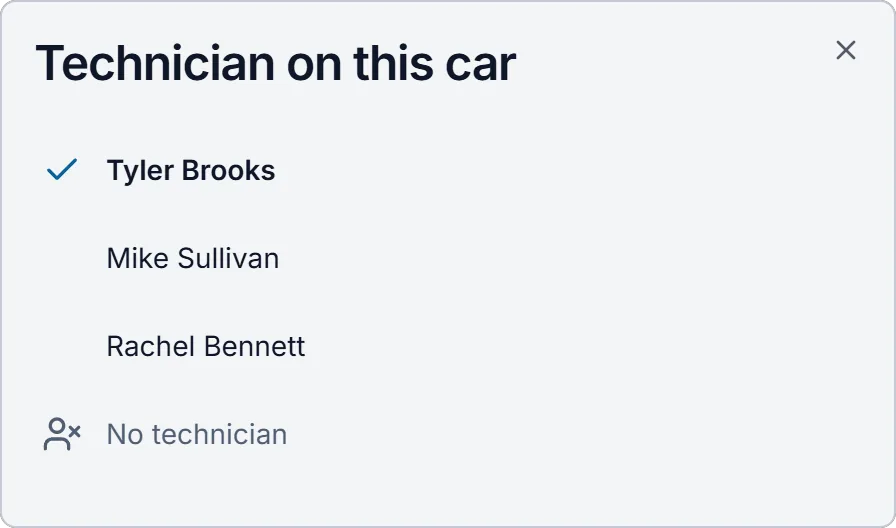
In Contacts, press Assign on the Technician line and tap a name. To change it later, press the name. Choose No technician to take them off.
Check for recalls
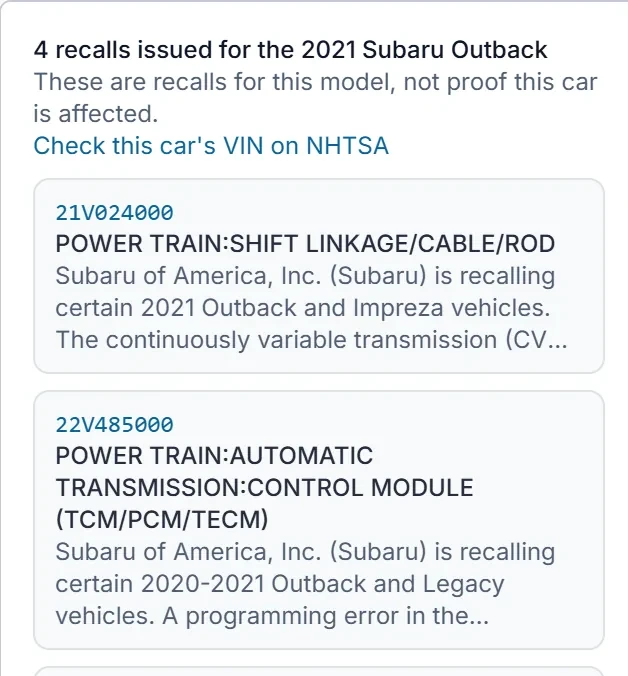
Press the repair info button beside Vehicle. It lists NHTSA recalls for that model, with Check this car's VIN on NHTSA for this exact car.
- I-CAR repair info opens I-CAR's repair pages.
- The maker's repair procedures link shows for makers Claimory knows.
When the car is done
Mark it complete
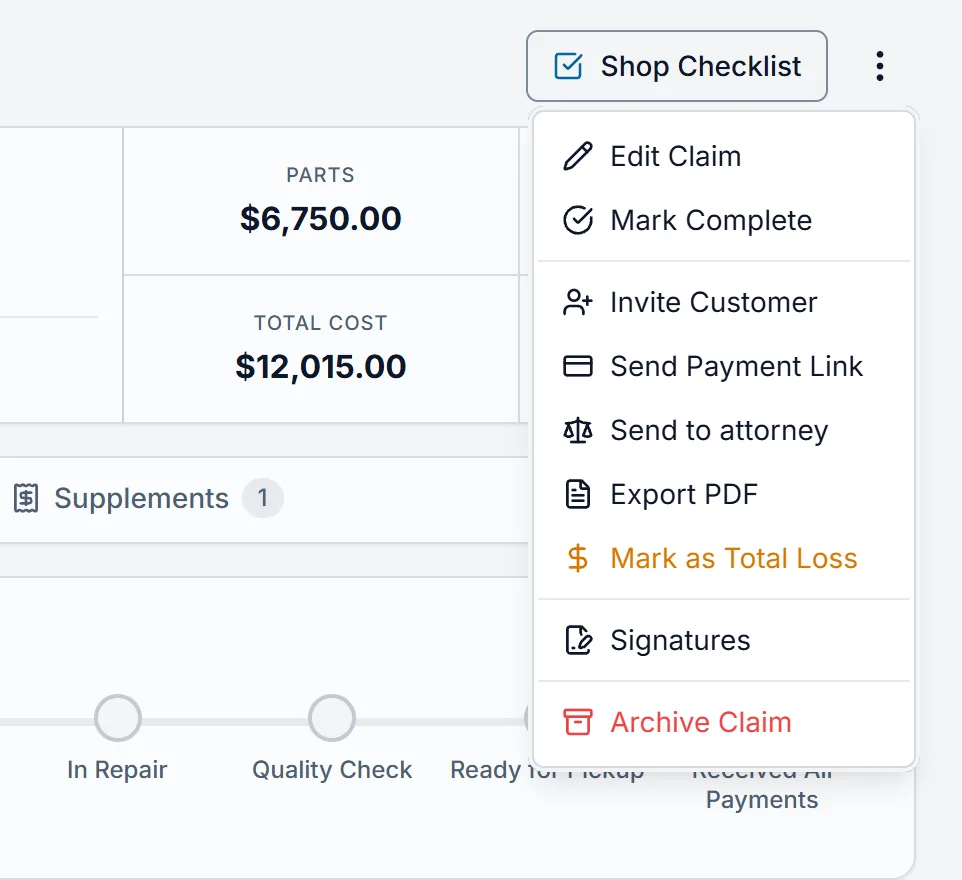
Press the three dots, then Mark Complete, then Mark Complete again. The status becomes Completed and the claim moves to the Completed tab.
Reopen it if it comes back
Open the claim from the Completed tab, press the three dots, then Reopen Claim. The status goes back to New and it returns to Active Claims.


Questions and fixes
What statuses can a claim have in Claimory?
Active claims are New, Repairing, Supplementing, Investigation or Waiting On Insurance. Finished claims are Completed, Delivered or Total Loss, and they sit on the Completed tab of the Claims page.
Can I customize the repair stages?
Yes, on every Claimory plan. An owner, admin or manager presses the Edit repair stages gear on a claim's Repair Progress to rename, reorder, add or hide stages, 3 to 12 in all. Claim statuses are the same standard list for every shop.
How do I see only one status?
On Claimory's Claims page, press Filters and pick a Status. In Progress groups New, Repairing and Supplementing. Sort by has Newest First, Oldest First, Priority, Claim Number and Customer Name.
Does the customer hear about a status change?
Claimory can email customers when their repair status changes and show the update in their portal. The switches are Repair updates under Settings, Customer Notifications, and each customer can turn off their own.
What do 12d and Past due mean on a claim card?
In Claimory, 12d means 12 days in the shop. Due shows the ready date you set. Past due: was due means that date has gone by, so set a new ETA or finish the car.
How are days in shop counted?
Claimory counts from the Date of Arrival, or from the day the claim was opened if the arrival date is blank. The count clears once the claim is Completed or Delivered.
How does Suggest pick a technician?
AI picks the technician is a Claimory Marketplace add-on for owners and managers. Suggest weighs the skills the car needs and the open work each person has, shows its pick first with the reason, and waits for you to tap a name.
What does Do not drive: park it mean on a recall?
It is a safety warning that comes with the NHTSA recall shown in Claimory, as is Park outside. Keep the car parked, check its VIN on NHTSA, and have the recall handled before anyone drives it.
Is a listed recall proof this car has the problem?
Claimory lists NHTSA recalls for the same year, make and model. Press Check this car's VIN on NHTSA to see if this exact car is included.
Finish the sign-off first
Your shop added Delivery Sign-off from the Marketplace. Tick the steps listed in the box. The last tick marks the claim complete. Final Quality Check takes an owner or manager.
Failed to mark claim complete. Please try again.
Check your connection and press Mark Complete again. If the message names steps left, finish those on the Shop Checklist first.
No completed claims yet
The Completed tab fills when a claim is marked Completed, Delivered or Total Loss. Open a finished car and press Mark Complete.
I cannot add a flag or change the location
Flags and location are for front desk, estimators, managers and owners who can edit the claim. A technician asks one of them. On an archived claim, press Restore Claim first.
Failed to update flags
Check your connection, then press Add Flag and tick the flag again.
Failed to update vehicle location
Check your connection and pick the location again. Vehicle Location on the Vehicle step of Edit Claim sets the same thing.
You cannot change the technician on this claim.
Ask an owner or manager to set the technician, or to assign the claim to you so you can edit it.
Nobody can be suggested yet
On Team Management, give your technicians a trade and their skills. Until then, tap any name in the list to put that person on the car.
Suggest picks by the skills in Team Skills
Press Add Team Skills to add it from the Marketplace, then fill in each technician's skills. You can still pick a name by hand.
Recall lookup is unavailable right now
Press Look up recalls on NHTSA and type the VIN there. Press the claim's VIN first to copy it.
Repair stages did not load. Refresh the page to try again.
Refresh the page. If the message stays, sign out and back in, then open the claim again.
What to do next
- The BoardSee every car in Claimory on one Board by repair stage, drag it to the next stage, spot the stuck ones, and set the stages your shop really uses.
- Shop checklistUse the Shop SOP Checklist on every Claimory claim: tick each step, turn on the frame or ADAS sections a car needs, and make the steps your own.
- Archive or deleteArchive a claim in Claimory to clear it off your list, restore it any time from Settings, Archives, or delete it for good with a typed confirmation.
- Still stuck?Open the Support Center to find the fix or write to a person.