
Message your team in Team Chat
Ask the paint shop a question without walking over. Team Chat keeps direct and group messages next to your work.
- 3 min read
- Professional and up
- Owner, Manager, Front desk, Estimator, Technician
What you get
- Direct messages and group chats
- Photos and files in the same thread
- A Chat button on every screen on a computer
Before you start
- Team Chat starts on Professional.
- Everyone on your team can use Team Chat.
Step by step
0 done of 6 steps
Start a chat
Open Team Chat
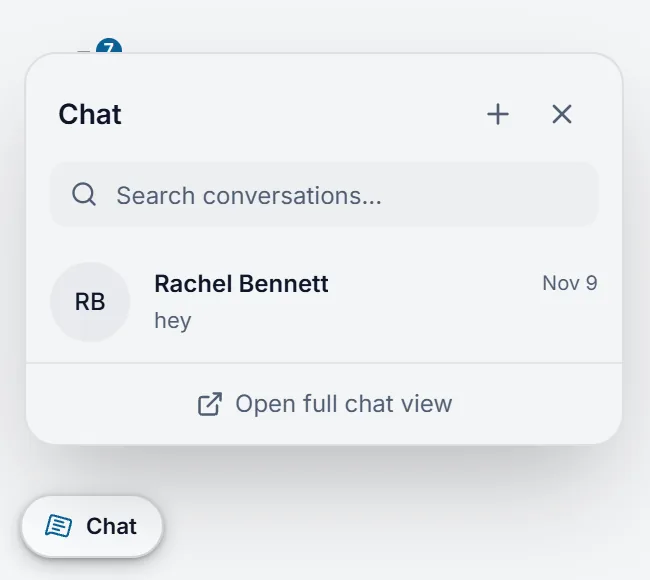
On a computer, press Chat at the bottom left, then Open full chat view. On a phone, search for Team Chat and open it.
Pick who to message
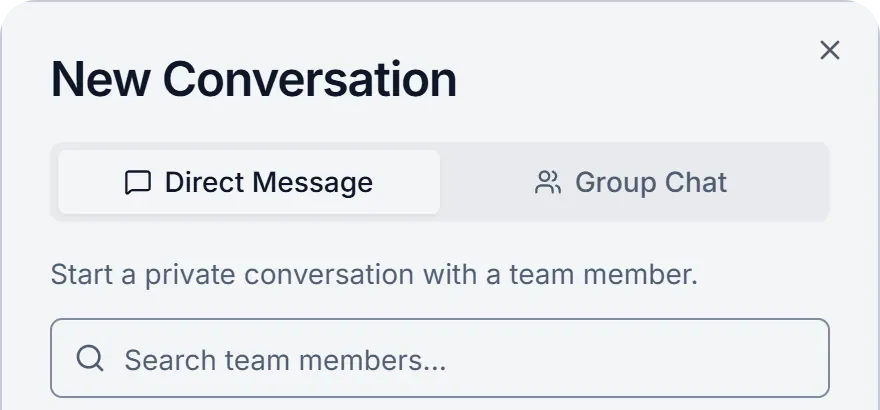
Press New. Pick Direct Message, tap one person and press Start Chat. For a group, pick Group Chat, type a Group Name, tick at least two people and press Create Group.
Send a message
Type your message and press Enter. Press Shift+Enter for a new line. Use the paperclip to add a photo, PDF, Word, Excel, CSV or text file.

Work a message
Reply, react or pin
Point at a message. Press Reply, add a reaction, or open More actions and press Pin Message.
- Edit your own message: open More actions, press Edit and save
- Delete your own message: open More actions, press Delete
- Press Esc to leave a reply or an edit
Keep it tidy
Search inside a chat
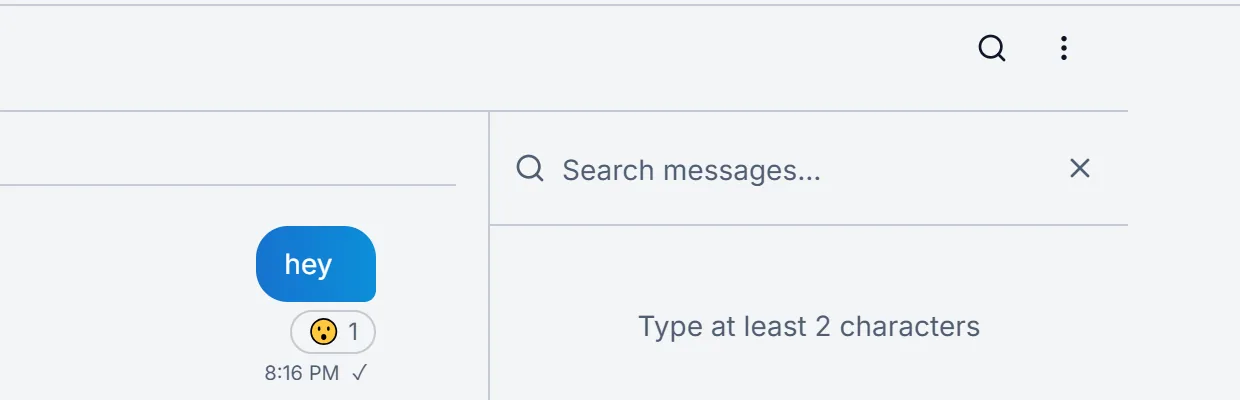
Press the Search messages icon at the top of the chat and type at least 2 letters.
Mute or archive
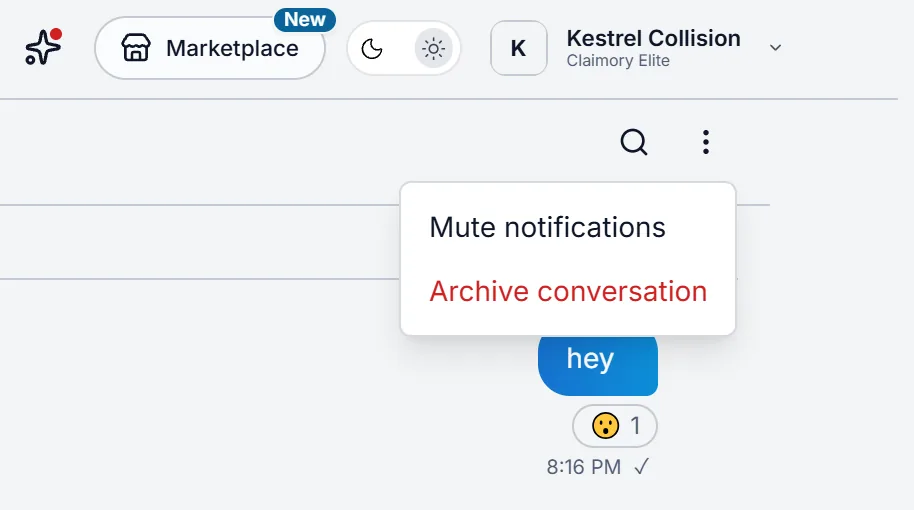
Open Chat actions and press Mute notifications or Archive conversation. The same choices are in the menu on each chat in the list.
Archiving takes the chat off your own list. Press Archived above the list to see it, and Move back to chats to bring it back. A new message brings it back too.


Questions and fixes
How do I message someone on my team in Claimory?
In Claimory, press Chat at the bottom left, then Open full chat view. Press New, pick Direct Message, choose the person and press Start Chat.
Can I edit a Claimory chat message after I send it?
Yes. In Claimory Team Chat, open More actions on your own message and press Edit. The message then shows (edited).
Can I pin a message in Claimory Team Chat?
Yes. In Claimory Team Chat, open More actions on the message and press Pin Message.
How do I know someone read my Claimory chat message?
Claimory marks each of your chat messages as sent or read.
Team chat starts on Professional.
An owner or manager moves the shop to Professional or Elite in Billing. Team Chat and the Chat button open right after.
Failed to load messages
Refresh the page, then press Try again. If it still fails, ask an owner to check that you are on this shop's team.
No conversations yet
Press New and start a chat with someone on your team.
No conversations found
Your search matched none. Clear the box and try the person's or group's name.
No messages found
Try a shorter word, at least 2 letters long.
Create Group stays gray
Type a Group Name and tick at least two people.
I get no sound or alert for new messages
Open Chat actions and press Unmute. Then allow notifications for Claimory in your browser.
I do not see the Chat button
The Chat button shows on a computer. On a phone, search for Team Chat.
What to do next
- Email HubRead, answer and send shop email inside Claimory, link each message to its claim, save attachments, use templates and sort mail with rules.
- NotificationsChoose which alerts Claimory sends you, set their sound and set quiet hours at night.
- Invite teammatesInvite teammates to your shop in Claimory, resend or revoke an invite, join from the email, free a full seat and remove someone who has left.
- Still stuck?Open the Support Center to find the fix or write to a person.