
Run the shop from the Board
One screen, every car, in columns by repair stage. Red marks the late and the stuck, so the morning meeting takes minutes.
- 4 min read
- Elite
- Owner, Manager, Front desk, Technician
What you get
- Every claim and cash job on one screen, by stage
- Past due and stuck cars in red
- A car moved to its next stage with one drag
Before you start
- The Board is the Production board add-on from the Marketplace, on Elite. The Board is free to add.
- An owner, admin or manager adds it for the whole shop.
- Repair stages themselves work on every plan. Changing the list takes an owner, admin or manager.
Step by step
0 done of 10 steps
Set it up
Add the Board
Open Marketplace, choose Production board and add it. Board shows in your menu.
Open Board
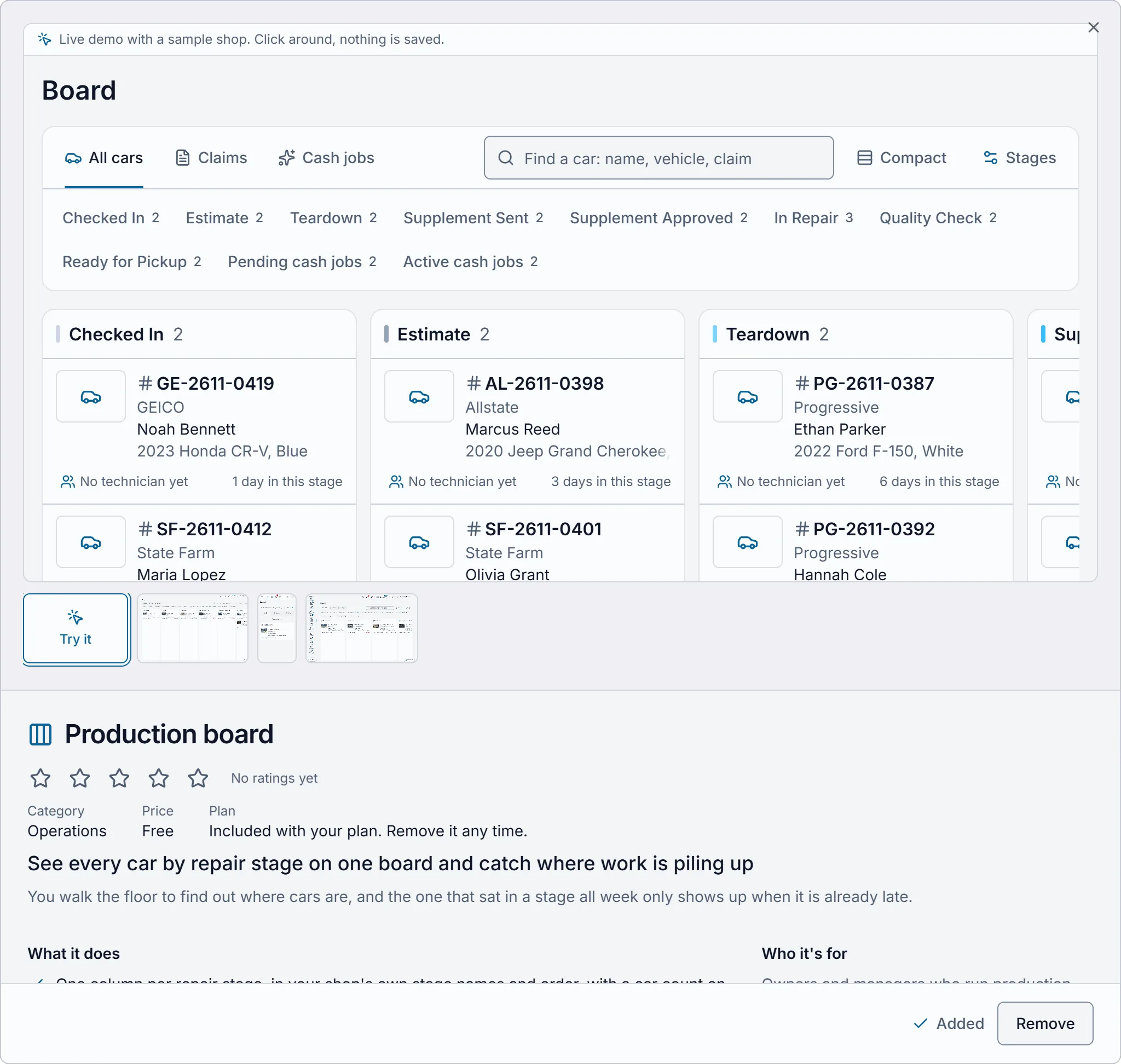
Press Board in the menu. Each column is a repair stage with the cars in it. Press All cars, Claims or Cash jobs to pick what shows.
The three filters show when your shop has Cash Jobs.
Every day
Move a car
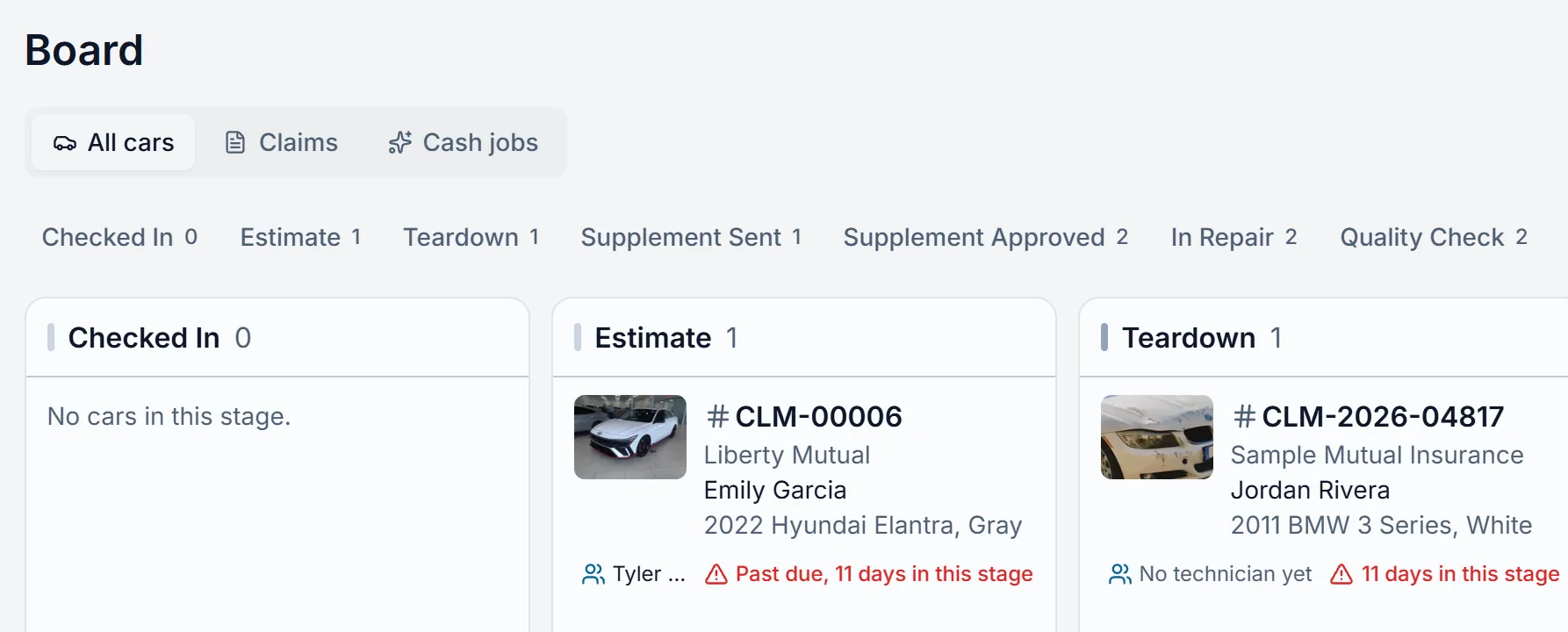
On a computer or tablet, drag the card to another column. On a phone, press Move to another stage, the three dots on the card, and pick under Move this car to.
The message Moved to has Undo for 10 seconds.
Find a car
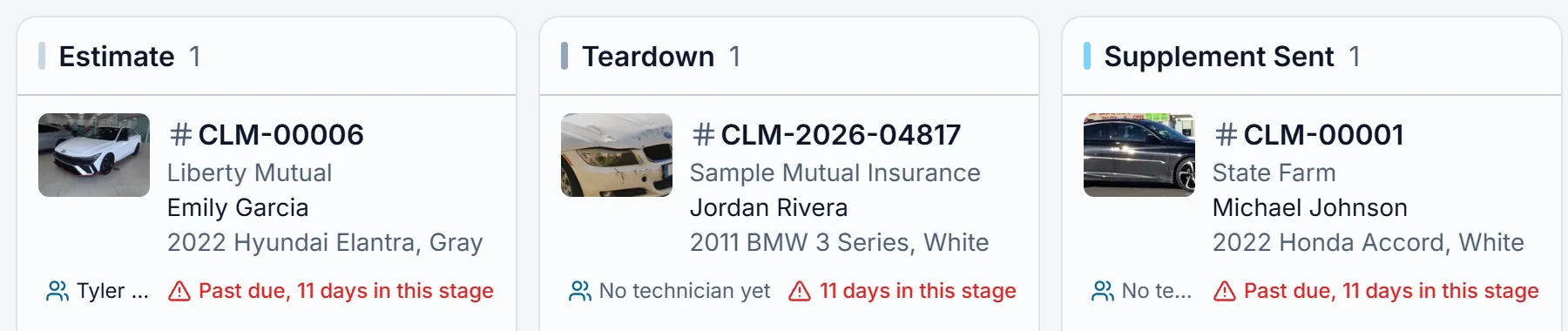
Type in Find a car: a name, a vehicle or a claim number. The columns narrow as you type.
Read the red
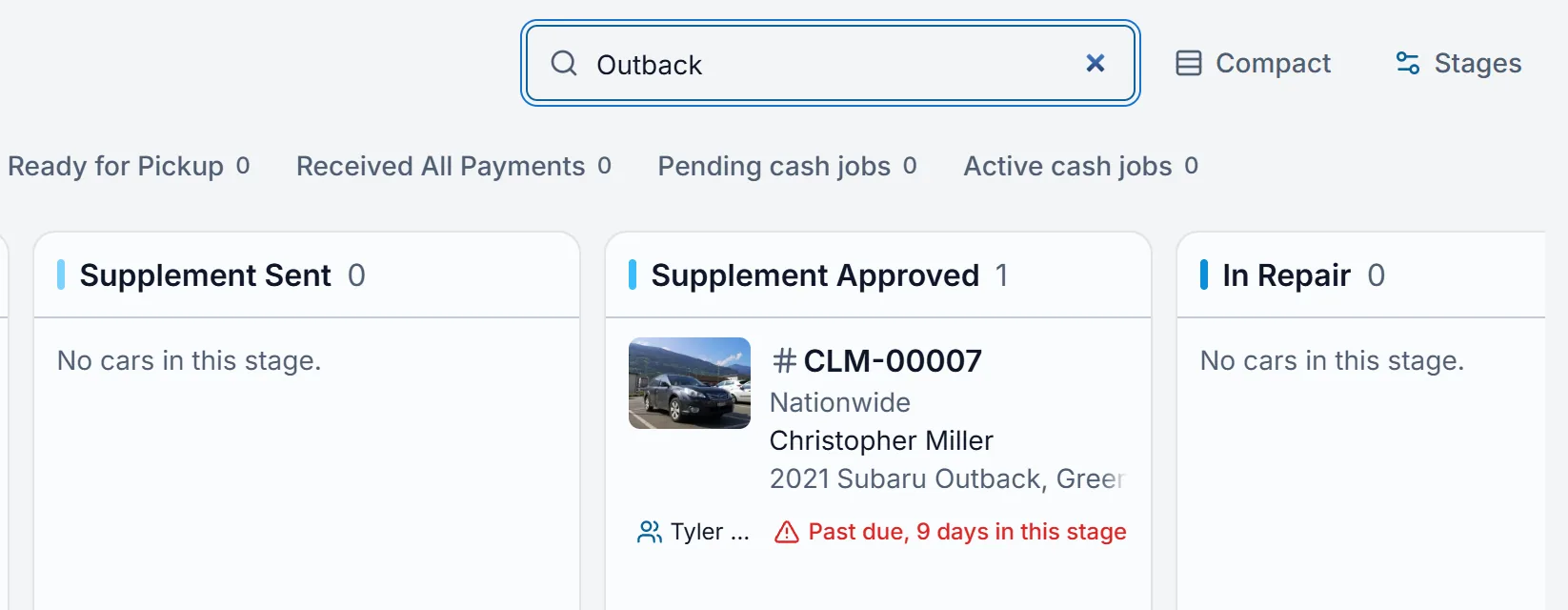
Past due means the ready date has gone by. A number of days in this stage turns red once a car has sat there 7 days. Press the card to open the claim.
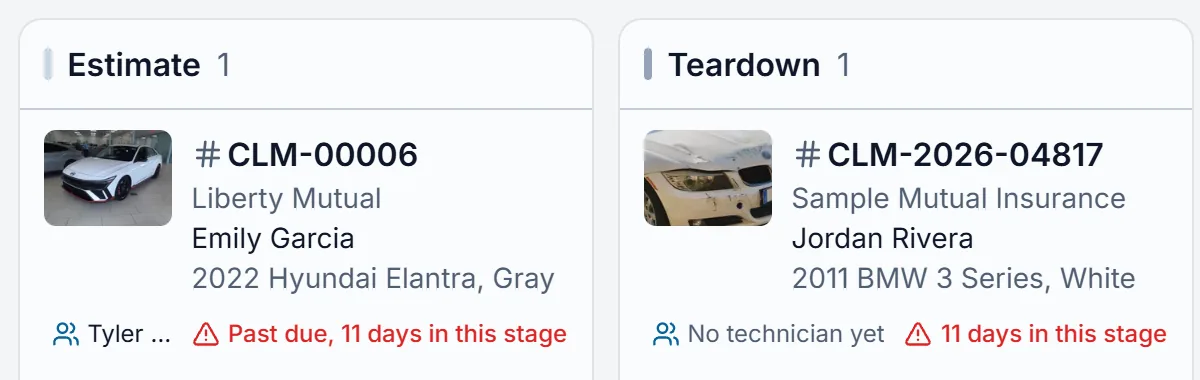
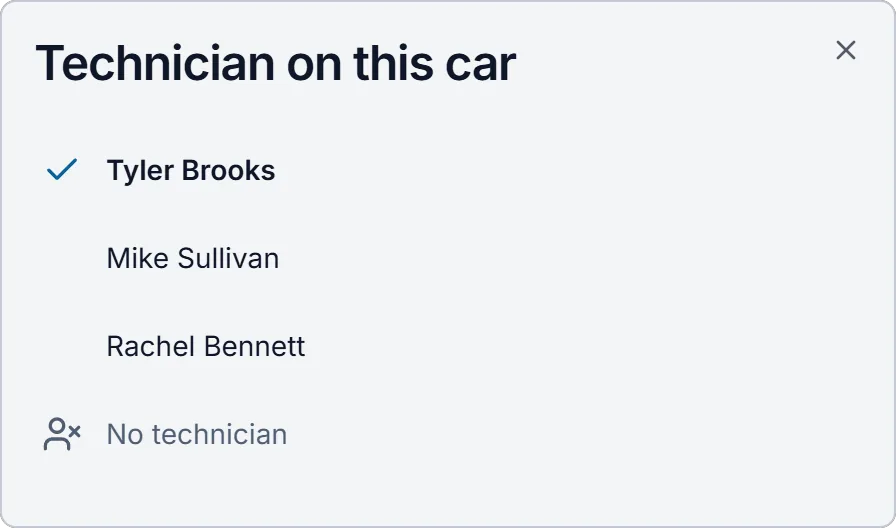
Put a person on it
Press the name at the bottom of the card, or No technician yet, and pick someone.
Fit more on the screen
On a computer, press Compact. The cards drop the photo and the insurer. Press it again to bring them back. A phone starts compact, and the icon beside Find a car brings the photos in.

Mark it picked up
When the car is in the last stage, press Mark picked up on its card. Every stage is marked done.
Your own stages
Change the stages
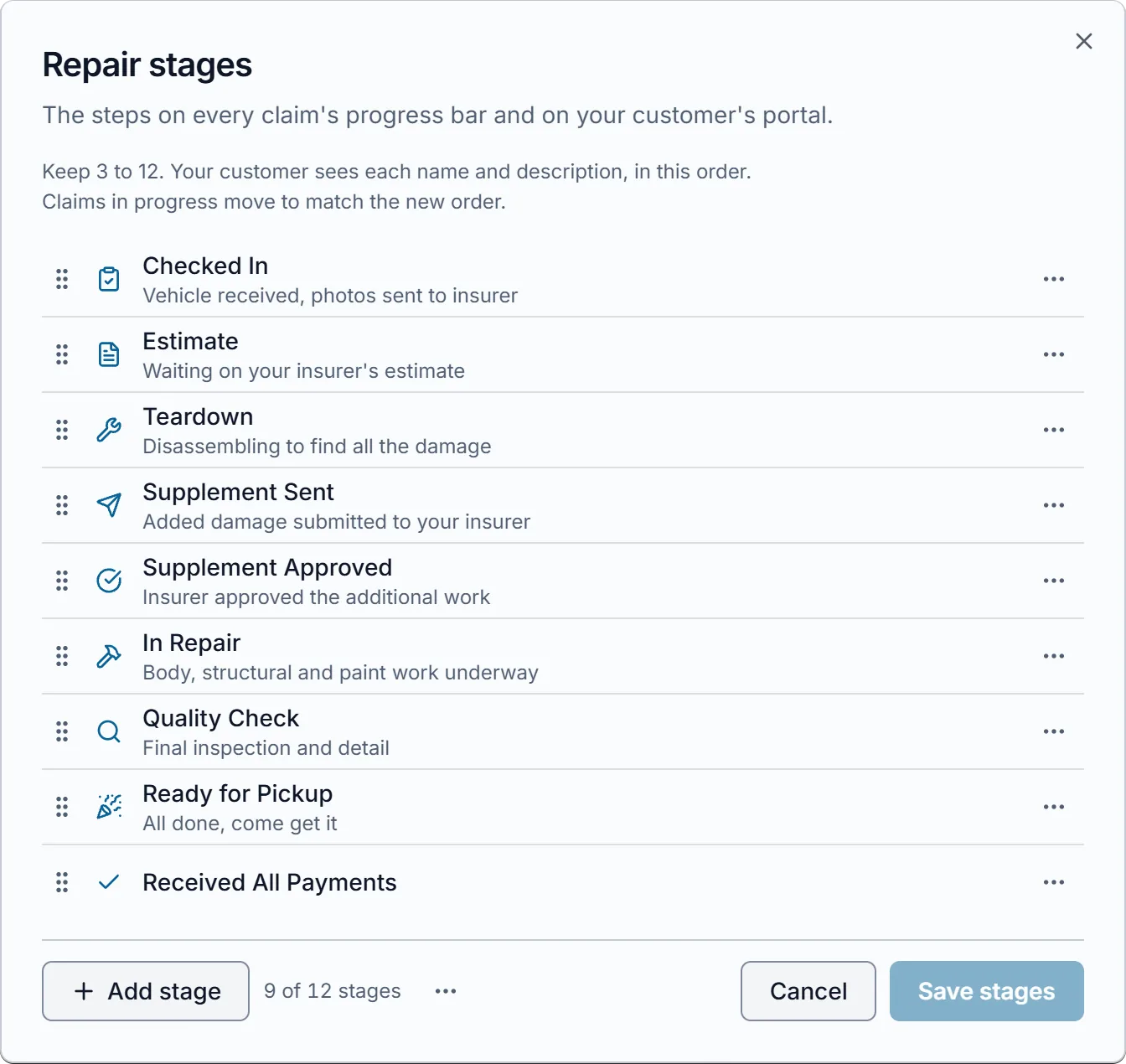
Press Stages at the top of the Board, or the Edit repair stages gear on a claim. Change the list and press Save stages.
- Drag to reorder, or press Edit for the name, icon and Customer description.
- Press Add stage for a new one. Keep 3 to 12.
- Press Hide to take one off the progress bar and the customer portal.
Claims in progress move to match the new order.
Start over if you need to
In the stage editor, press Start from the defaults, then Use the defaults. Your own stages move to Hidden stages. Press Save stages to keep it.



Questions and fixes
What is the Production board in Claimory?
Production board is a Claimory Marketplace add-on on Elite, free to add. It shows as Board in your menu and puts every claim and cash job in your shop in columns by repair stage.
What are the repair stages to start?
Claimory starts every shop with Checked In, Estimate, Teardown, Supplement Sent, Supplement Approved, In Repair, Quality Check and Ready for Pickup. Your customer reads each name and its description.
How many repair stages can my shop have?
Claimory keeps 3 to 12 repair stages per shop, on every plan. Owners, admins and managers rename, reorder, add or hide them.
What happens to a stage I hide?
Claimory takes a hidden stage off the progress bar and the customer portal. Claims that already passed it keep that history. Bring it back with Restore under Hidden stages.
How do I move a car without the Board?
Open the Claimory claim and press a stage in Repair Progress to make it the current one. Press the current stage to mark it done with today's date. On a phone, press Change stage.
How do I move a cash job on the Board?
Cash jobs sit in their own Pending and Active columns on Claimory's Board. Press the card to open the job and change its status there.
What do the days on a Board card mean?
On Claimory's Board, a claim card counts days in this stage and says Past due after the ready date. A cash job card counts days in shop with its due date.
Is there a quick link for a new claim?
Yes. Bookmark Claimory's Claims page with ?action=new at the end of the address. Opening the bookmark opens New Claim.
I do not see Board in my menu
Board shows once your shop adds Production board. An owner or manager on Elite opens Marketplace and adds it. On other plans, the Board page shows how to move to Elite.
The Board is an add-on from the Marketplace.
Press Add it from the Marketplace. If yours says See it in the Marketplace, ask your owner to add it for the shop.
Could not move this car. Try again.
Check your connection and move the card again. You can also open the claim and press the stage in Repair Progress.
Could not undo. Set the stage again.
Drag the car back to its old column, or pick the old stage under Move this car to.
Your cars did not load. Pull down or refresh to try again.
Refresh the page, or pull down on a phone. If it stays, check your connection.
No cars in the shop yet.
Press Check in a car to add a claim. On the Cash jobs filter, press Start a cash job.
No cars match that search.
Clear Find a car, or type fewer letters. Check the filter too: All cars shows claims and cash jobs.
12 is the most stages a shop can have.
Press Hide on a stage you use least, then add the new one.
Could not save the repair stages. Try again.
Check your connection and press Save stages again before closing the editor.
Only owners and managers can change these.
Ask an owner, admin or manager to change the stages. You can still move cars between them.
Couldn't copy to clipboard
Allow the clipboard for Claimory in your browser's site settings, or select the claim number and press Ctrl+C (Cmd+C on a Mac).
What to do next
- Status and completingChange a claim's status in Claimory, move its repair stage, set the ready date, flag it, put a technician on it, then mark it complete or reopen it.
- Shop checklistUse the Shop SOP Checklist on every Claimory claim: tick each step, turn on the frame or ADAS sections a car needs, and make the steps your own.
- Cash jobs and estimatesWrite an estimate in Claimory, email it, turn a yes into a cash job, then log costs and payments, send the invoice and see the profit on the job.
- Still stuck?Open the Support Center to find the fix or write to a person.