
Run the time clock for your shop
Set the rules once, then check who is in, fix what was missed and approve the pay period.
- 9 min read
- Elite
- Owner, Manager
What you get
- Who is in, on break or on a car right now
- Timesheets you can fix, approve and export
- Flat-rate hours on the claim they belong to
- A shop tablet everyone can clock in on
Before you start
- Time Clock is an Elite add-on from the Marketplace.
- Owners and Managers run Time Clock.
- Pay rates show to owners and managers with financial access.
Step by step
0 done of 10 steps
Set it up
Add Time Clock
Open Time Clock and press Add it from the Marketplace. In Set up your Time Clock, set the time zone, how often you pay, the first day of a pay period and the overtime rule. Press Continue.
Bring in your employees
Say how many employees will clock in and press Finish. Press Invite people on the Team page to add the ones who are missing.
Set pay and shop rules
Open Employees and press a person. Pick Trade and Pay type, enter the rate and press Save. Set overtime, breaks and the forgotten shift limit under Shop settings, then press Save settings.
The first pay rate asks you to read and sign Before you use Time Clock hours for pay.
The shop tablet
Pair a tablet
In Employees, find Shop tablets, type a Tablet name and press Pair a tablet. On the tablet, open the address shown and type the code. The code works for 10 minutes and shows once.
Give everyone a PIN
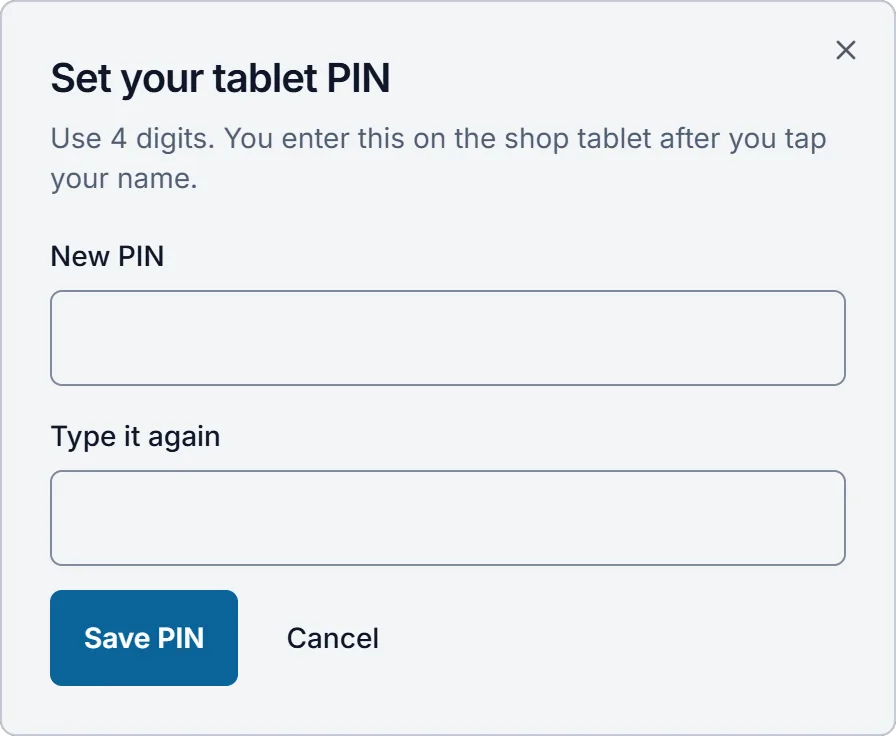
Each person opens Time Clock, My Clock and presses Set my tablet PIN. They type 4 digits twice and press Save PIN. On the tablet they tap their name, enter the PIN and clock in.
Every day
Check who is in
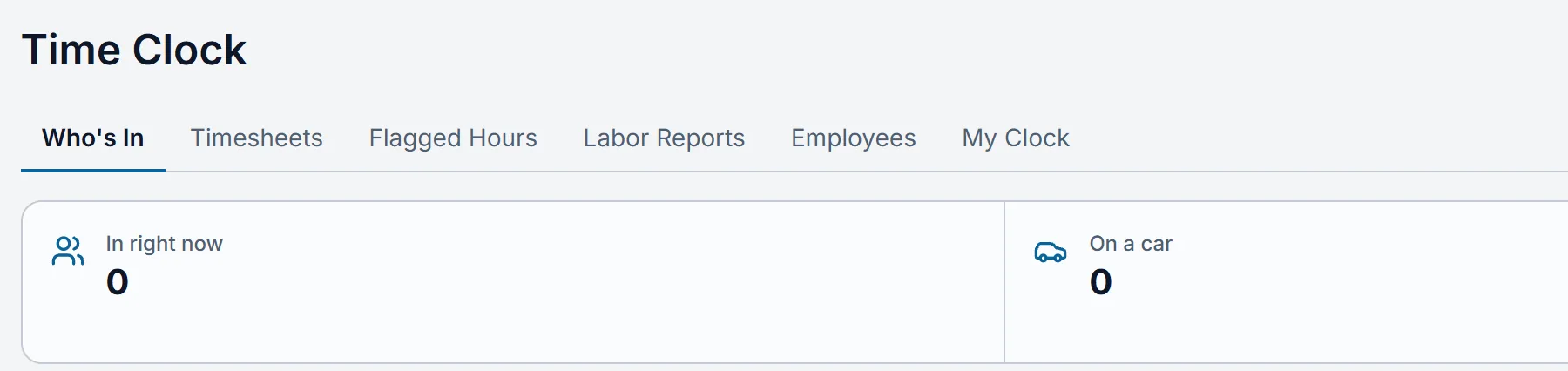
Open Who's In. It lists who is in right now, on break, on shift but not on a car, and out today. Press Fix the time beside anyone who may have forgotten to clock out.
Every pay period
Fix the timesheet
Open Timesheets and press Open on a person. Press Fix on a punch, change In or Out, type why and save. Press Add a punch or Add time off for what was never recorded.
- Split across jobs: share one finished job punch between cars, then press Split
- The time is right: confirm a long punch that needs review
- Void this punch: the punch stops counting
Approve and export
When the period has ended and nothing needs review, press Approve week, or Approve pay period if yours is longer. Then press Export CSV, Export a date range or Add to Payroll.

Flat-rate techs
Post flagged hours
Open Flagged Hours and pick a job under Waiting on you. Give each labor line's hours to a tech until it says All assigned. Set Credited on and press Post flagged hours.
Press Add supplement hours for hours that came on a supplement.

Read Labor Reports
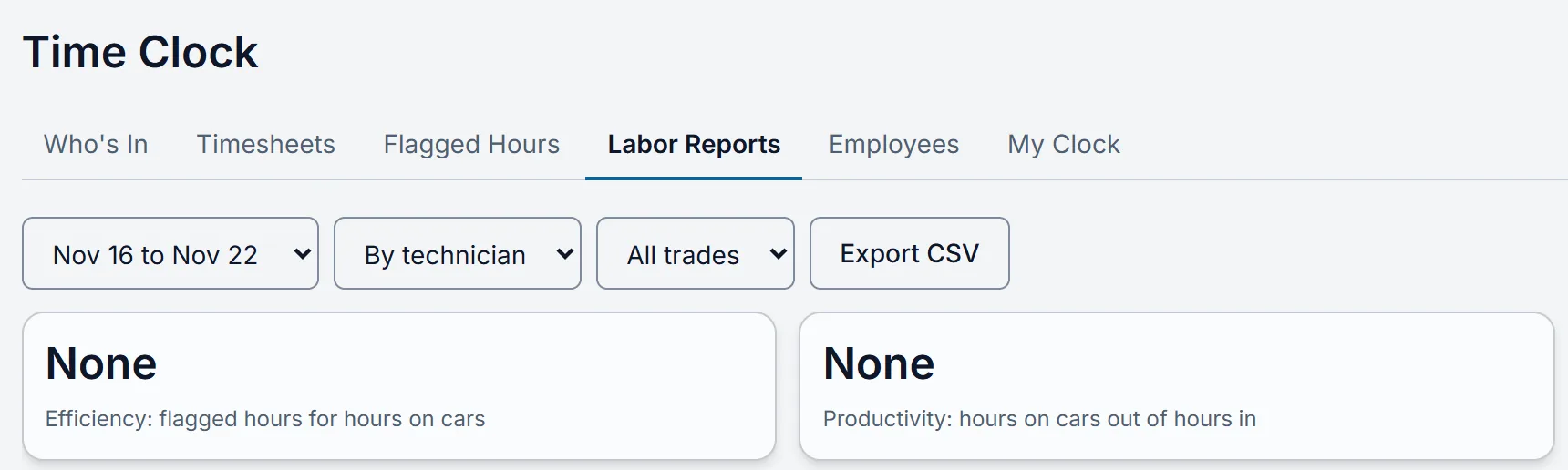
Open Labor Reports and look by technician, by job or by trade. It shows Efficiency and Productivity.


Questions and fixes
Does a Time Clock employee use a Claimory seat?
Each employee who clocks in uses one Claimory seat. Elite has unlimited seats, so inviting them adds nothing to your bill.
How do I set a tech's pay rate in Claimory?
In Claimory Time Clock, open Employees and press the tech. Pick Hourly, Flat-rate or Salary, enter the rate and the Starts on date, then press Save.
How do I set overtime in Claimory Time Clock?
In Claimory Time Clock, open Employees, then Shop settings. Set the week and day hours, the multiplier and the pay week start, then press Save settings. Your shop chooses these rules, so check them against your state's wage law.
Can employees clock in from their own phones in Claimory?
Yes. In Claimory Time Clock, open Shop settings in Employees and turn on Employees can punch from their own phones.
Is the old time kept when I fix a punch in Claimory?
Claimory keeps the original time in the punch's history with your reason.
How do I answer a fix request in Claimory Time Clock?
In Claimory, open Timesheets and the person's timesheet. Fix the punch and press Mark done, or press Decline.
What are flagged hours in Claimory?
Flagged hours in Claimory are the estimate's labor hours you give to each flat-rate tech. Posting them puts the flat-rate labor cost on the claim.
How do I remove time off in Claimory Time Clock?
In Claimory, open the person's timesheet, open that time off and set the hours to 0.
Time Clock is an add-on from the Marketplace.
An owner or manager presses Add it from the Marketplace. Anyone else presses See it in the Marketplace and asks the owner. Time Clock is part of Elite.
Time Clock is not set up yet.
An owner or manager finishes Set up your Time Clock: the time zone, pay period and overtime rules.
Use exactly 4 digits.
Type 4 numbers in New PIN and the same 4 in Type it again.
The two PINs did not match.
Type the same 4 digits in both boxes, then press Save PIN.
That PIN did not match.
Enter the PIN again slowly. After too many wrong tries the PIN locks for 15 minutes. If you forgot it, set a new one with Set my tablet PIN on My Clock.
Too many wrong PINs on this tablet. Try again in 15 minutes.
Wait 15 minutes before anyone tries this tablet again. A person whose own phone is allowed can clock in on My Clock now.
No one can clock in here yet. Ask a manager to get PINs set up.
Have each person set a PIN on My Clock with Set my tablet PIN. Their names then show on the tablet.
That code did not work. Ask your manager for a new one.
Press Pair a tablet again in Employees and type the new code within 10 minutes.
Too many tries on this network. Try again in an hour.
Wait an hour, then press Pair a tablet for a fresh code and type it once.
Could not reach Claimory. Check the connection and try again.
Check the tablet's Wi-Fi and try again.
Time Clock is off for this shop. Ask a manager to turn it back on in the Marketplace.
An owner or manager opens the Marketplace and adds Time Clock again.
A tablet is lost or stolen
Open Employees, Shop tablets, and press Revoke beside the tablet, then Revoke tablet. The tablet stops working right away. Pair it again later with a new code.
Nobody is clocked in right now.
Who's In fills as people clock in. Ask the team to clock in on My Clock or the tablet.
This punch ran past the shop's limit for a forgotten clock-out
Press Fix on the punch. Change Out to the real time and say why, or press The time is right. The hours are paid and costed once the punch is reviewed.
In and Out cannot be blank. Put a time back, or void this punch.
Type a time in the empty box, or tick Void this punch if it should not count.
This pay period has not ended yet, so it cannot be approved.
Approve week, or Approve pay period, opens once the period has ended. Use the arrows to go to an earlier period.
Time needs review before I can approve
Open that person's timesheet and press Fix on the punch that needs it, or confirm The time is right. Then approve.
This period is approved and locked.
Press Reopen, type why it is reopening and save. The reason stays on record.
Exporting timesheets to CSV starts on Professional.
An owner or manager moves the shop to Professional or Elite in Billing. Time Clock itself is on Elite.
Nothing is waiting on you.
Every job from the last 90 days has its flagged hours posted. Cash job hours are typed by hand.
The posted hours changed since this screen loaded, so nothing was posted. Check them and post again.
Someone posted hours on this job first. Look over the new numbers, then press Post flagged hours.
Flagged hours say Hours changed
The official estimate has new hours. Open the job, match the techs' hours to it and press Post flagged hours.
Hours cannot be credited to a date after today.
Set Credited on to today or earlier. If that day's period is approved, pick another date or reopen the timesheet.
I posted flagged hours by mistake
Open the job in Flagged Hours and press Void on the row. Type why and press Void these hours. The row stays on record and its labor cost comes off.
Enter the rate as dollars and cents.
Type the rate with numbers only, such as 32.50, then press Save.
What to do next
- Time clockClock in with Claimory Time Clock, clock onto a car, take a break, clock out and ask your manager to fix a time that looks wrong.
- Invite teammatesInvite teammates to your shop in Claimory, resend or revoke an invite, join from the email, free a full seat and remove someone who has left.
- Add a toolAdd free tools and dashboard widgets to Claimory from the Marketplace, see which plan each one needs, remove one safely, and hide menu items you skip.
- Still stuck?Open the Support Center to find the fix or write to a person.